Table of Contents:
- Introduction
- Background
- The Scenario
- The Issue with Enterprise Apps
- Initial Troubleshooting
- The Workaround
- The Fix
- Conclusion

Introduction
I have been working with a client recently where we are looking to roll out the persona-based Conditional Access policy framework, along with using a zero-trust architecture (as opposed to a targeted approach). You can find out more about both here: Conditional Access architecture and personas - Azure Architecture Center | Microsoft Learn
Background
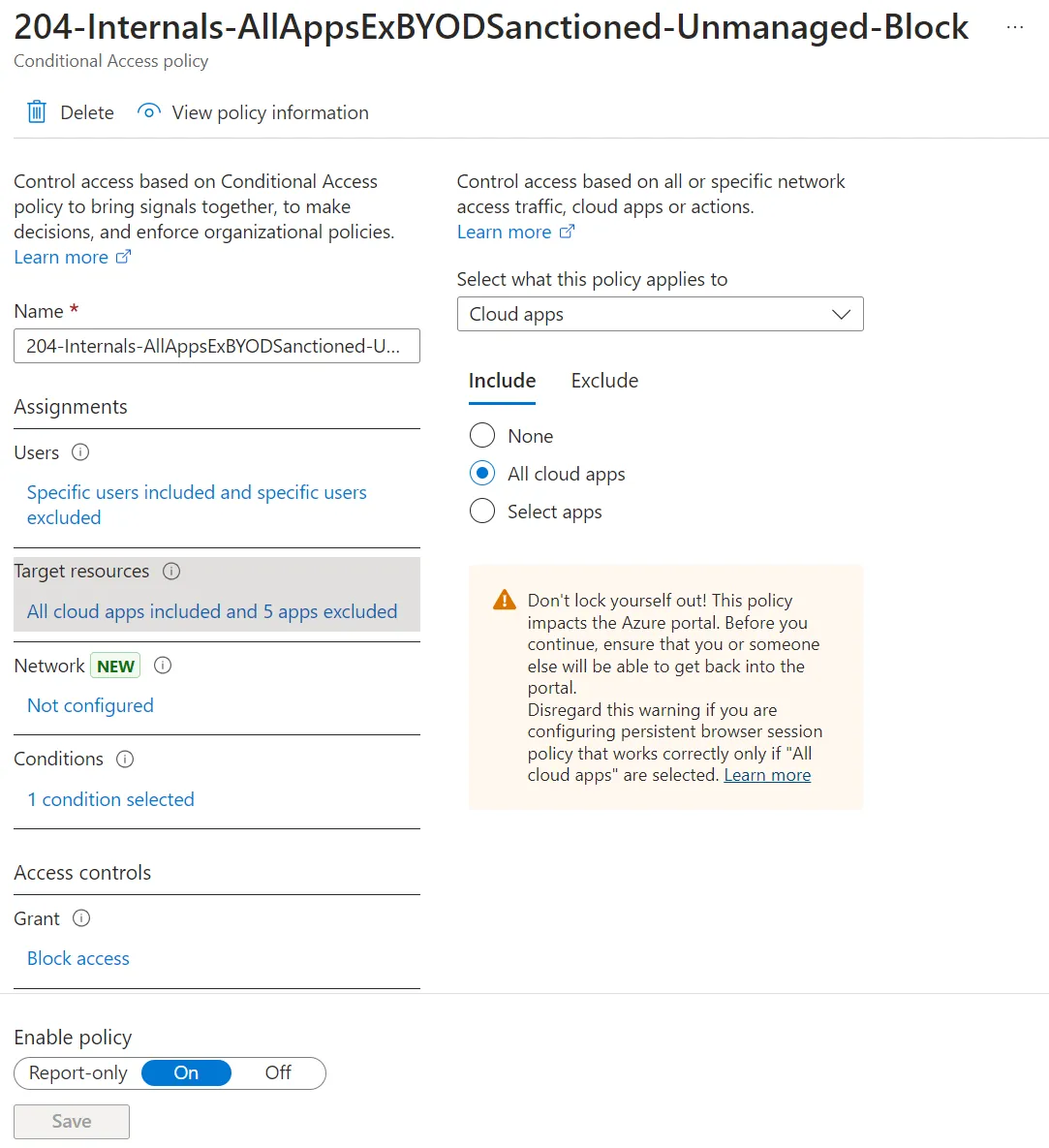
During testing I came across a strange scenario that I personally haven’t seen before but was certainly causing a bit of a headache. To provide some additional context, let’s look at the two policies that started the investigation.
The persona this applies to in my case is “Internals” - These are our internal or full-time employees. Because we wanted to use the zero-trust architecture this means that we want to include All Cloud Apps and then only exclude those that need excluding, this is known as implicit inclusion because if either tenant admins or Microsoft adds new apps they will automatically be in scope of the policies, which is a more secure approach.
The Scenario
The issue that this presents however, is that in some scenarios a cloud app may be included within that scope and in rare instances that app might not have an application that is targetable or selectable in the target resource tab of your policy. Thankfully, there is a workaround for this that uses custom security attributes. With this method you can “tag” an enterprise application and then use that tag in your Conditional Access policies, you can find out more about that here: Filter for applications in Conditional Access policy - Microsoft Entra ID | Microsoft Learn
The Issue with Enterprise Apps
But what do you do if the enterprise app you want to add a security attribute to is missing?

This is where my problem began.
We are deploying Microsoft Defender for Endpoint to mobile devices via MAM conditional launch.
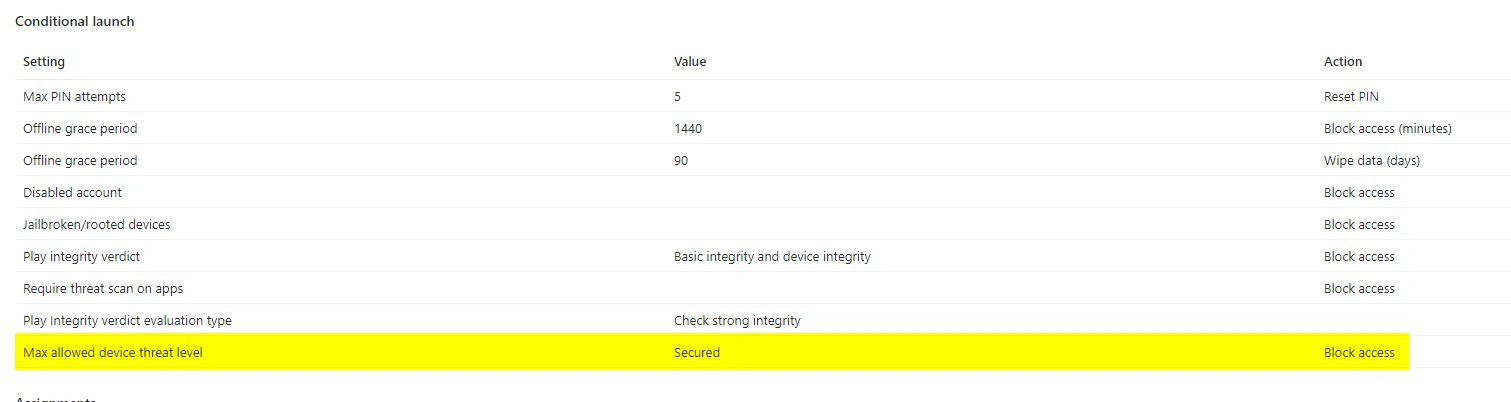
This means that for users to access their data using the Microsoft apps, they must first install MDE on the device and have a “secured” device, i.e., no open alerts.
This was working as expected and the users are prompted to install MDE; however, due to our conditional access policies, the user was stuck in a sign-in loop within MDE.
Initial Troubleshooting
In policy 204 we define which apps are allowed on unmanaged devices, because we are unable to exclude Microsoft Defender for Mobile the user is blocked from signing into it.
In policy 205 we specify that an app protection policy is required for all cloud apps on mobile platforms, but because Microsoft Defender for Mobile does not support app protection, it causes a Conditional Access failure.
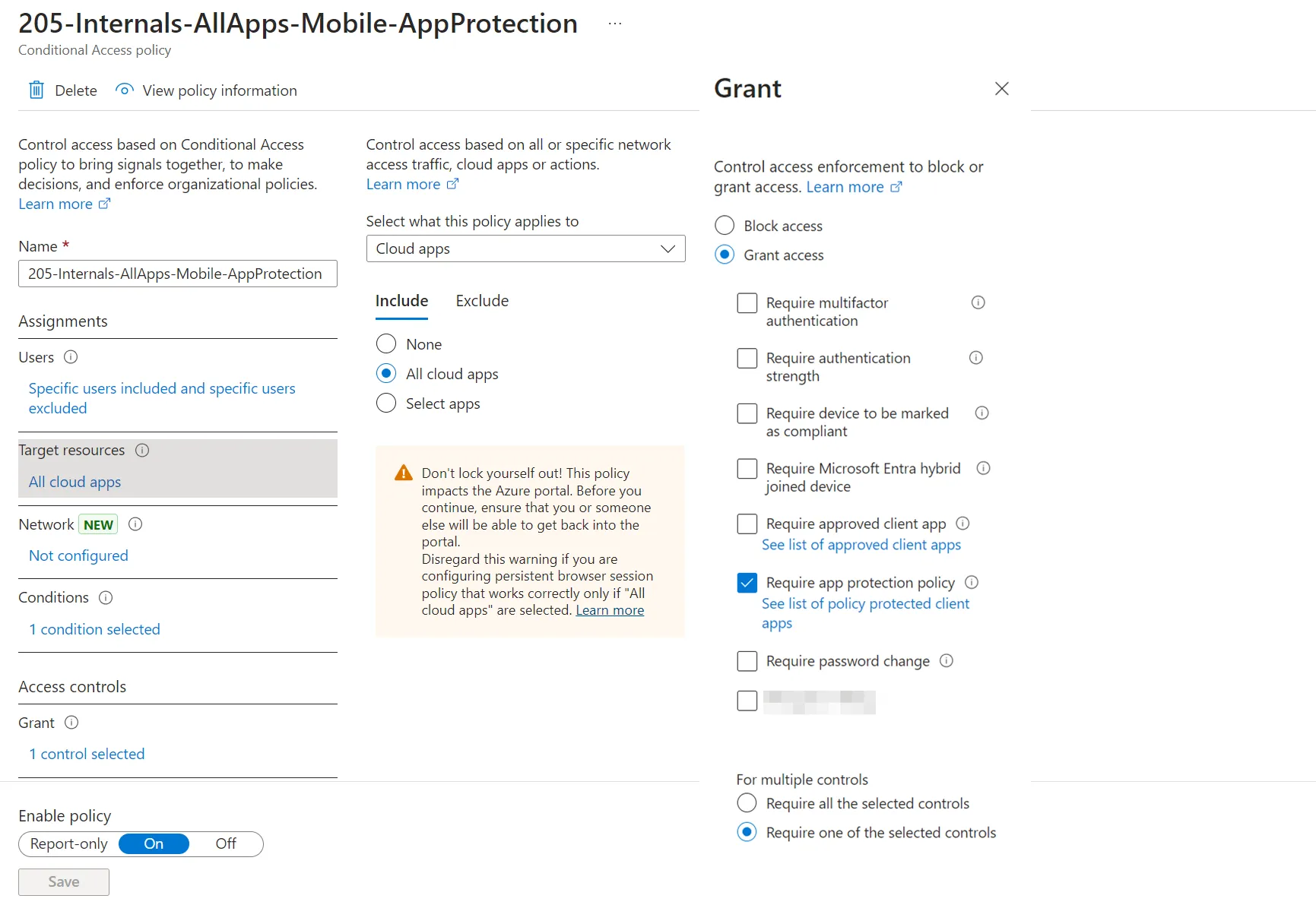
You can see which apps support app protection here: https://learn.microsoft.com/en-us/mem/intune/apps/apps-supported-intune-apps
This is what this looks like in the Entra sign-in logs.
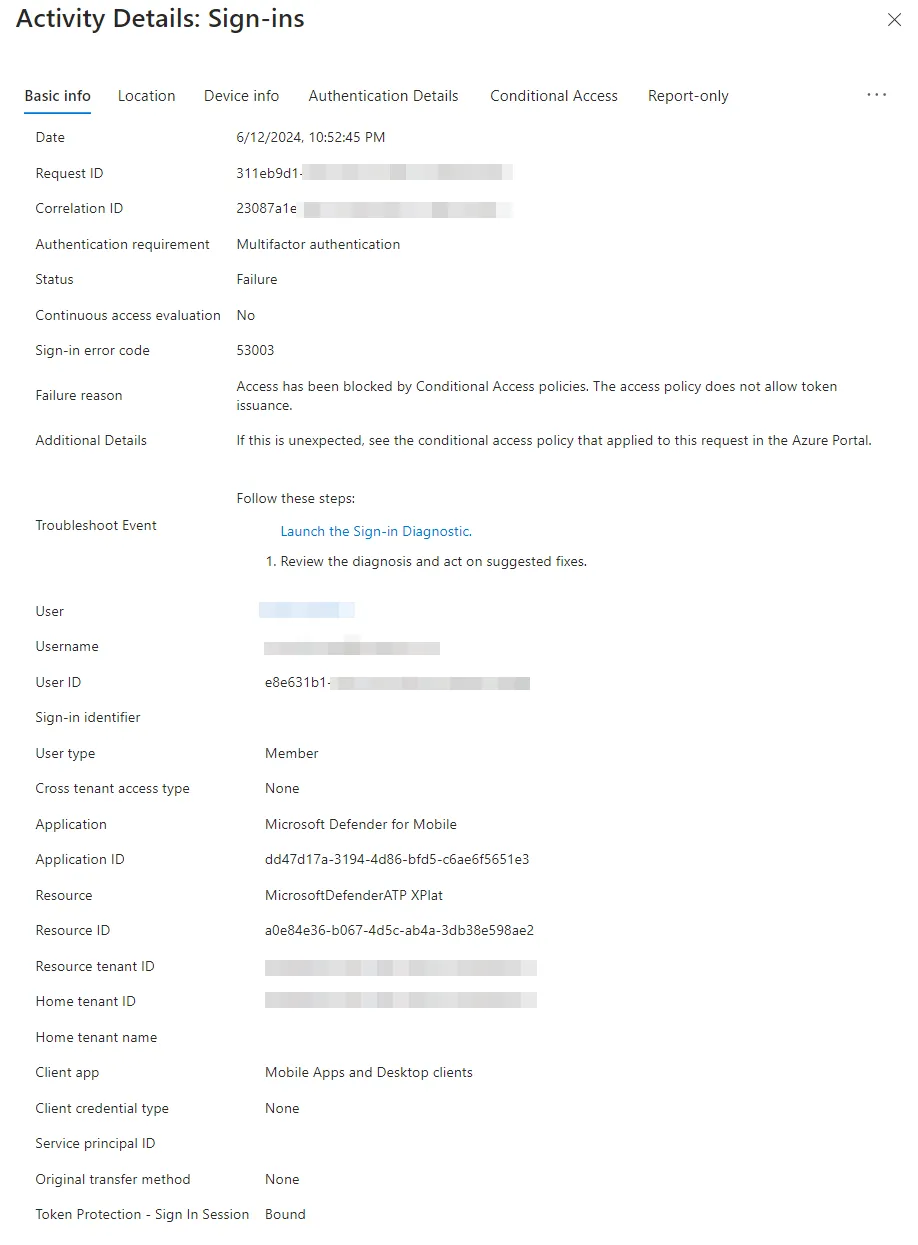
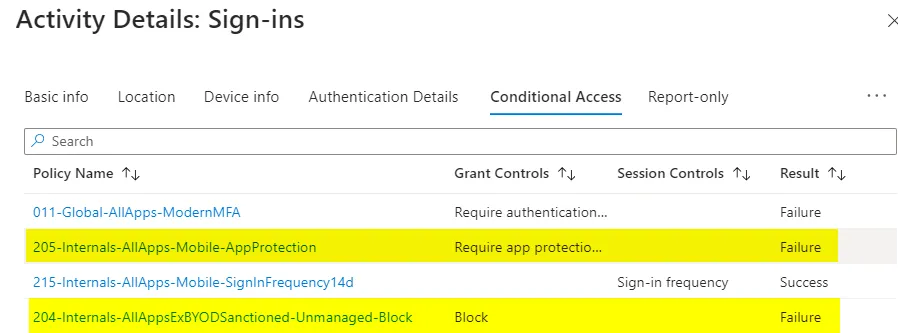
This is because we are targeting all cloud apps in our policies and in the case of MDE for mobiles, it is not an enlightened app meaning it does not support app protection policies, coupled with my other two policies the user was blocked from signing in.
I hadn’t come across this info during my initial troubleshooting, but it is documented here: Resources for Microsoft Defender for Endpoint for mobile devices - Microsoft Defender for Endpoint | Microsoft Learn
The Workaround
So how do we fix it? We need to create the Service Principals for those apps after which we can apply security attributes to them and exclude them from our policies.
I have created a README and provided the commands I used to add them into the tenant, you can find them here: Entra-ID/Scripts/Service Principal Creation for Missing First Party Apps at main · NateHutch365/Entra-ID
The Fix
Once I had added the Service Principals and applied the security attributes, all was working as expected.
Conclusion
In summary, the issue of missing enterprise apps in Entra ID can cause significant headaches during a zero-trust Conditional Access policy rollout. By creating Service Principals and applying custom security attributes, you can resolve these issues and ensure a smoother deployment process.