Conditional Access is fundamental in securing Microsoft environments, but sometimes we can take things a bit too far without realising it, especially when implementing Zero Trust principles across the board.
The persona-based framework is widely regarded as the gold standard. Group your users based on their roles, workloads, and access requirements, and you’ve got yourself a persona—a well-defined access group that enables you to apply precise controls with Conditional Access. It sounds elegant. And in many ways, it is.
But, as with many things in IT, the devil’s in the details. When deploying Conditional Access using this persona-driven Zero Trust model, you can run into complex edge cases that aren’t immediately obvious. Sometimes, even Microsoft’s own services get in the way.
Table of Contents
- The Scenario
- The Personas
- The Problem
- The Workaround
- Optional Design Trade-Off
- The Outcome
- The Lesson
- Apps required to allow registration
The Scenario
While working on a Conditional Access for Zero Trust (CAZT) implementation for a client we encountered a classic problem: how do you allow users to register authentication methods (like MFA or password reset options) from an unmanaged device, without opening the door too far?
Our Conditional Access structure was built with tight control over unmanaged devices, especially for external identities. The policy set looked something like this:
- Policy 1 – RegisterSecurityInfo-ModernMFA: Requires a Temporary Access Pass (TAP) as an MFA method to access the security info registration portal. This policy is always enforced for external users to ensure registration is protected by time-bound authentication. Although I always recommend it, for some personas you may not want to enforce this, in which case you can just remove the policy.
- Policy 2 – RegisterSecurityInfo-UnmanagedDevice-Block: Blocks registration from unmanaged devices unless the user is explicitly excluded.
- Policy 3 – AllAppsExBYODSanctioned-Unmanaged-Block: Blocks access to all cloud apps from unmanaged devices, except a defined list of BYOD-sanctioned apps (like Office 365 web), controlled via session and sign-in frequency policies.
- Policy 4 – A variant of Policy 3, created to allow registration flows. This policy includes additional exclusions for the apps required to register authentication methods (e.g. Microsoft App Access Panel, Azure Credential Configuration Endpoint Service, and more), while optionally excluding Office 365 depending on your security posture.
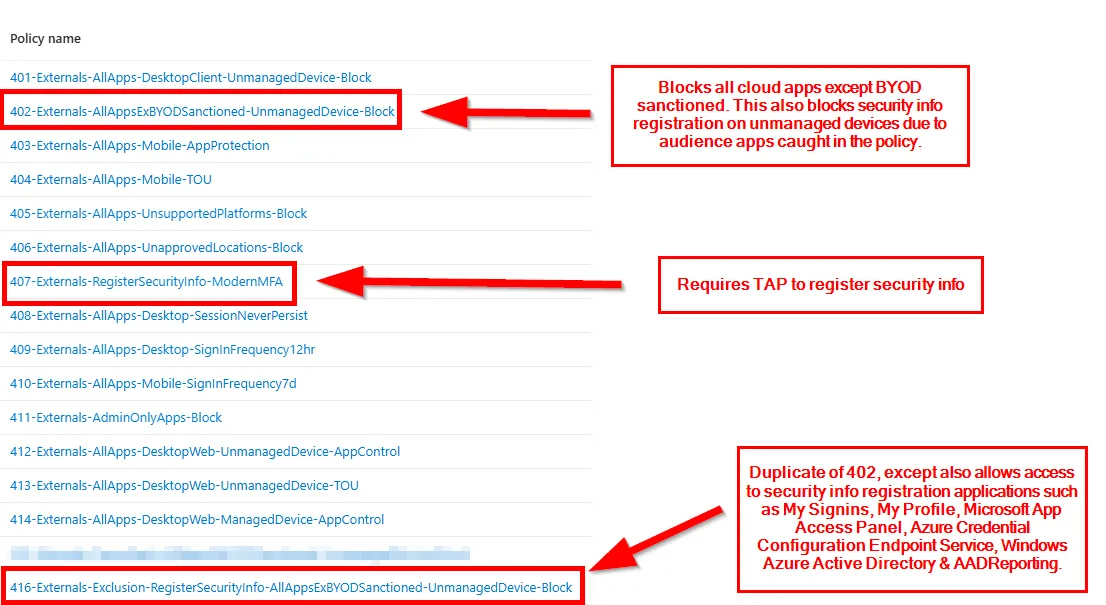
Under normal conditions, Policy 3 allows users to access specific apps like Office 365 from unmanaged devices with tight session controls. However, when a user needs to register authentication methods, Policy 2 blocks that capability, and Policy 3 doesn’t allow the necessary supporting services.
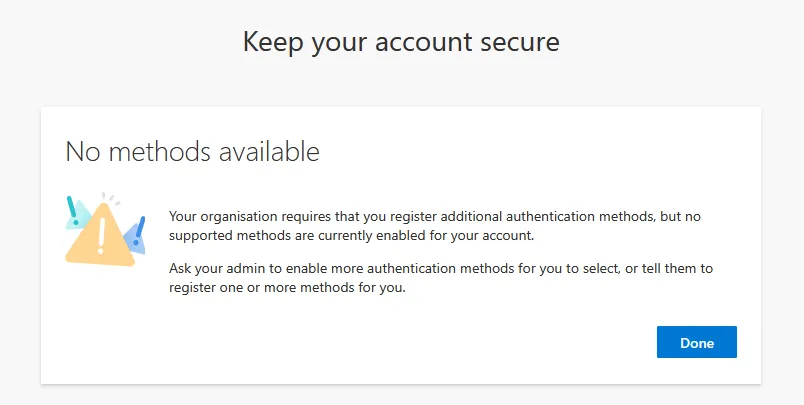
And you end up with this at what would normally be the SSPR interrupt wizard.
The Personas
We had two key personas that needed the ability to register security information from unmanaged devices. These were:
- Internals - Typically onboarded on-premises using a hybrid-joined or Intune-compliant device. However, there were legitimate ad-hoc cases where internal users needed to register from an unmanaged device during remote onboarding.
- Externals - Almost always onboarded remotely from unmanaged devices. While their experience differed from internal users, their Conditional Access posture was intentionally kept similar to provide a “belt and braces” approach, ensuring consistency and security across all identities, because where possible, they too would be forced to work from a managed device with certain limitations if not.
Each of these groups had a legitimate need to register authentication methods on unmanaged endpoints. However, because we’d gone all in on CAZT, access to all resources from unmanaged devices was blocked by default, except for a small set of sanctioned apps such as Office 365, which was backed with session controls.
And this is where things started to unravel.
The Problem
It’s no secret that Microsoft first-party apps can be tricky when using the “all cloud apps” scope in Conditional Access. Historically, many apps weren’t selectable in the UI, even after they showed up in the sign-in logs. This forced admins to use custom security attributes to apply inclusions or exclusions via filters, a solid workaround, but not exactly elegant. I’ve written more about that issue here: The curious case of the missing Enterprise App
In this case, no matter how many apps we excluded using filters or custom tags, the user would reach the Security Info page but wasn’t able to register any new methods, nor could they see any currently registered methods.
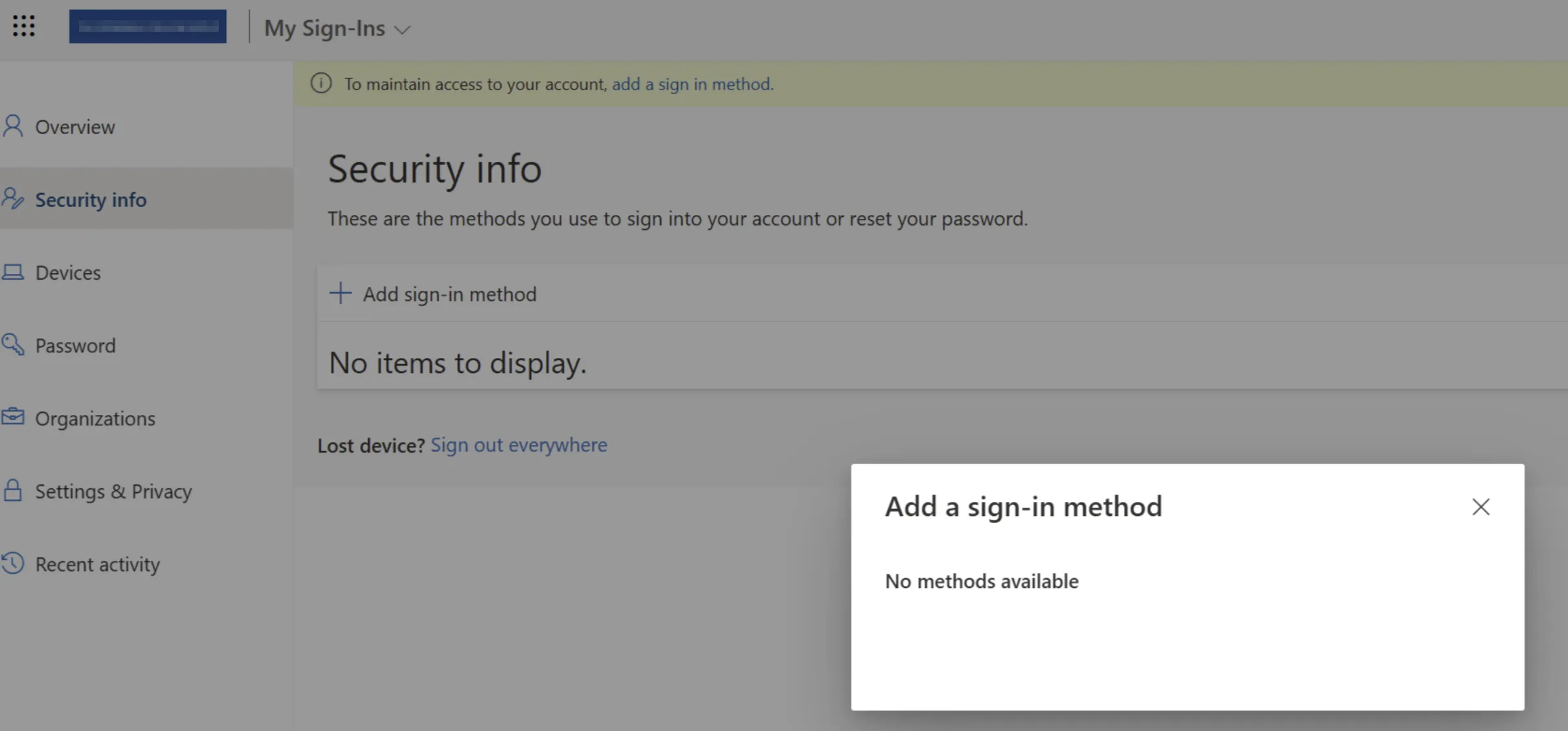
Trying to navigate elsewhere in My Account also threw up errors. The usual suspects were already excluded, including things like the Microsoft App Access Panel, My Signins, My Profile, etc. yet something was still blocking the flow.
Thankfully, Microsoft introduced Audience reporting into the Conditional Access sign-in logs. This new feature lets you see all the dependent services (or audiences) accessed during a sign-in event. For example, signing in to Microsoft Teams might also hit Exchange, SharePoint, and other backend services. These show up under the Resource > Audience section and help explain why certain policies are being triggered unexpectedly.
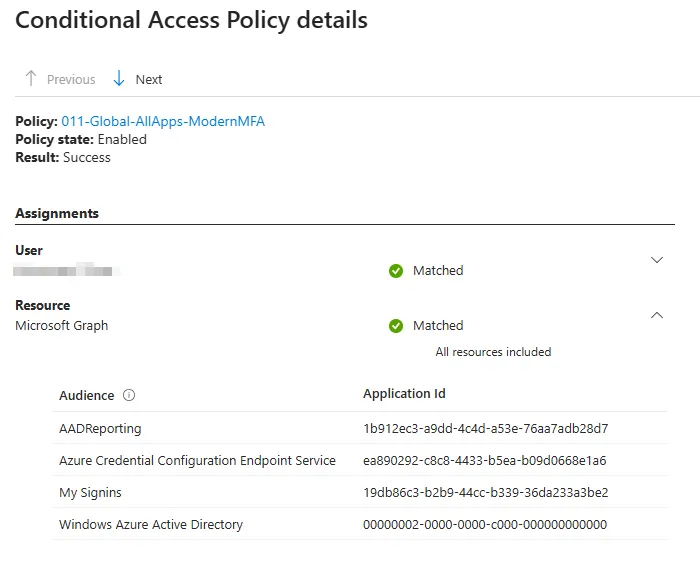
This gave us visibility into the apps involved in the MFA registration flow. Even better, many of the apps that previously required custom security attributes are now directly selectable in the Conditional Access UI, a major improvement.
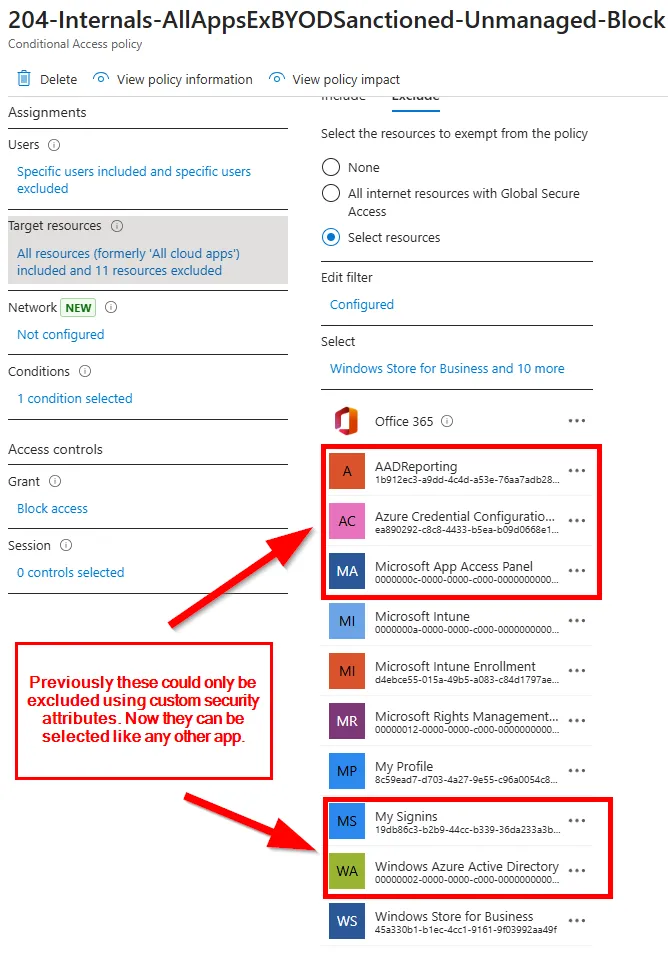
That said, while the visibility is better, and more apps are becoming selectable, the registration flow still fails if even one critical backend API is blocked. So, while we’ve moved from “completely blind” to “mostly visible,” there’s still a chance something under the hood will trip you up, especially when using “All cloud apps” and a Block grant.
Audience reporting is your friend here, and if you need to add in an app manually you can do so using the PowerShell commands here: PowerShell/Microsoft Entra ID/Service Principal Creation for Missing First Party Apps at main · NateHutch365/PowerShell · GitHub
The Workaround
Originally, the only viable workaround was to exclude users from the problem Conditional Access policies entirely, using an exclusion group and manual or automated clean-up afterwards. This worked but required a separate “catch-all” policy to ensure Office 365 and other apps weren’t freely accessible during the exclusion window.
With Microsoft’s recent improvements, we’ve shifted to a more structured approach.
The Flow:
- User remains included in Policy 1 - RegisterSecurityInfo-ModernMFA - because TAP is a requirement for external users and should not be bypassed.
- User is excluded from Policy 2 - RegisterSecurityInfo-UnmanagedDevice-Block, to allow registration from an unmanaged device.
- User is also excluded from Policy 3 - the unmanaged access block policy.
- User is included in Policy 4 - the alternative policy that allows only the apps required for MFA registration (Microsoft App Access Panel, Azure Credential Configuration Endpoint Service, etc.), while optionally continuing to block apps like Office 365 (by not excluding it in the target resource tab).
This approach allows self-service registration from unmanaged devices, without removing all enforcement. With Policy 1 still active, users must use TAP to register, satisfying MFA requirements and limiting risk.
Access Reviews manage the exclusion group, ensuring users are re-applied to Policies 2 and 3 after 7 days, or sooner with automation.
Optional Design Trade-Off: A More Lenient Variant
In some environments, excluding users from Policy 3 (and therefore access to Office 365) for up to 7 days might be operationally disruptive. Maybe the user needs to access Teams or Outlook in the browser immediately after setting up MFA, and waiting for the Access Review to expire, manual intervention or even using automation isn’t practical.
In that case, there’s an alternative:
- Modify Policy 4 to also exclude Office 365, alongside the apps needed for MFA registration.
- This provides the same access users normally have under Policy 3: O365 is still accessible via web on unmanaged devices with session controls.
- It allows a seamless registration experience without blocking BYOD sanctioned apps.
Note: This doesn’t introduce new risk, since Office 365 access from unmanaged devices is already permitted via Policy 3. You’re simply maintaining this access during the temporary policy exclusion period.
It’s a trade-off that suits organisations prioritising end-user experience, or where automation of access review enforcement isn’t yet in place.
The Outcome
Once we implemented this model, users were able to register their MFA methods successfully from unmanaged devices, with or without access to Office 365, depending on which variation of the policy we used.
With Access Reviews or automation clearing the group on a regular cadence, the exclusion window was kept short, and the core CAZT posture remained intact. Most importantly, the TAP policy remained enforced throughout.
The Lesson
Implementing Conditional Access for Zero Trust is never as simple as flipping on “All cloud apps” with a few grant controls. Even with Microsoft’s improvements, like audience reporting and expanded app visibility, you still need to design for edge cases like registration scenarios, especially for external users.
That means:
- Understanding app dependencies.
- Layering your CA policies with intention.
- Using exclusion groups sparingly and managing them well.
- Enforcing strong authentication requirements (like TAP) consistently.
Microsoft has made great strides in visibility and manageability, and features like Audience reporting and more flexible app targeting are major steps forward. But tight CAZT still requires tight thinking and sometimes, a few well-placed exceptions.
Apps required to allow registration
The following apps are those needed to allow registration of authentication methods.
| App Name | App ID | Notes |
|---|---|---|
| AADReporting | 1b912ec3-a9dd-4c4d-a53e-76aa7adb28d7 | Required to view registered authentication methods. |
| Azure Credential Configuration Endpoint Service | ea890292-c8c8-4433-b5ea-b09d0668e1a6 | Required for registration flow. |
| Microsoft App Access Panel | 0000000c-0000-0000-c000-000000000000 | Required to progress to the MFA registration page if requiring MFA to register security info. |
| My Profile | 8c59ead7-d703-4a27-9e55-c96a0054c8d2 | Required to access and update security info. |
| My Signins | 19db86c3-b2b9-44cc-b339-36da233a3be2 | Required to access and update security info. |
| My Apps | 2793995e-0a7d-40d7-bd35-6968ba142197 | Required to access and update security info. |
| Windows Azure Active Directory | 00000002-0000-0000-c000-000000000000 | Core Entra/AAD dependency. Required to access and update security info. |
Note: If your Conditional Access policy enforcing app protection policies is scoped to “All cloud apps” users will be unable to register Passkeys directly in the Microsoft Authenticator app. You can exclude the first three apps from the above table which will then allow Passkey registration, improving the end user onboarding and Passkey registration process.