Introduction
In the realm of IT and cybersecurity, tracking both recent and historical activity across your IT environment is crucial. Imagine this: in the event of a breach, having ready access to logs can be the key to fully understanding and neutralizing the attack. Without them, you might find yourself in a daunting search for the proverbial needle in a haystack, trying to oust the intruder from your network.
But it’s not just about security. You might face external requirements to retain your logs for extended periods. This could be due to demands from vendors, partners, government contracts, or compliance with industry regulations like ISO, HIPAA, or FISMA.
Why is this important for you? Whether for compliance, security, or internal policies, ensuring that you have the right logs and store them effectively is crucial – and yes, it’s also about convincing your C-level executives that it’s a worthwhile investment. This blog post dives into how you can store Microsoft Entra logs in a cost-effective manner, while still meeting those critical requirements.
There are a few different ways to keep Entra logs, and in this article, I will cover the three most common methods: using Azure Monitor logs, sending them to a storage account and streaming to event hub. These are each very different methods, each with its own pros and cons. So, without further ado, let’s dive in.
Table of Contents
- What is Microsoft Entra ID?
- Why the need to keep Entra logs?
- Integrate Entra logs with Azure Log Analytics
- Archive Entra logs with an Azure storage account
- Stream to an Azure Event Hub
- Conclusion
What is Microsoft Entra ID?
Microsoft Entra ID is a cloud-based identity and access management service that organizations can use to allow employees or external users access to internal or external resources such as Microsoft 365, Azure and many more SaaS applications. You can learn about the differences between Active Directory and Entra ID here. Well known features of Entra ID are application management, authentication, conditional access, device management, hybrid identity, identity governance, identity protection and more.
Why the need to keep Entra logs and why do we need a solution for it?
Earlier, I highlighted the importance of retaining Entra logs for extended periods. This necessity often arises from compliance with sector-specific regulations, third-party requirements, partner organization mandates, security needs, or even internal policies. Regardless of the reason, the ability to look back on these logs can be invaluable.
However, dealing with Microsoft services and products, like Entra logs, often presents its own set of complexities. Log retention isn’t as straightforward as having a set number of days across all scenarios. It varies significantly depending on the specific licenses you hold within your tenant. Using the table below you can see just how long different types of activity logs and reports are kept for.
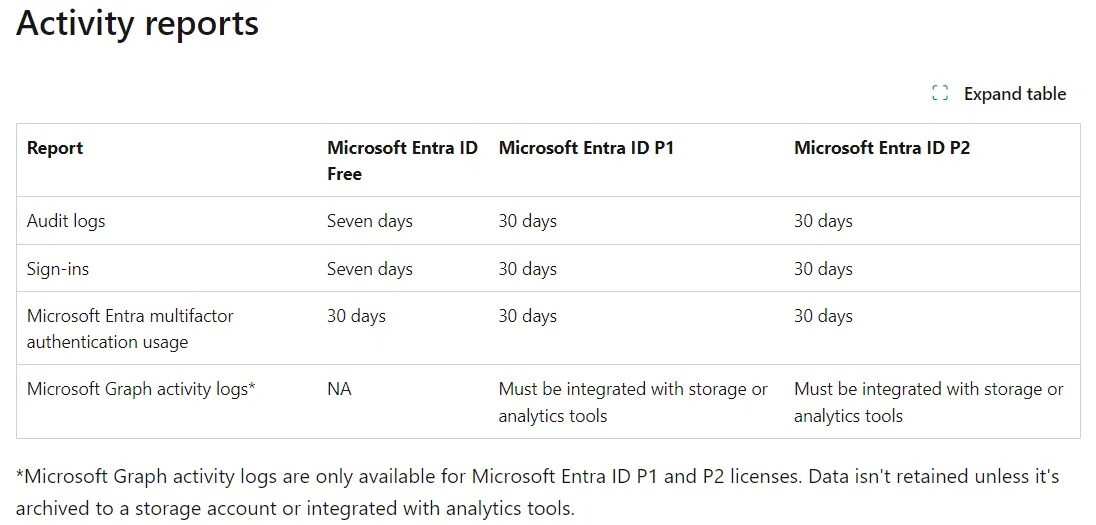
Interestingly, even with a premium license like Entra ID P2, log retention is capped at 30 days. In today’s fast-paced and data-intensive IT environments, this duration is often insufficient. This realization brings us to a crucial point: exploring alternative solutions for extended log retention. It’s important to note that upgrading your license from the free tier, which typically retains most logs for 7 days, doesn’t retroactively extend access to logs beyond this period. This means that expecting a license upgrade to provide historical access beyond the default retention is a misconception.
With these considerations in mind, let’s delve deeper into other viable options for extended log storage, ensuring that your organization’s needs for long-term data retention are adequately met.
Integrate Entra logs with Azure Monitor Logs
Let’s now focus on the first method of log storage: ingesting your Entra logs into a Log Analytics workspace (LAW). A LAW is a specialized environment designed for log data from Azure Monitor and other Azure services, including Microsoft Sentinel and Defender for Cloud. Each workspace functions as a unique data repository and configuration, capable of consolidating data from various sources.
Integration with Azure Monitor allows you to perform tasks such as:
- Comparing Entra sign-in logs with security logs from Defender for Cloud.
- Troubleshooting performance issues on your application’s sign-in page by correlating data from Azure Application Insights.
- Analyzing Identity Protection logs for risky user activities and risk detection.
- Identifying outdated authentication methods like those using the Active Directory Authentication Library (ADAL).
Ingesting your Entra sign-in and audit activity into a LAW means the data can be processed and visualized using KQL queries. This leads to the creation of workbooks - visual tools that simplify the interpretation of log data. Let’s consider a few workbook examples:
- Provisioning Analysis: This workbook provides insights into provisioning activities, including user additions, failures, and updates.
- Sign-in Events: It focuses on monitoring sign-in activities, offering detailed reports on user, application, and device sign-ins over time.
- Conditional Access Insights: Particularly useful in security, this workbook helps understand the impact of conditional access policies in your organization.
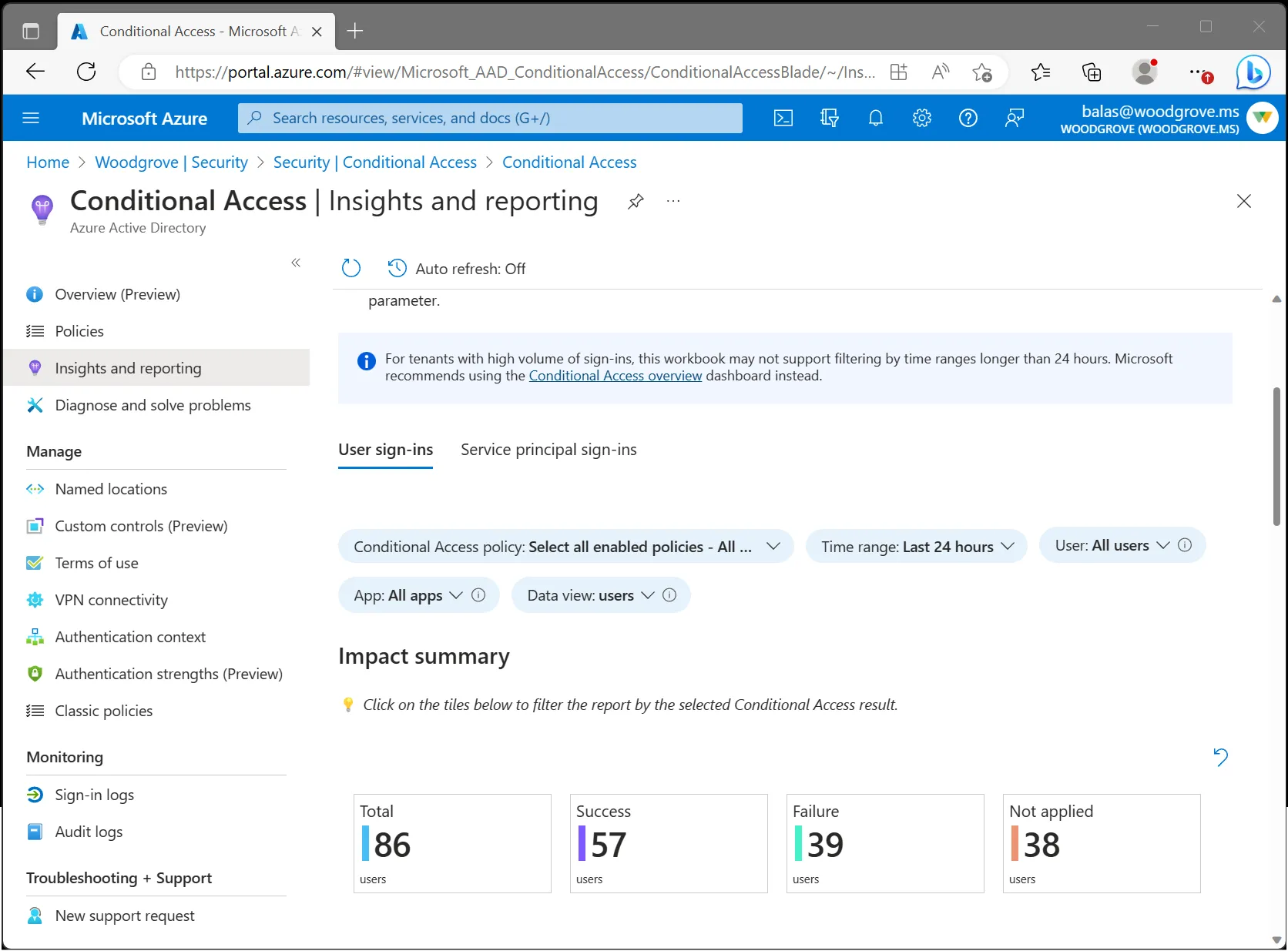
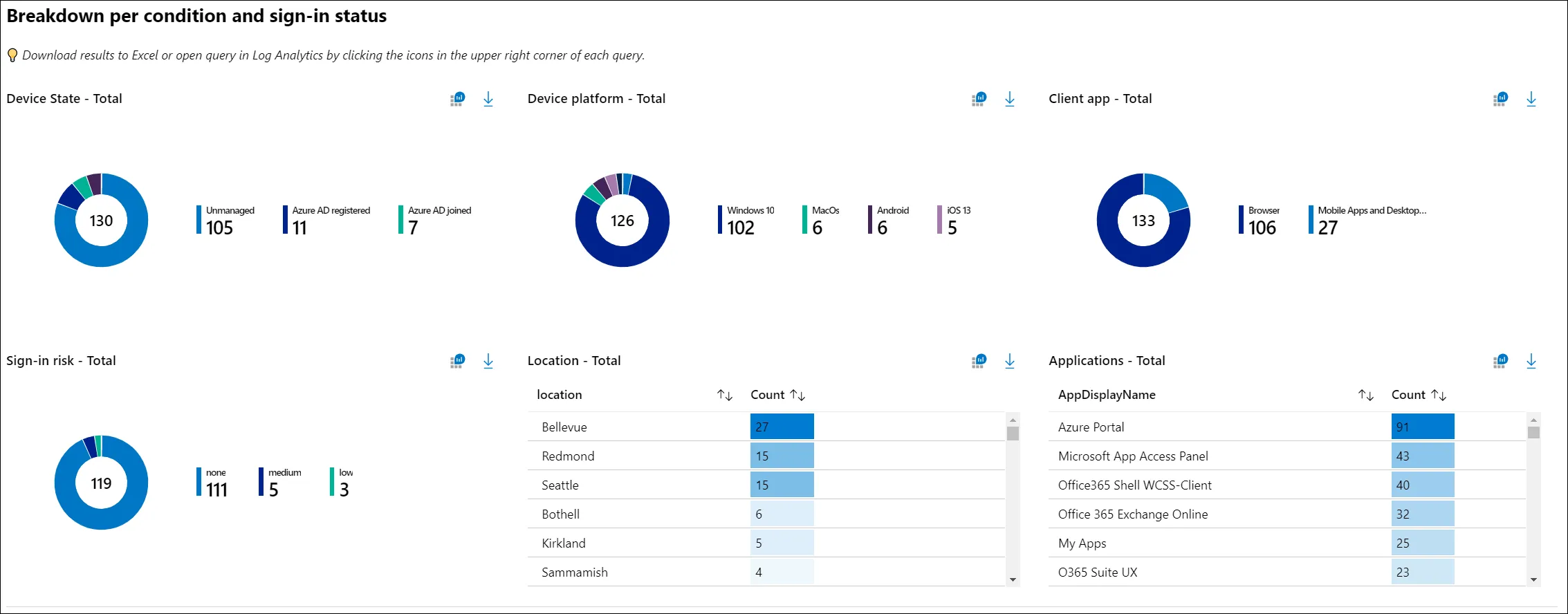
These examples underscore the versatility of LAW for various analytical needs. You can find more workbooks here or even create custom ones to suit your specific requirements.
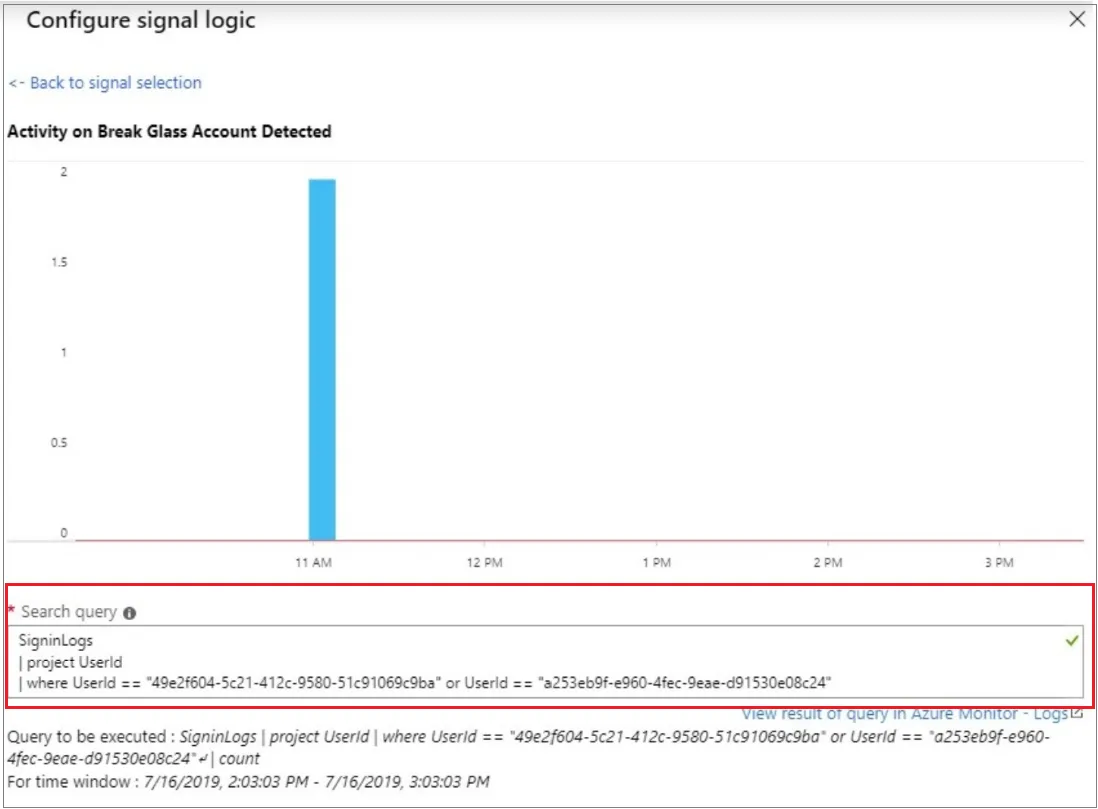
Another key advantage of using LAW is the ability to set up alerts based on log data. For instance, monitoring ‘break glass’ accounts, which are emergency-only accounts, can be vital. These accounts are only to be used for emergency situations so typically should not be used, at least not on a regular basis. With Log Analytics alert rules, we can create a query, and have it trigger an alert or notification if the alert threshold is more than a value of 0.
Source: Manage emergency access admin accounts - Microsoft Entra ID | Microsoft Learn
However, it’s important to consider the limitations of data retention in LAW. The maximum period is capped at two years, defaulting to 30 days. If you integrate Microsoft Sentinel, this extends to 90 days at no extra cost. While LAW is excellent for short-term storage and immediate query needs, such as during an incident response, it’s also the more costly option compared to other methods.
Pros:
- Enhanced Analysis and Visualization: Integration with Azure Monitor logs enables advanced analytics using KQL queries, and the ability to create visual workbooks for better data comprehension.
- Real-Time Monitoring and Alerts: This method allows for setting up alerts based on log data, crucial for immediate detection of security incidents or irregularities.
- Versatile Data Integration: Integration with Azure services like Microsoft Sentinel and Defender for Cloud allows for comprehensive monitoring across multiple platforms.
- Useful for Short-Term Storage: Ideal for storing logs that you might need to access frequently for incident response or regular analysis.
Cons:
- Limited Retention Period: The maximum data retention period is 2 years, which might be insufficient for long-term archival needs.
- Higher Cost: This method is more expensive, especially when used for storing large volumes of data or for extended periods.
- Complexity: Setting up and managing the integration might require more technical expertise and resources.
Source: Integrate Microsoft Entra logs with Azure Monitor logs - Microsoft Entra ID | Microsoft Learn
Configuration
Sending Entra logs to a LAW is extremely easy and can be done following the below steps.
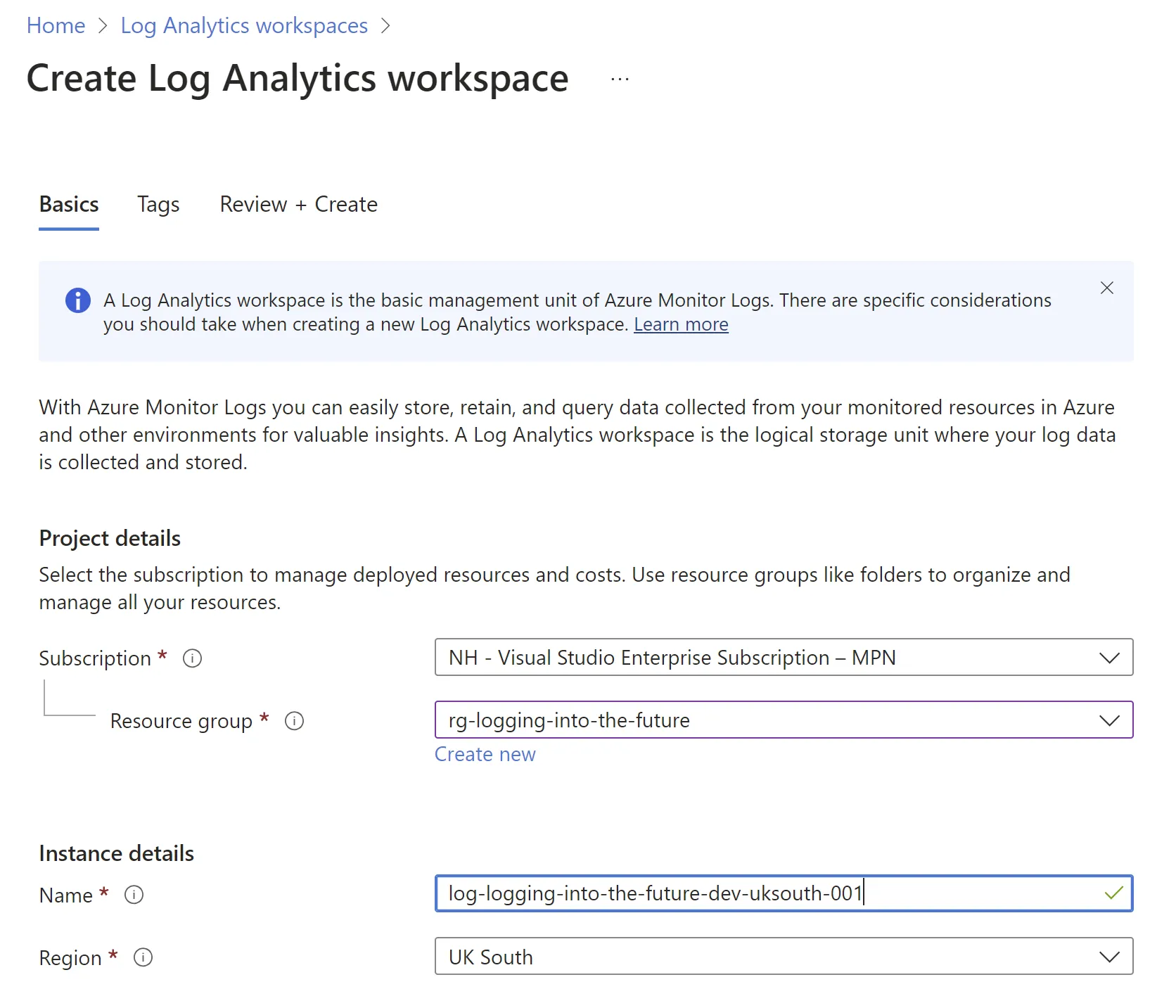
Create a Log Analytics Workspace
Link Entra to Log Analytics Workspace
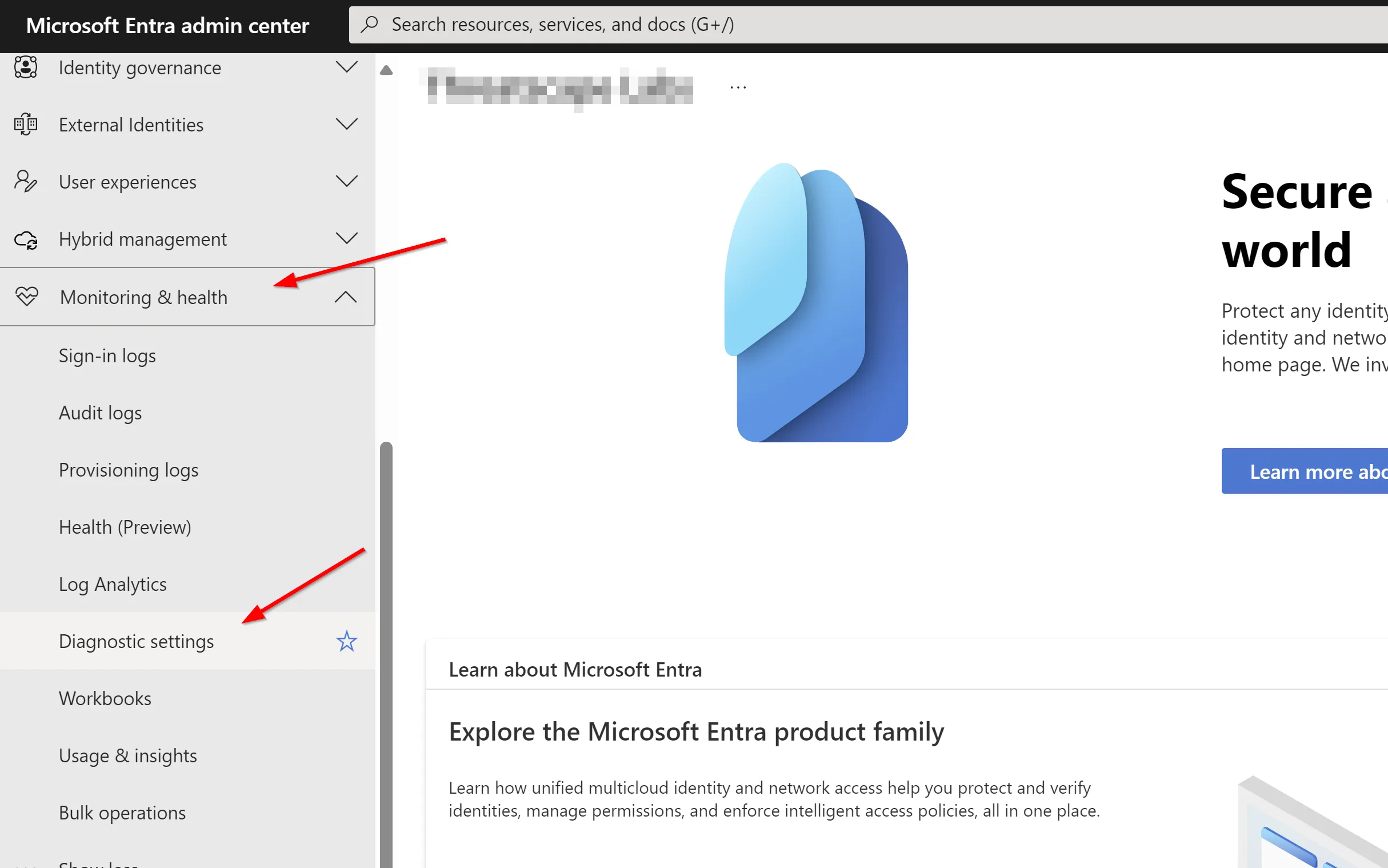
From Entra Portal expand Identity >> Monitoring and health >> Diagnostic settings
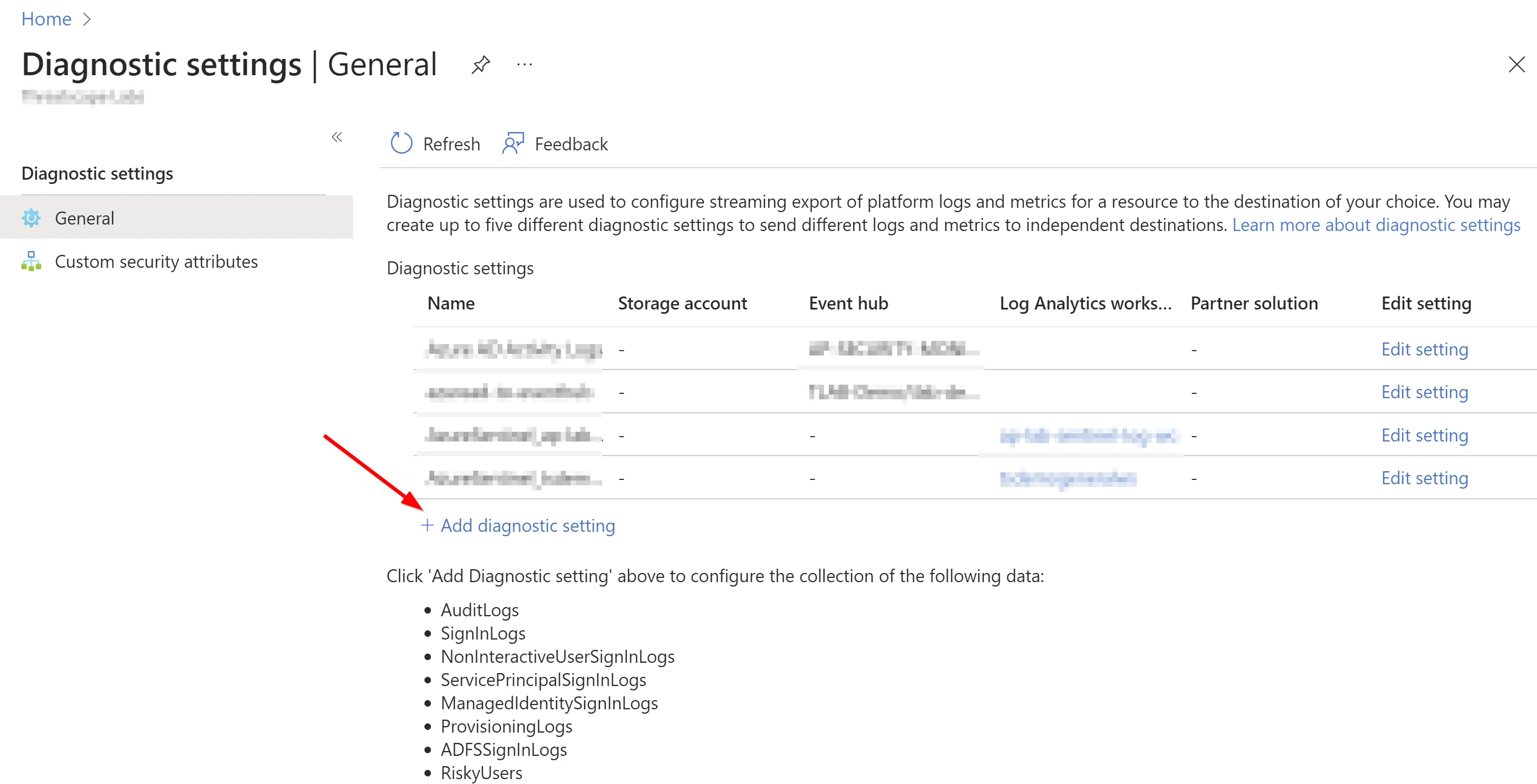
Select + Add diagnostic setting
Provide a useful name, choose the log categories you want to keep and then select Send to Log Analytics workspace, select your workspace and hit save.
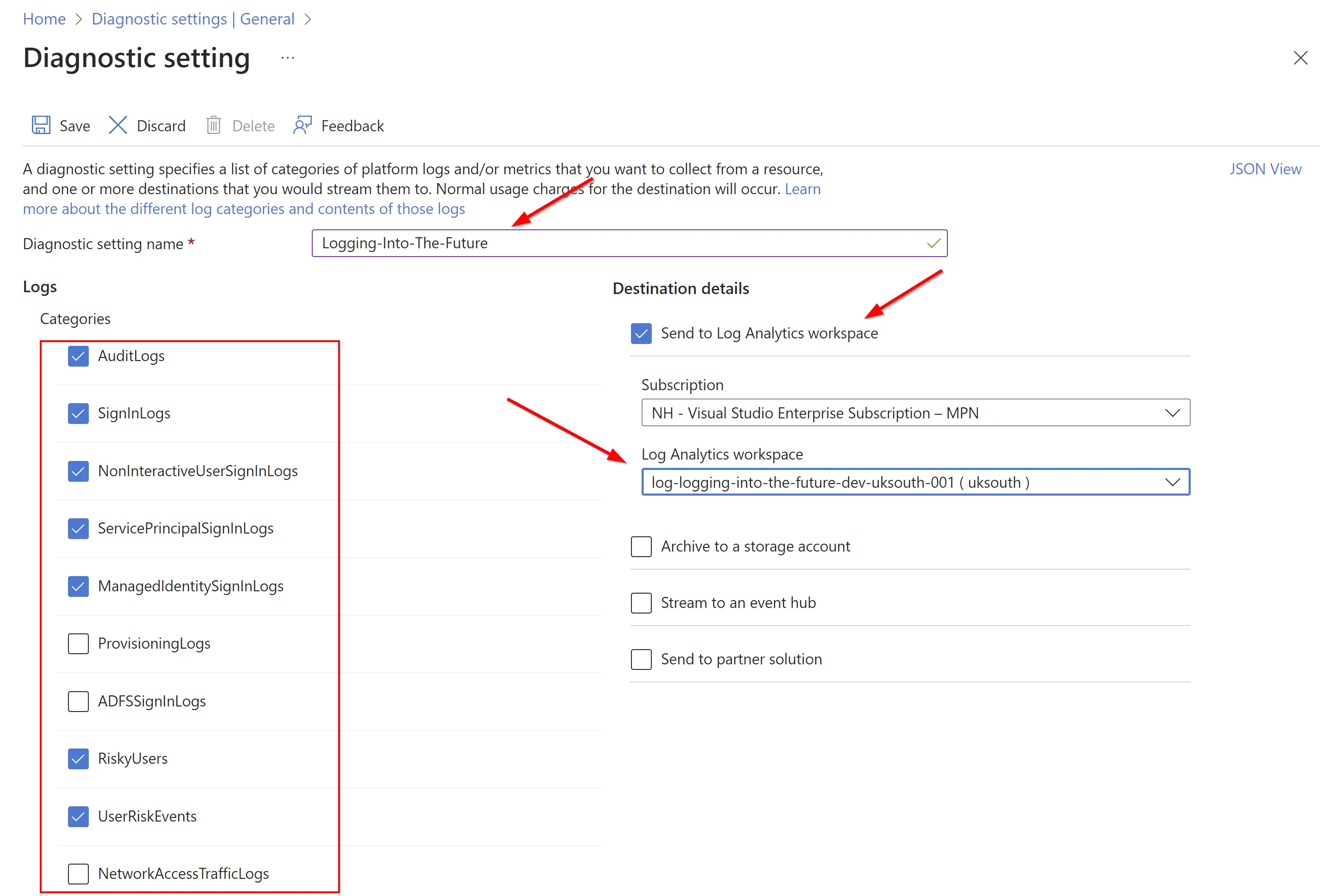
That’s all there is to it, from here on out your logs will be sent to the LAW.
In the next section, we’ll explore the second method of storing Entra logs, which offers a different set of benefits and challenges.
Archive Entra logs with an Azure storage account
Shifting gears, let’s discuss the second method for storing Entra logs: using an Azure storage account. This approach is primarily geared towards longer-term retention, offering a different set of features and considerations compared to the previously discussed Azure Monitor logs.
Archiving your logs to a storage account is an effective solution when your retention needs exceed the default period. However, this method comes with a significant caveat: unlike logs ingested into a LAW, data in a storage account isn’t readily queryable. Instead, logs are organized chronologically—by year, month, day, hour, and minute—and stored as JSON files. While this structure is excellent for long-term storage, it’s not particularly conducive to performing direct queries.
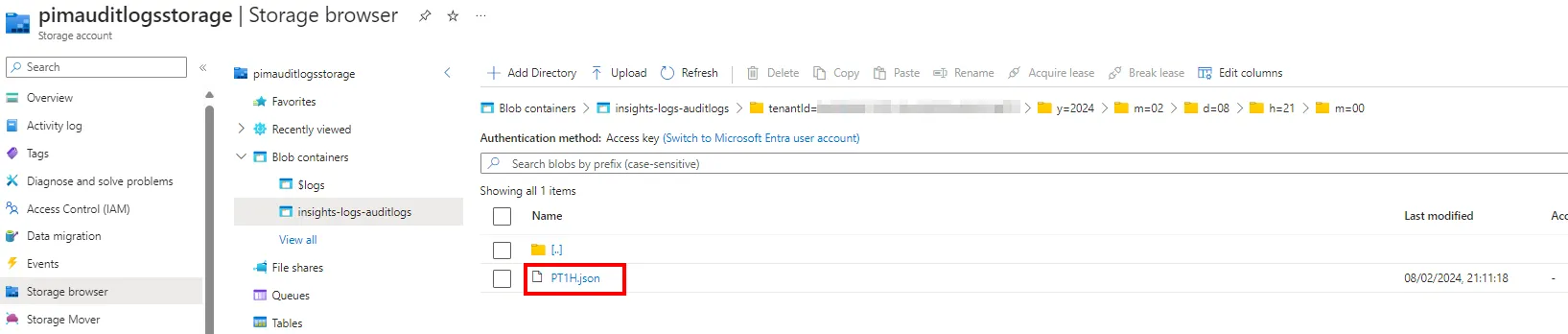
If a situation arises where you need to analyze this archived data, the process involves using the Log Ingestion API in Azure Monitor. This method, which requires uploading logs back into a LAW via a REST API, can be somewhat complex and cumbersome. For a step-by-step guide on this process, Microsoft provides a helpful tutorial: Tutorial: Send data to Azure Monitor Logs with Logs ingestion API (Azure portal) - Azure Monitor | Microsoft Learn
Despite these complexities, the archival process itself is relatively straightforward. Setting up and configuring the retention policies for a storage account is a simple task. Moreover, there’s no limitation on how long you can retain data in a storage account. However, be mindful that extended storage usage will inevitably increase costs over time. That said, this method is generally more cost-effective than using Azure Monitor logs, particularly for large volumes of data stored over long durations.
Pros:
- Long-Term Storage: Suitable for long-term retention of logs, with no cap on the retention duration.
- Cost-Effective: Generally cheaper than Azure Monitor logs, especially for large volumes of data over long periods.
- Simple Setup and Configuration: The process to set up archiving and configuring retention policies is straightforward.
Cons:
- Limited Accessibility and Querying: Archived logs are stored as JSON files, making them less accessible and harder to query directly.
- Data Restoration Complexity: Restoring data for analysis requires using the Log Ingestion API, which is a convoluted process.
- Not Suitable for Immediate Analysis: Since the data is not readily queryable, it’s not ideal for situations where quick access to log data is necessary.
Source: How to archive activity logs to a storage account - Microsoft Entra ID | Microsoft Learn
Configuration
Create a storage account
Create a new storage account with your required settings
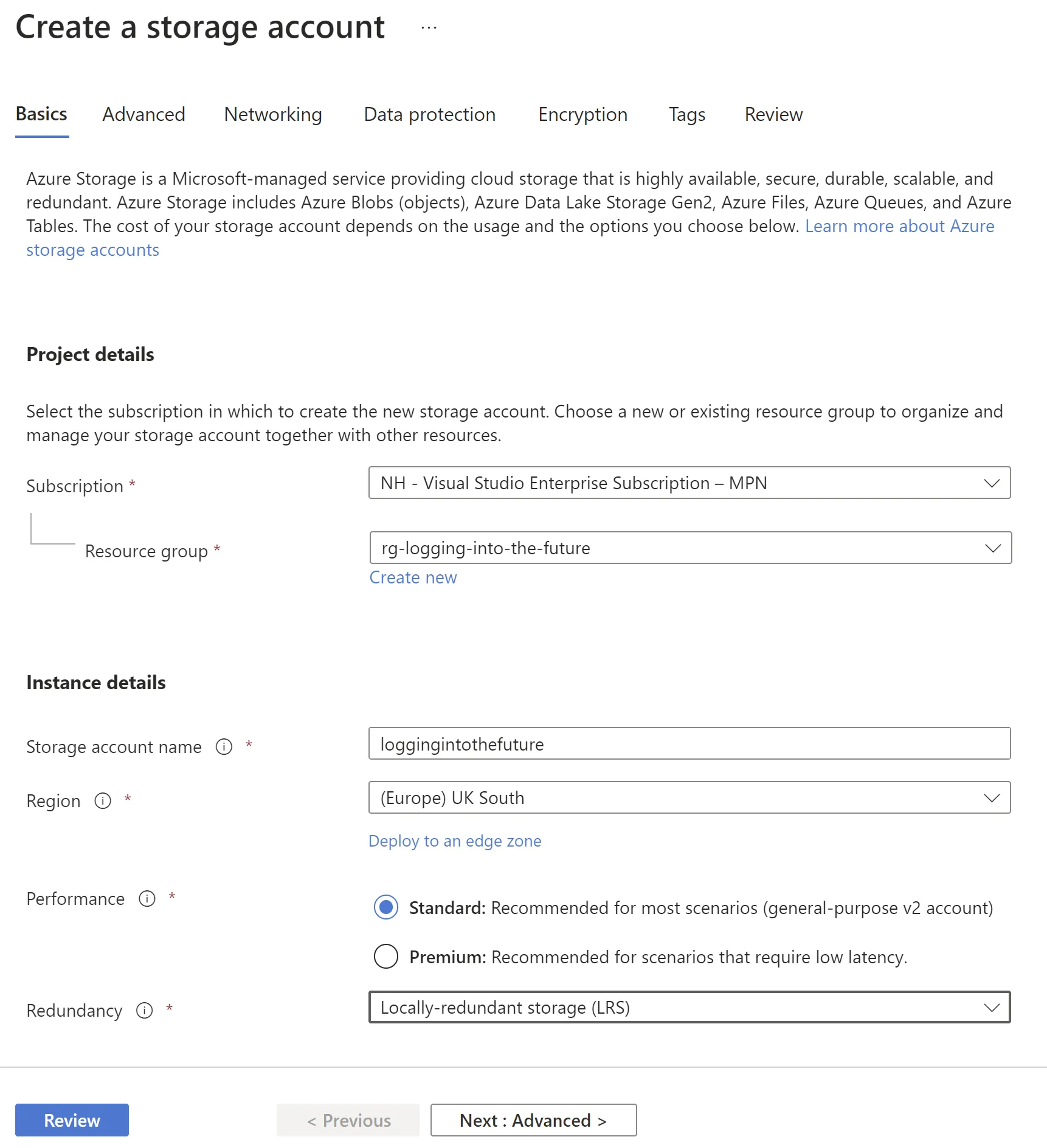
Link Entra to storage account
From Entra Portal expand Identity >> Monitoring and health >> Diagnostic settings
Select + Add diagnostic setting
Provide a useful name, choose the log categories you want to keep and then select Archive to a storage account and hit save.
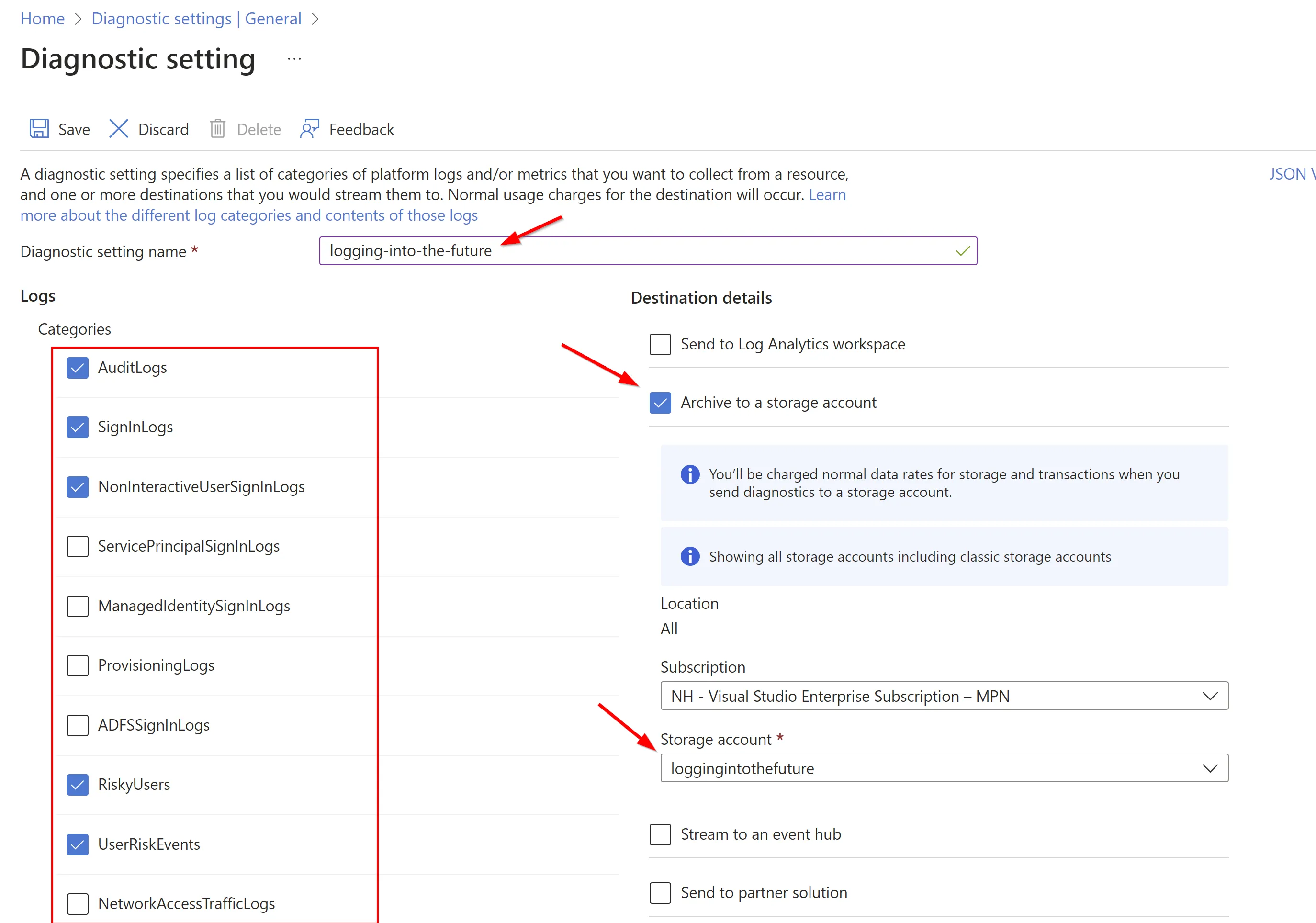
Now you will see the logs sent to the storage account
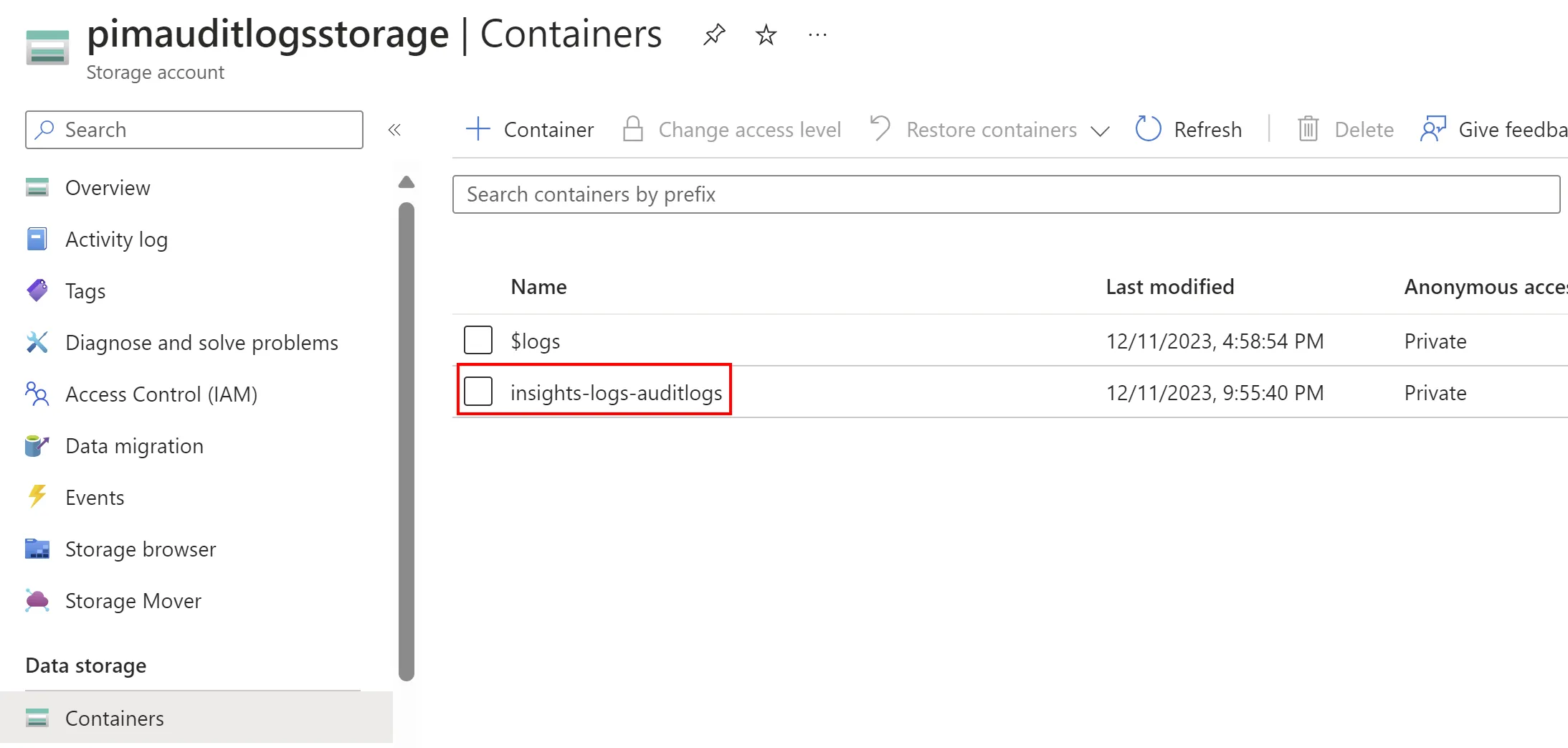
Configure storage account retention
If you want to adjust how long you keep these logs in the storage account for, you can do this by configuring Lifecycle management.
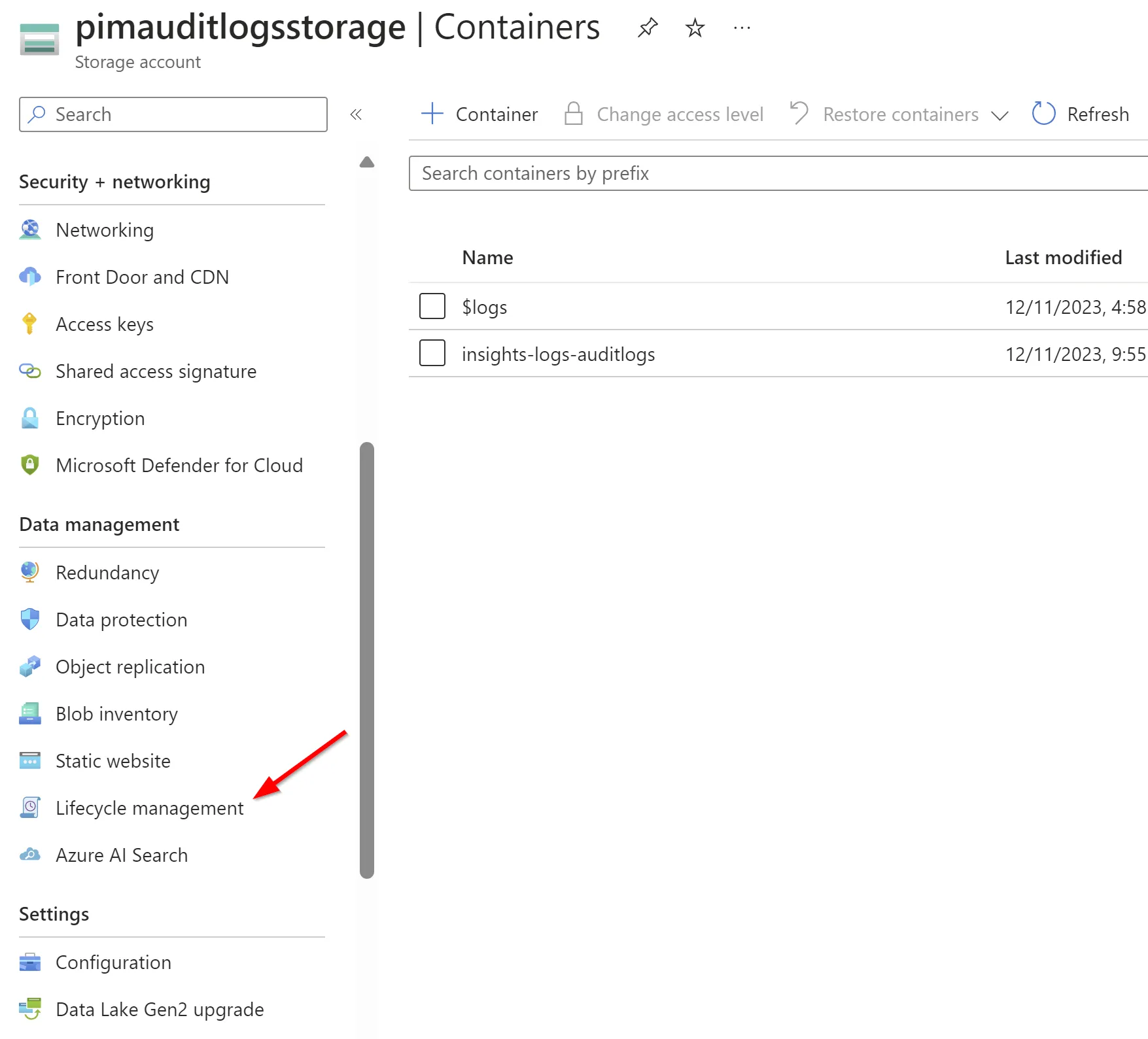
Select Add a rule
Create the rule based on your requirements, remember to update Bob type to Append
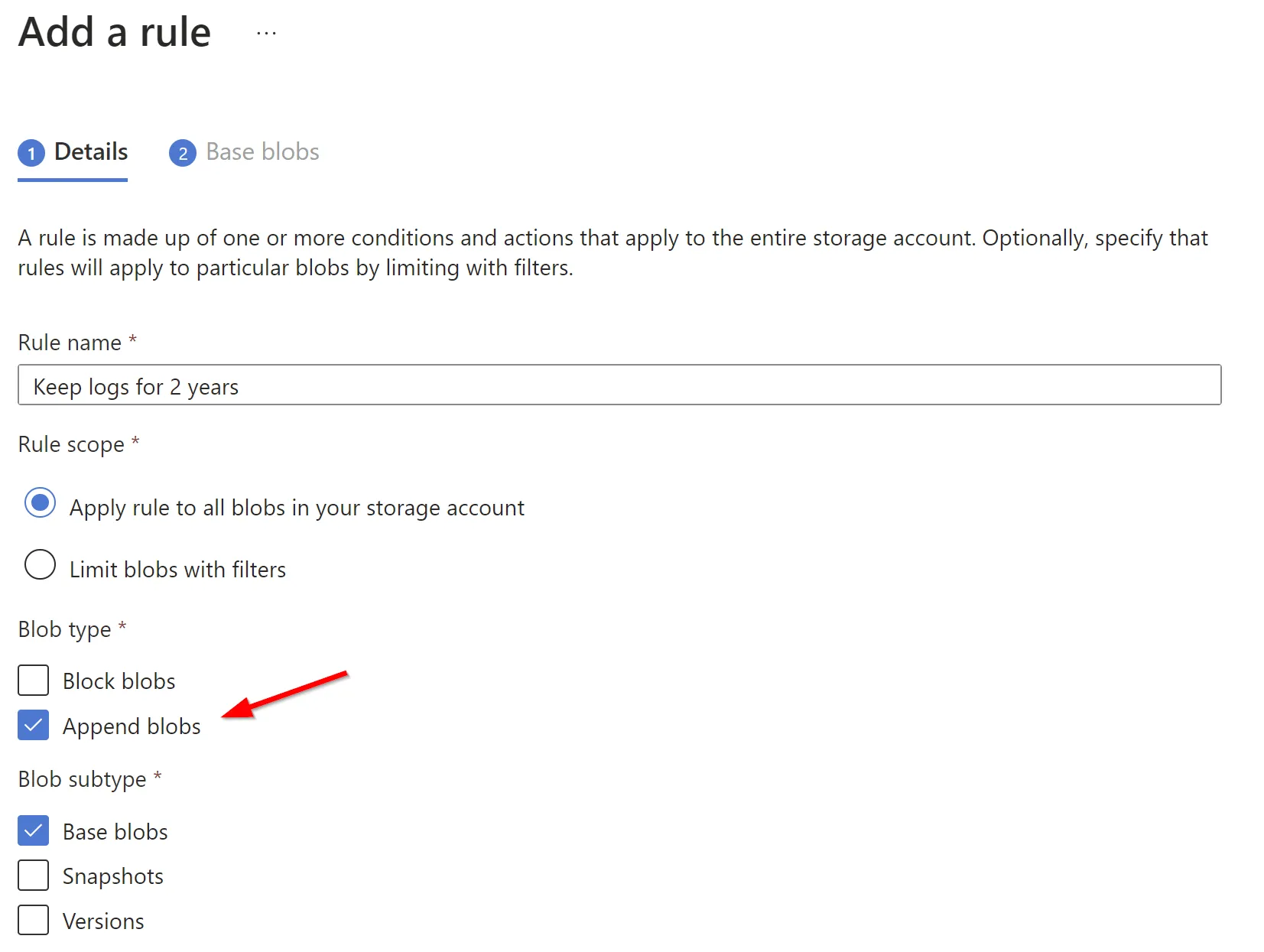
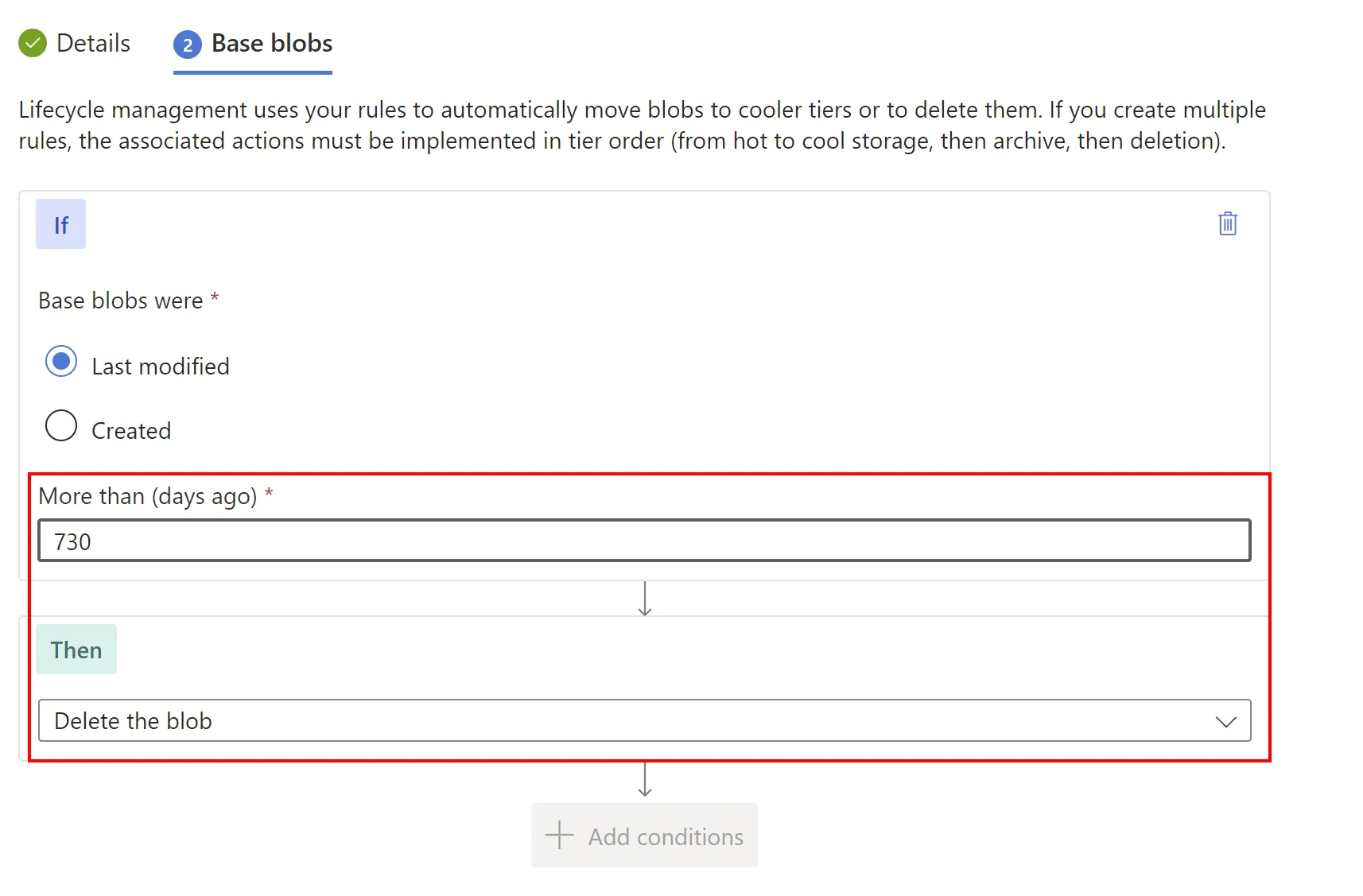
Your logs will now be rotated in your storage account based on the rule conditions you have specified.
Stream to an Azure Event Hub
Moving on to the third and final method detailed in this blog for exporting and storing Entra logs: streaming them into an Azure Event Hub. Opting for an Event Hub is a strategic choice, particularly when you aim to integrate with a Security Information and Event Management (SIEM) tool. This integration is key for gaining deeper insights into your environment. Configuring this integration with a product like Microsoft Sentinel, a cloud-native SIEM, can be easily achieved using the built-in data connector for Entra ID. Event Hubs can be used to integrate with other, third-party SIEM products such as Splunk, SumoLogic and ArcSight.
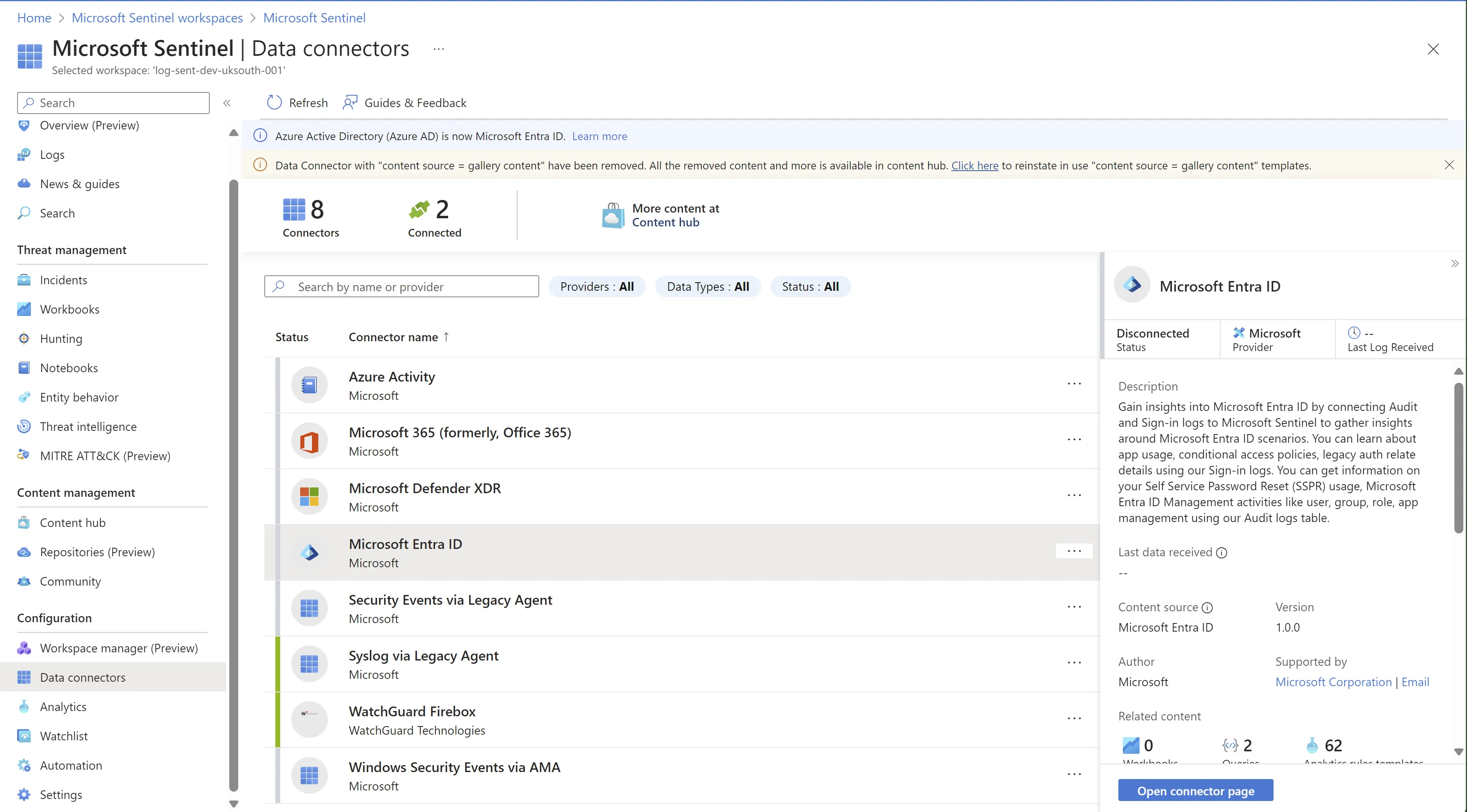
Much like the previous methods, Azure Event Hub serves as a centralized log management solution, but in a different way. It stands out particularly for larger organizations managing multiple services and applications, offering a unified repository for all their logs.
However, a notable distinction with Event Hub is its lack of a dedicated query language and data storage. Primarily, Event Hub is a robust data ingestion service, adept at collecting, transforming, and storing vast volumes of events. Once the data is amassed within the Event Hub, other Azure services or third-party tools typically come into play for querying purposes. It’s important to note that Event Hubs maximum event retention period is 90 days for the Premium and Dedicated plans, therefore it’s not recommended to use it for log storage, think of it more as a halfway house to move your logs into the end solution, such as a SIEM.
Let’s explore a few key Azure services that synergize well with Event Hubs:
- Azure Stream Analytics: This is a common service used in conjunction with Event Hubs for real-time analytics on the streaming data. Azure Stream Analytics uses a SQL-like query language to process and analyze the data streams. This language is specifically designed for complex event processing and is easy to use if you’re familiar with SQL.
- Azure Functions: You can use Azure Functions to process data from Event Hubs. The processing logic can be written in a variety of programming languages like C#, Java, JavaScript, Python, and PowerShell. The choice of language depends on your specific needs and the complexity of the data processing required.
- Azure Databricks: For more advanced analytics, Azure Databricks can be used. It allows for data processing using languages like Python, Scala, R, and SQL, along with support for machine learning and AI.
- Apache Kafka Queries: Since Azure Event Hubs provides a Kafka endpoint, you can use Kafka APIs and query languages to interact with data in Event Hubs. This is useful if you are integrating with systems already using Kafka.
In a similar vein to LAW and storage accounts, Event Hubs also play a vital role in centralizing logs for compliance reporting and auditing. It’s important to note, though, that while Event Hubs offer significant benefits, they may not always be the most cost-effective solution.
Pros:
- Centralized Log Management: Ideal for larger organizations needing to unify logs from multiple sources into another solution.
- Versatile Integration with SIEM Tools: Can integrate with third-party SIEM tools like Splunk, and others for enhanced insights.
- Flexible Data Processing Options: Compatible with various Azure services like Stream Analytics, Azure Functions, and Databricks for diverse processing needs.
- Supports Kafka Queries: Useful for systems already using Kafka, thanks to the Kafka endpoint.
Cons:
- Lack of Dedicated Query Language: Primarily a data ingestion service, requiring other tools for querying.
- Potential Cost Implications: May not be the most cost-effective solution, especially for smaller-scale needs.
- Complexity in Integration and Analysis: Requires additional setup and integration with other services or tools for data analysis.
- Is not a direct storage solution but is instead used for getting logs from A to B.
Source: Stream Microsoft Entra logs to an event hub - Microsoft Entra ID | Microsoft Learn
Configuration
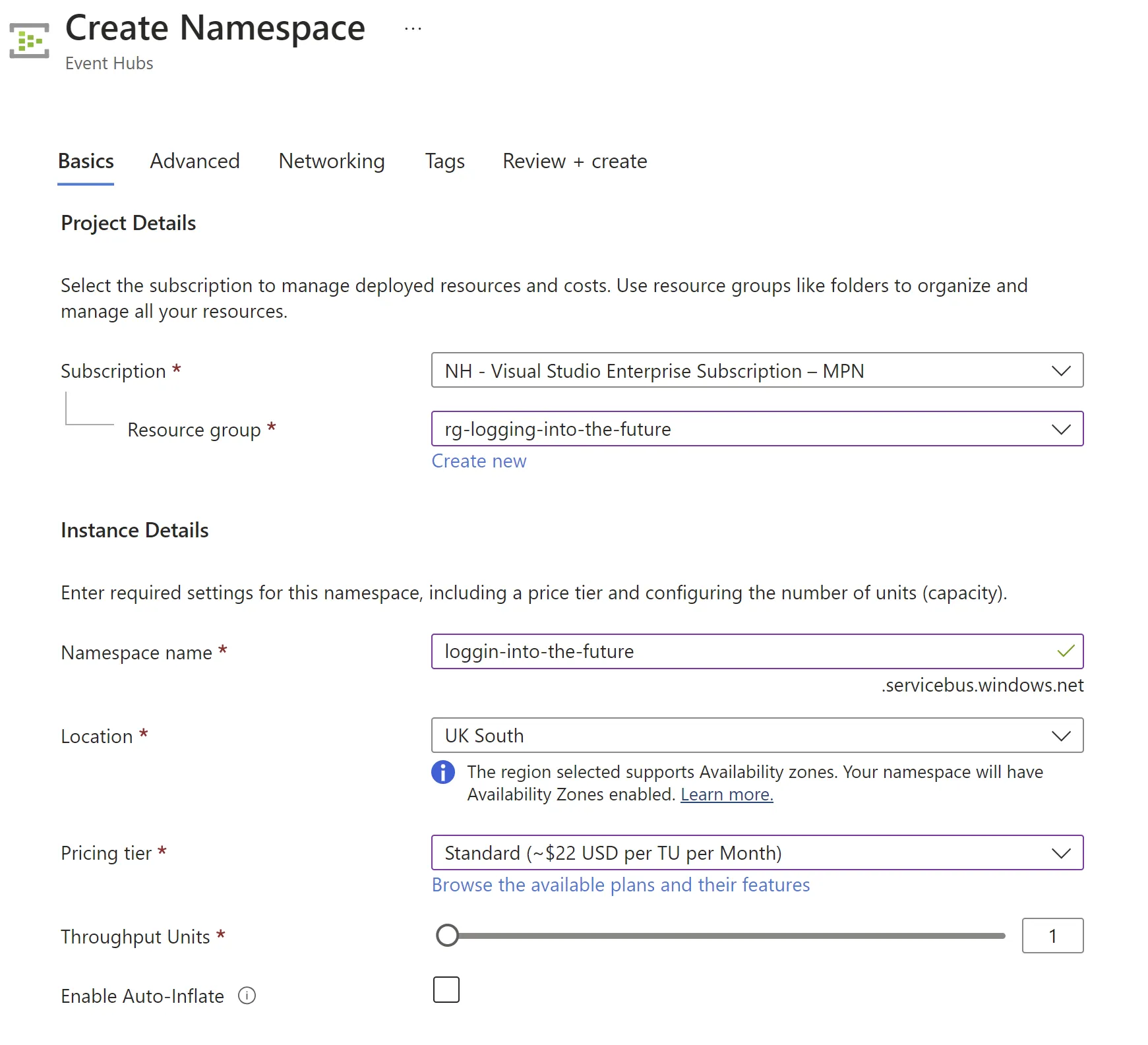
Create Event Hub Namespace
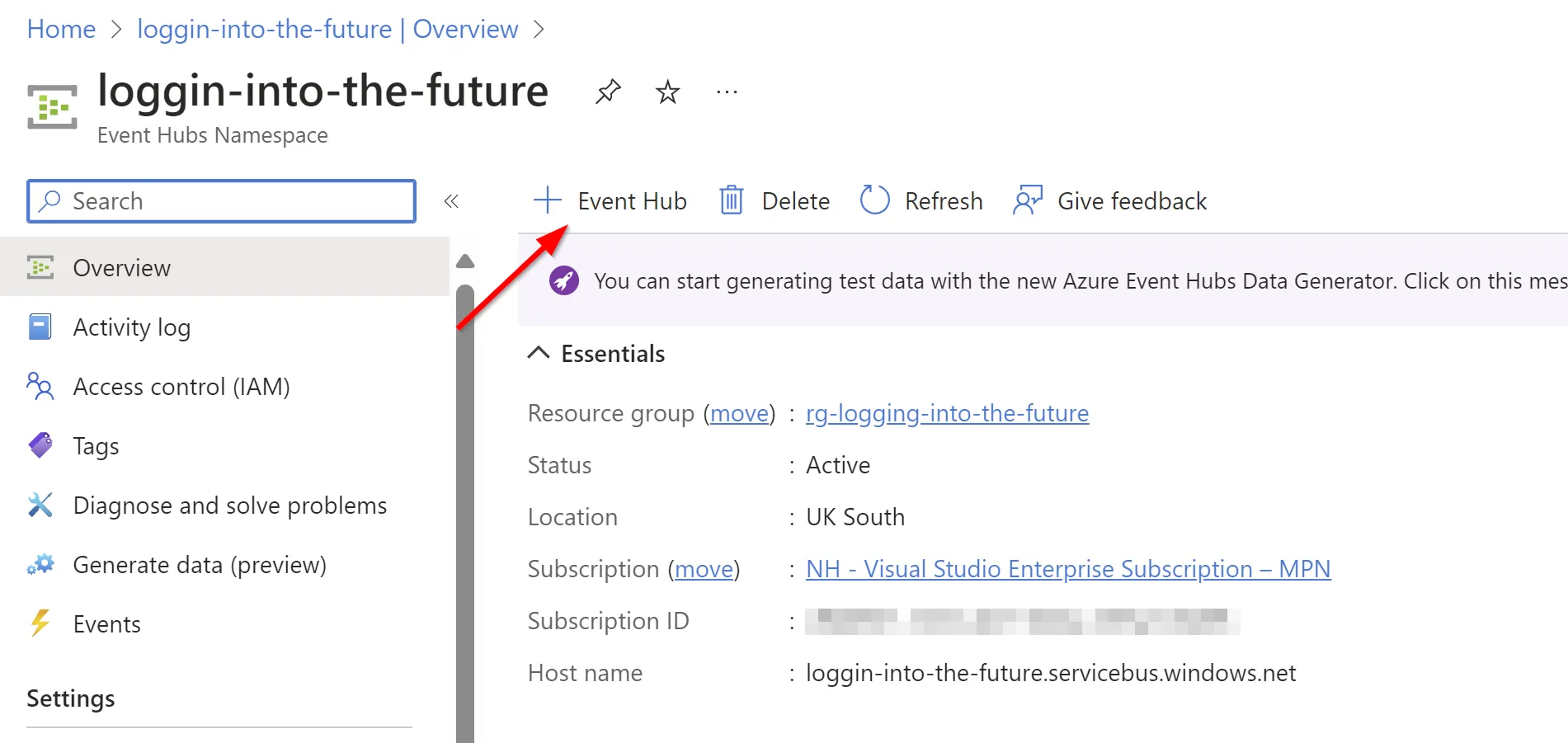
Create Event Hub
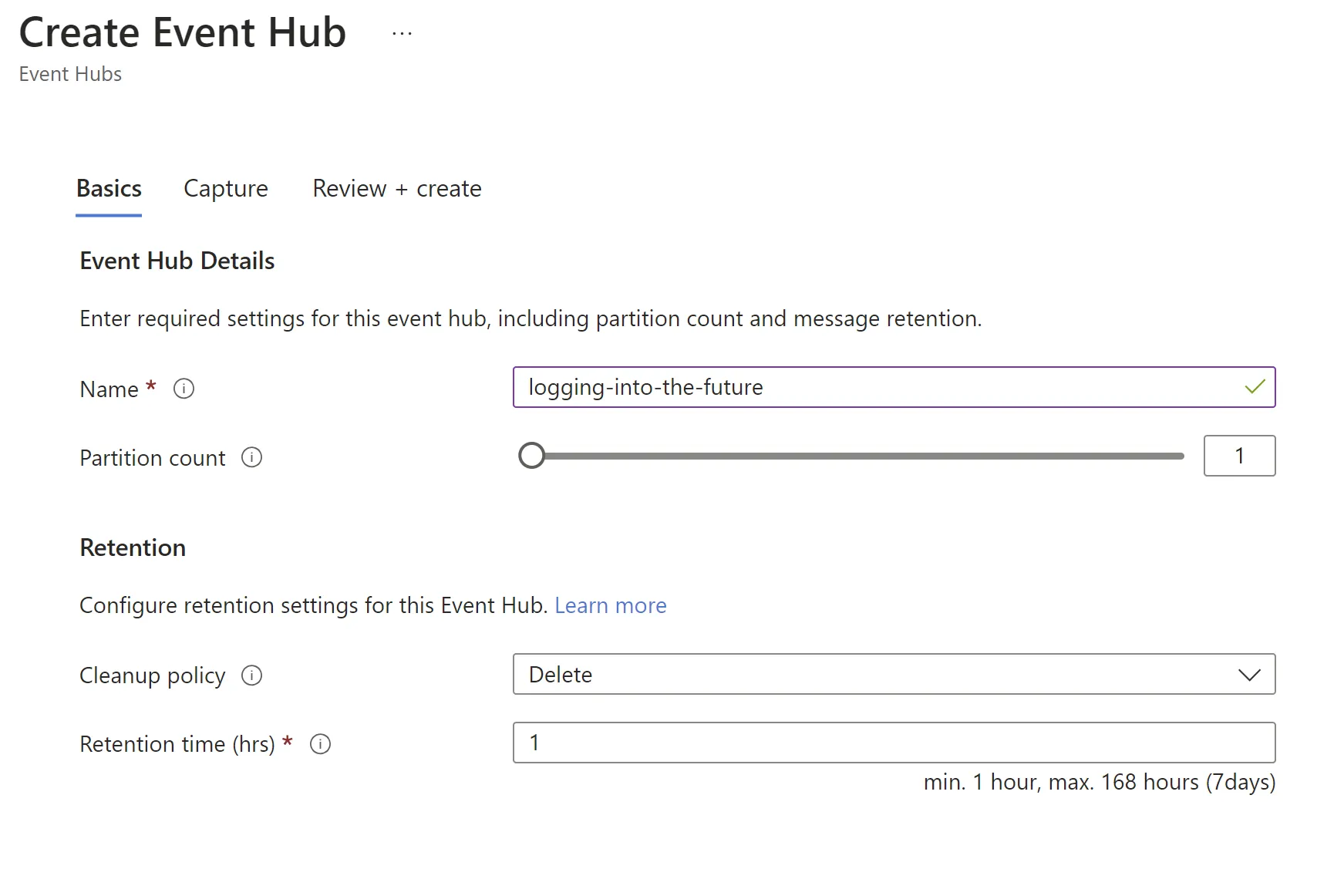
Configure as per your requirements
Link Entra to Event Hub
From Entra Portal expand Identity >> Monitoring and health >> Diagnostic settings
Select + Add diagnostic setting
Provide a useful name, choose the log categories you want to keep and then select Stream to an event hub and hit save.
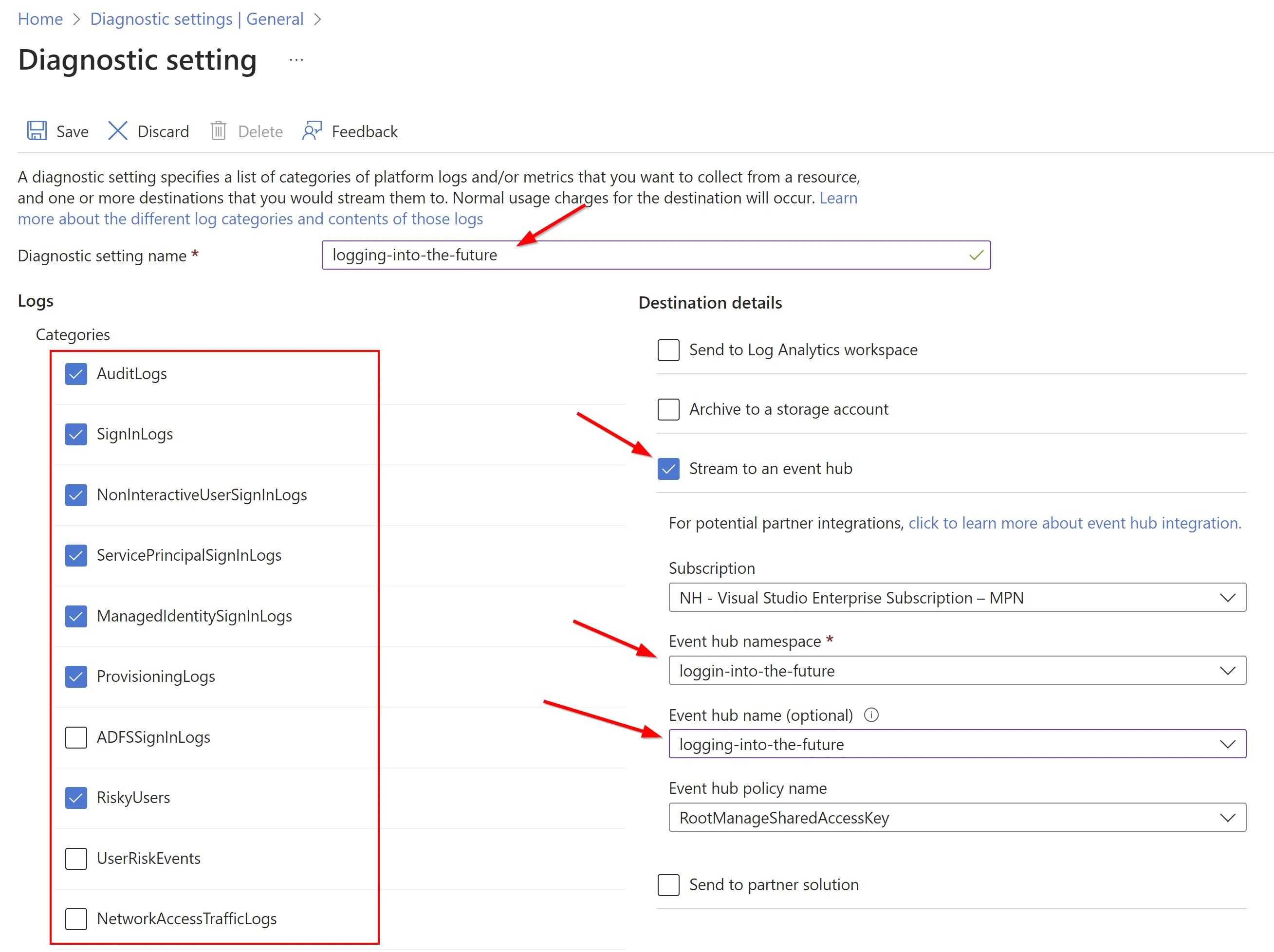
That’s all there is to it, you will soon start to see activity coming into your Event Hub and you can then decide where you want to send them afterwards.
Conclusion
We’ve journeyed through the diverse landscapes of Microsoft Entra log storage, from the depths of Azure Monitor logs and storage accounts to the dynamic streams of Azure Event Hubs. Each method, with its unique capabilities and nuances, offers different benefits depending on your organizational needs – be it compliance, security, or efficiency in log management.
Now, I’d love to hear from you. Which method do you find more aligned with your organizational needs? Do you have any experiences, tips, or insights to share about managing and storing Entra logs? Or perhaps, you have questions about something I covered (or didn’t cover) in this post?
Feel free to drop your comments, questions, or insights below. Your feedback is not just valuable to me, but also to our community of readers. It helps in shaping the discussion and enriching our collective understanding. Plus, your input could very well inspire the topics of future blog posts!
Thank you for reading, and I look forward to your contributions in the comments section!