How to Detect When a Global Admin Elevates Access Across All Azure Subscriptions
Did you know a Global Administrator can silently grant themselves access to every Azure subscription and management group in your tenant — even if they never had access before?
It’s a legitimate break-glass feature, but it’s also one of the most powerful (and risky) actions in Microsoft Entra ID. If a Global Admin account is compromised, this elevation gives an attacker instant control across the entire Azure estate. And because you cannot disable this capability, monitoring it becomes absolutely essential.
In this blog, we’ll walk through:
- Why elevation of access is a critical security event
- How the toggle works and what it grants
- How to detect elevation using Entra ID Audit Logs + Log Analytics
- How to create an alert using Azure Monitor
- An alternative method using Defender for Cloud Apps (E5)
- How to respond when elevation occurs
If you prefer to watch this content, watch the Youtube video here: https://youtu.be/gnk-MUxDFaU
Let’s get into it.
Table of Contents
- What’s the issue?
- Why is it an issue?
- What do you need to detect it?
- Step 1 - Setup Log Analytics Workspace
- Step 2 - Send Entra audit logs to Log Analytics
- Step 3 - Build the alert rule
- Step 4 - How to do it with Defender for Cloud Apps
- Step 5 - How to respond to the alert
- Summary
🚨 The Risk: Global Admin = Full Azure Control
A Global Administrator in Microsoft Entra ID can go to:
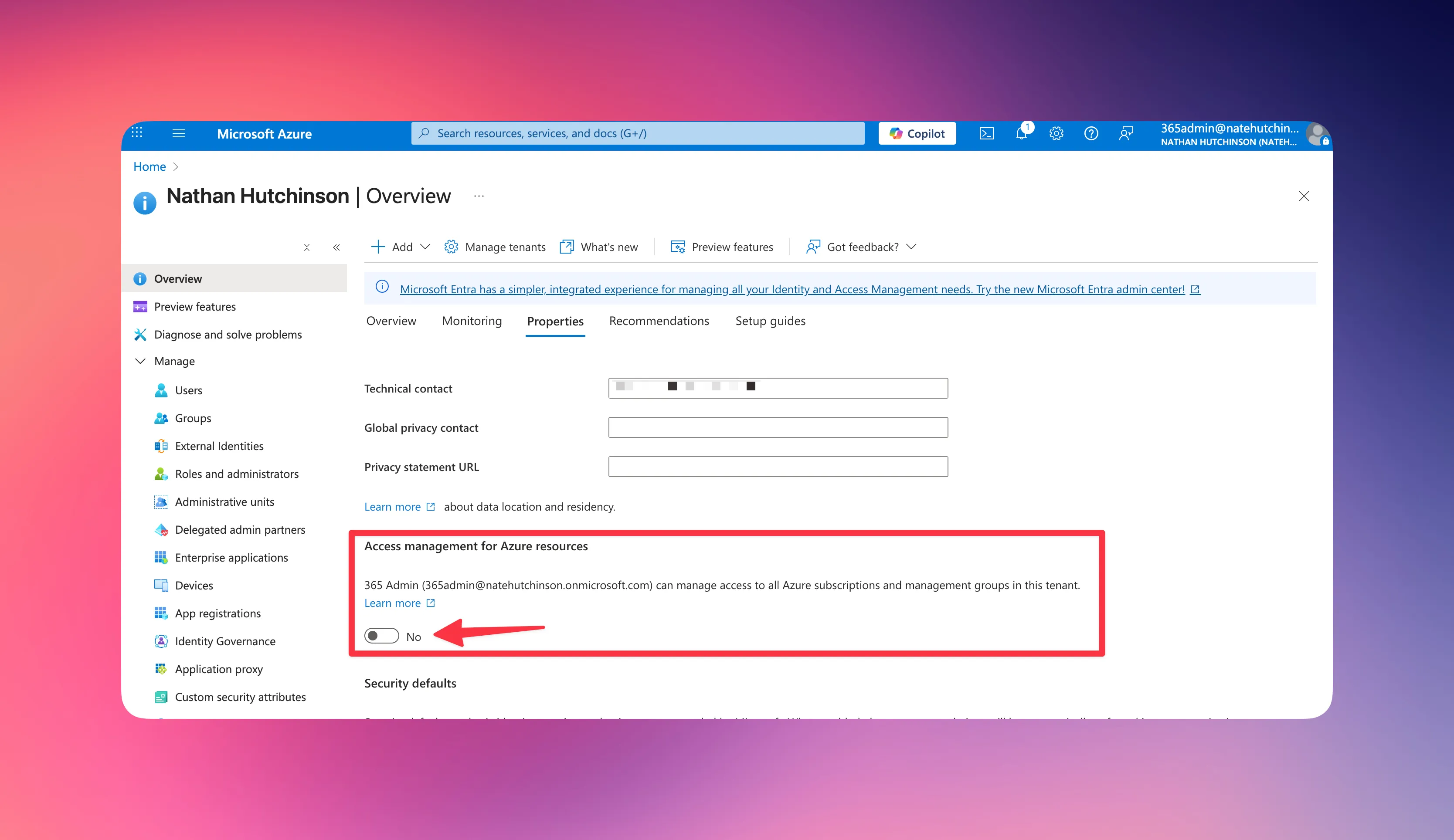
Entra ID → Properties → Access management for Azure resources
From there, they can simply switch a toggle to Yes, and instantly receive the User Access Administrator role at the root management group in Azure.
This single action gives them visibility and management permissions across all Azure subscriptions and management groups, even those they were never granted access to.
You cannot block this feature.
It exists for tenant-wide recovery, but it bypasses least privilege and separation of duties.
⚠️ Why This Is a Security Concern
Imagine an organisation with strict separation of duties:
- Identity team manages Entra ID
- Cloud team manages Azure RBAC
If a Global Admin decides to “just check something” and flips this toggle, suddenly they have control across all Azure resources — VMs, storage, networking, everything.
Worse still:
- If their account is later compromised
- Or if elevation isn’t removed after legitimate use
- Or if the toggle is used without approval
…your entire Azure environment is instantly exposed.
This is why monitoring elevation events is non-negotiable.
📡 Detecting Elevation: What You Need
There are three ways to detect elevation of access:
- Entra ID Audit Logs → Log Analytics → Azure Monitor alert
- Azure Activity Logs → Log Analytics → Sentinel or Monitor alert
- Defender for Cloud Apps (E5) → Activity Policy
In this article, we’ll focus on the Audit Logs → Log Analytics method first, as it’s the most flexible and doesn’t require E5 licensing.
Step 1 — Set Up a Log Analytics Workspace
In the Azure portal:
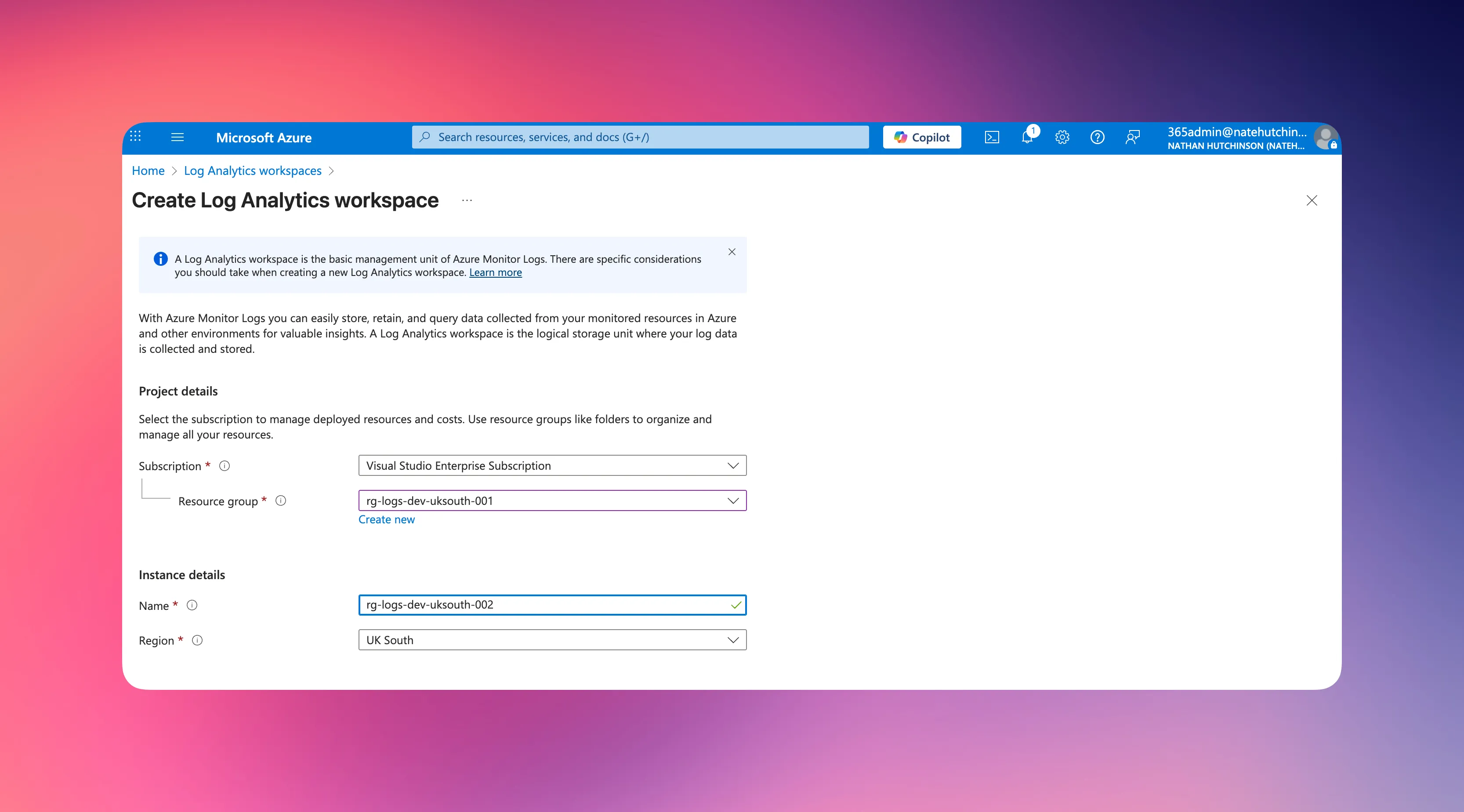
- Search for Log Analytics workspaces
- Create a new workspace
- Select or create a resource group
- Give your workspace a name
- Choose your region
- Create the workspace
Step 2 — Send Entra Audit Logs to Log Analytics
Next, tell Entra ID to send the right logs to your new workspace.
- Go to Entra ID → Monitoring & health → Diagnostic settings
- Create a new diagnostic setting
- Select AuditLogs
- Choose Send to Log Analytics
- Select the workspace you just created
- Save
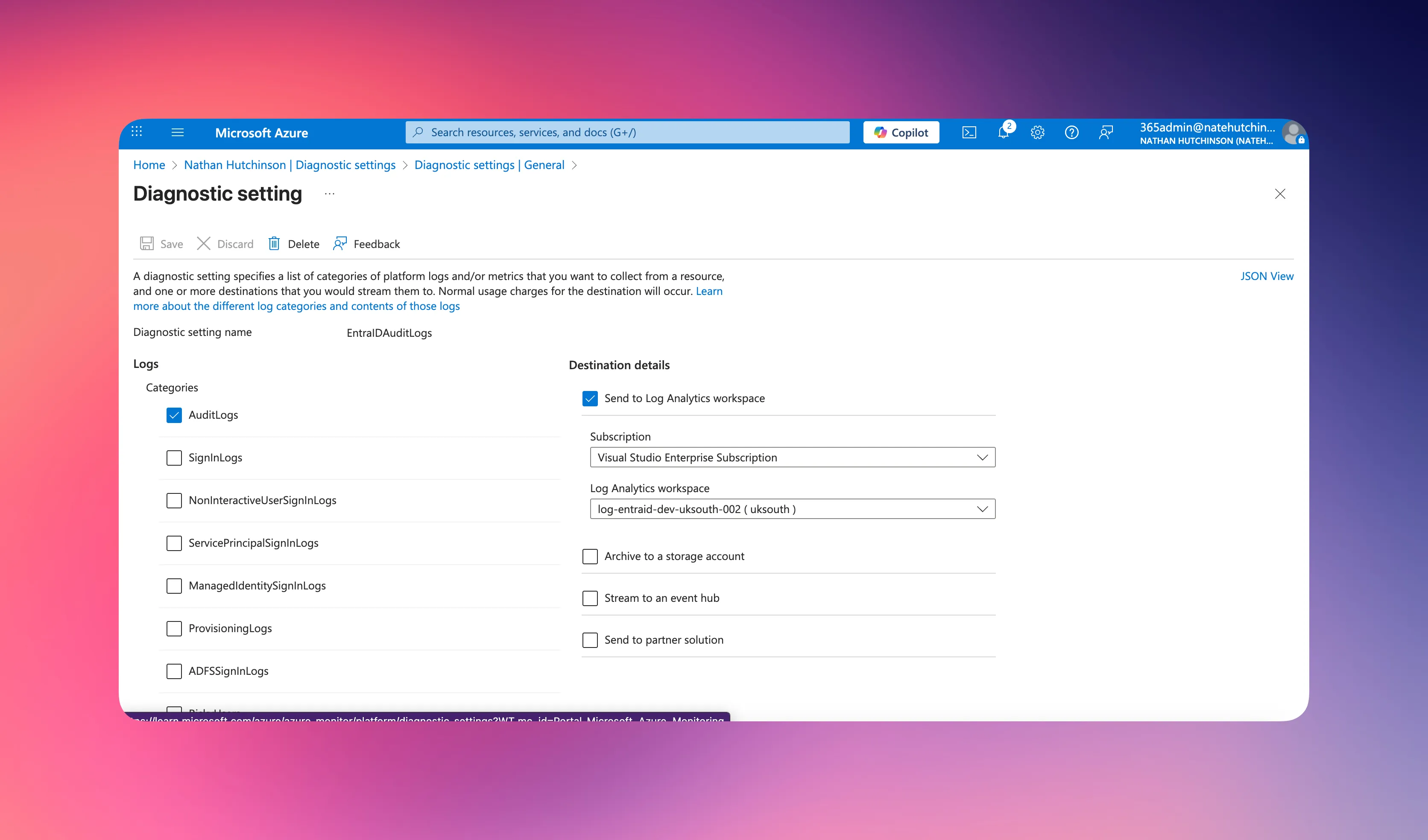
This begins streaming the log data needed to detect elevation.
Here’s an example of the activity we are looking to alert on.
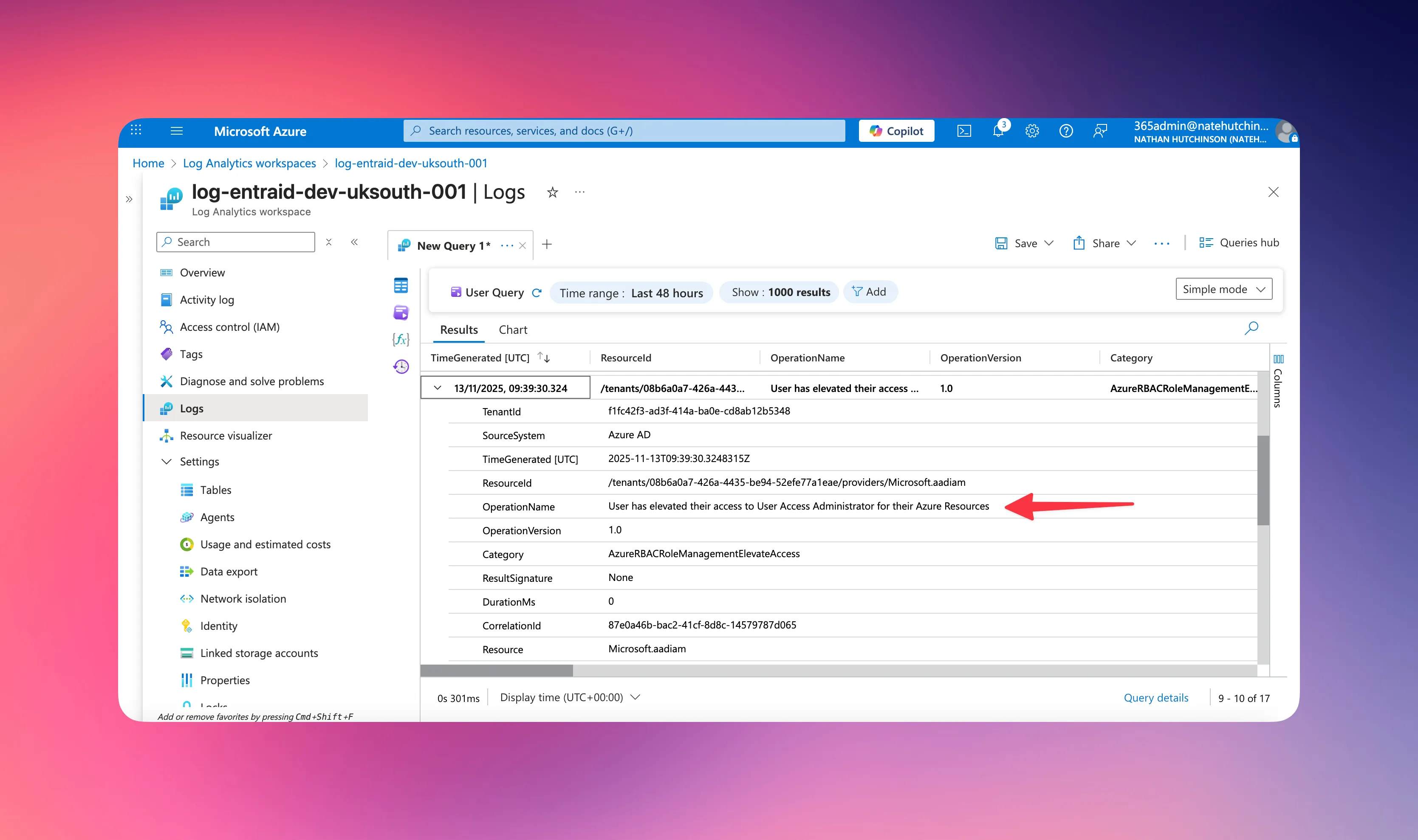
Step 3 — Build the Alert Rule
Now that the logs are flowing, we create the alert in Azure Monitor.
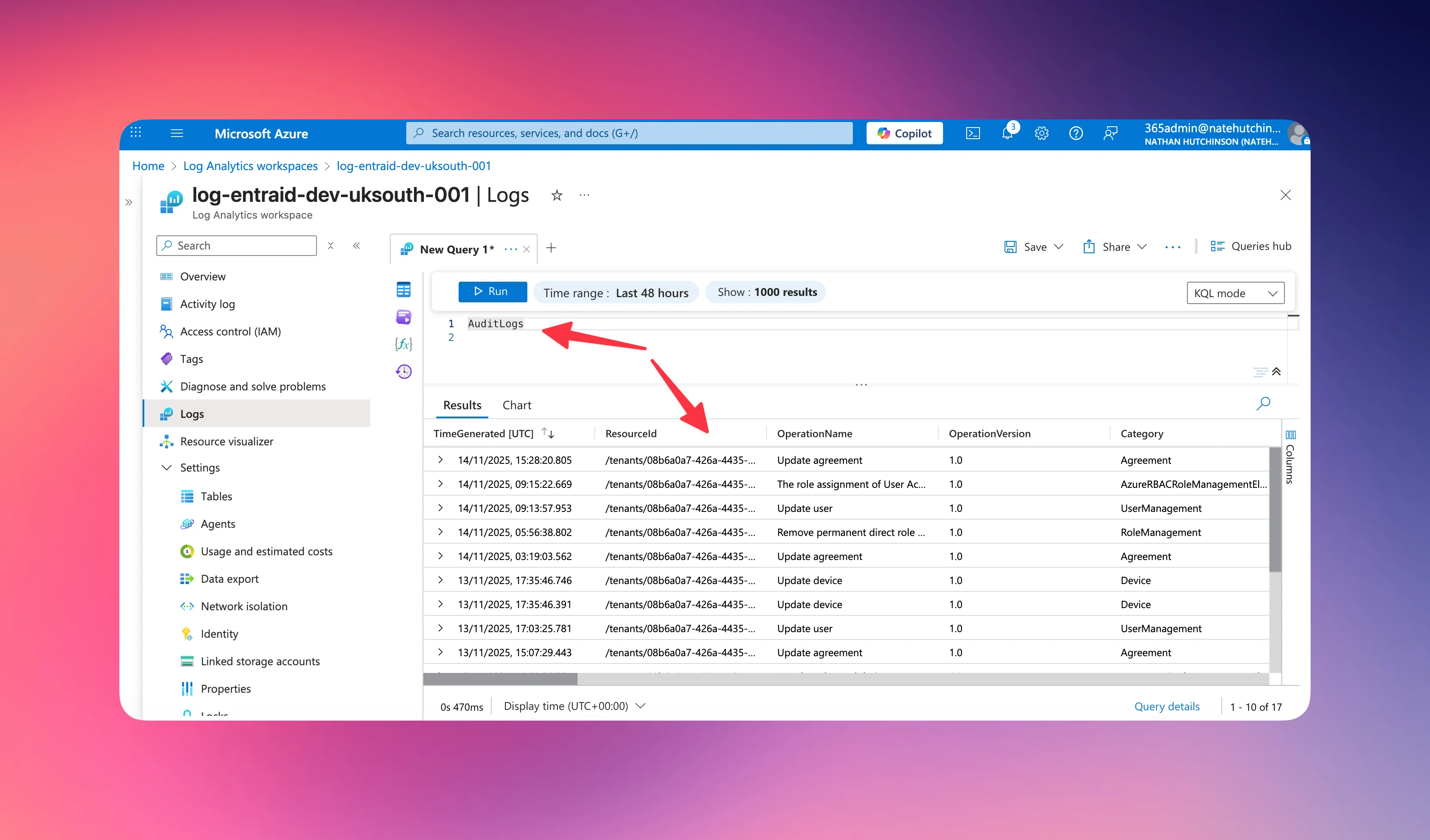
- Go to your Log Analytics workspace
- Open Logs
- Paste your KQL query:
AuditLogs- Verify it returns results
- Within the workspace Monitoring → Alerts
- Click Create → Alert rule
- Under Signal name, choose Custom log search
- In the query box enter the following KQL query (or find it here: https://github.com/NateHutch365/KQL/tree/main/Log%20Analytics%20and%20Sentinel/Azure%20RBAC%20elevation%20alerthttps://github.com/NateHutch365/KQL/tree/main/Log%20Analytics%20and%20Sentinel/Azure%20RBAC%20elevation%20alert)
AuditLogs
| where Category == "AzureRBACRoleManagementElevateAccess"
| where ActivityDisplayName == "User has elevated their access to User Access Administrator for their Azure Resources"
| extend Actor = tostring(InitiatedBy.user.displayName)
| extend ActorUPN = tostring(InitiatedBy.user.userPrincipalName)
| extend ActorId = tostring(InitiatedBy.user.id)
| extend Operation = tostring(OperationName)
| extend IPAddress = tostring(InitiatedBy.user.ipAddress)
| extend AppId = tostring(InitiatedBy.app.appId)
| project TimeGenerated, ActivityDisplayName, Category, Operation, Actor, ActorUPN, ActorId, IPAddress, AppId, Result, ResultReason, CorrelationId
| order by TimeGenerated desc- Underneath Alert logic, Set threshold value to 0
- Set frequency to every 5 minutes
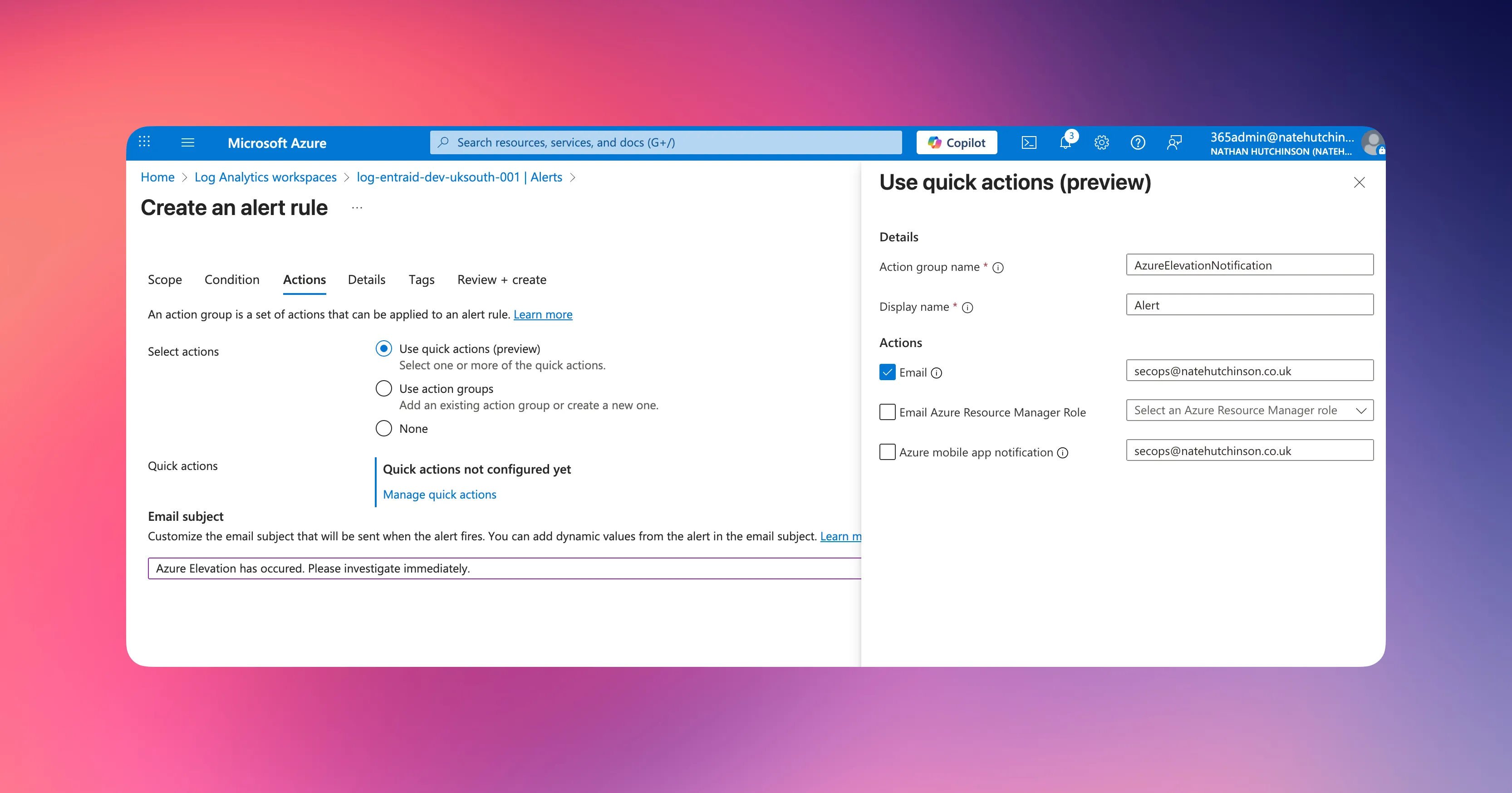
- Add a Quick action or use an existing one (add an email address to send the notification to)
- Provide an appropriate email subject
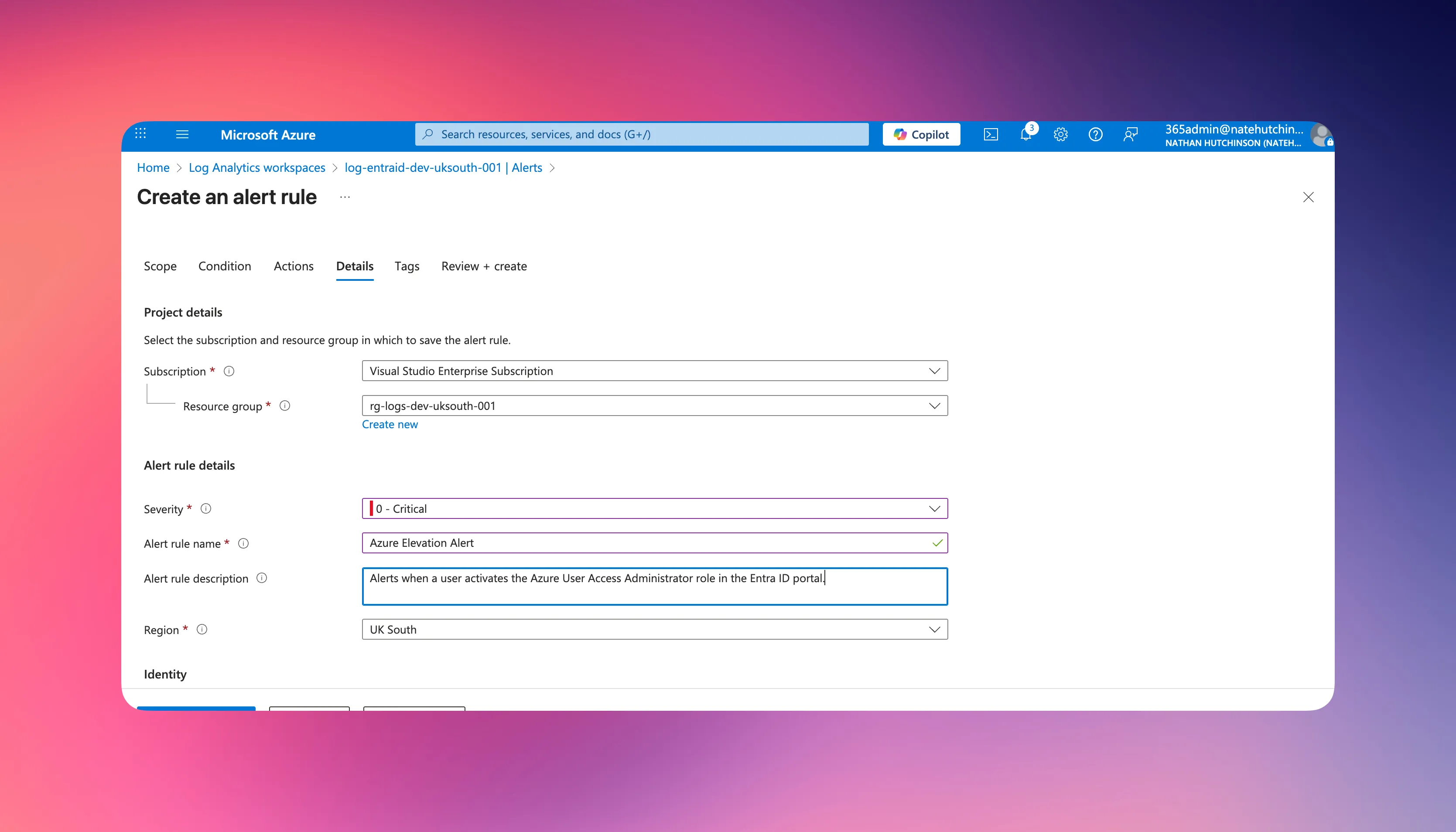
- On the next tab choose your alert rule details
- Recommend setting severity to 0 – Critical
- Create the rule
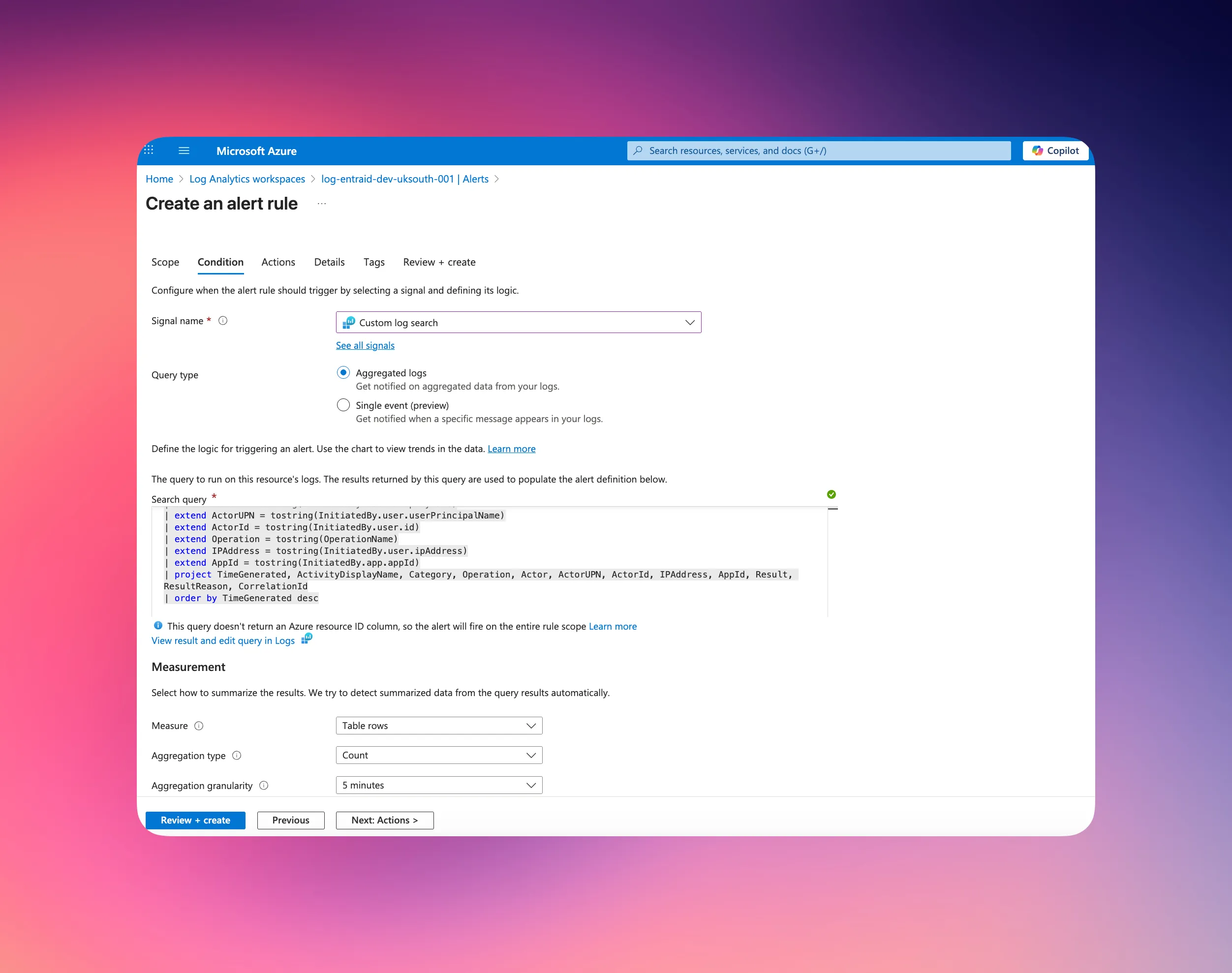
Once this is active, you’ll be notified whenever someone elevates access.
Step 4 — Alternative Method Using Defender for Cloud Apps (E5)
If you’re using Microsoft Defender for Cloud Apps and you’re already ingesting Azure Activity Logs, you can detect elevation without Log Analytics.
- Go to Defender portal → System → Settings → Cloud Apps → App Connectors
- Ensure Microsoft Azure is connected
- Go to Cloud apps → Policies → Policy management
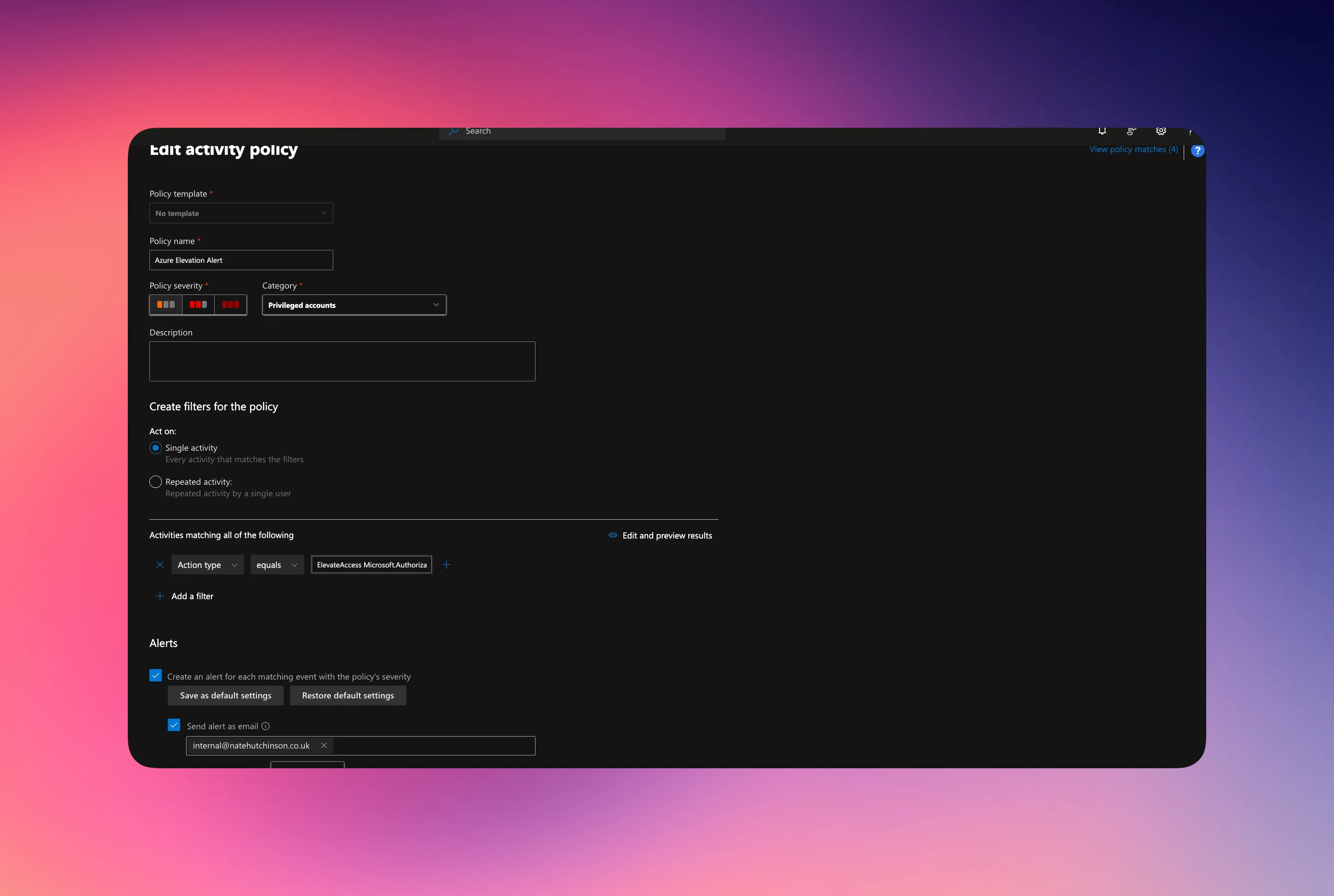
- Create a new activity policy, act on single activity
- Activities matching the following: 1. Action type, equals, ElevateAccess Microsoft.Authorization
- Configure notifications or additional automations
This method is great for organisations already leveraging MDA as their cloud monitoring plane.
Step 5 — How to Respond When Elevation Happens
If an alert fires:
✔️ If it’s legitimate:
- Ensure the toggle is set back to No - This remove the User Access Administrator role at the root scope
- Document the elevation request and approval
❌ If it’s not legitimate:
- Treat it as a potential breach
- Revoke sessions immediately
- Reset the GA’s credentials
- Review sign-in logs and risky activity
- Investigate lateral movement
A quick response can be the difference between minor impact and full tenant compromise.
Summary
Monitoring Global Admin elevation in Entra ID is essential because:
- You cannot disable the capability
- It grants access across all Azure resources
- It’s a prime target for attackers
- It’s a major insider-risk vector
- Early detection is your best defence
With Log Analytics, Azure Monitor, and Defender for Cloud Apps, you can ensure elevation events never go unnoticed.