Seasoned veterans with Intune will likely already know about this tool and be familiar with how to use it, however I’ve seen many who are just starting out their journey with modern endpoint management, so this short post will be aimed at those looking for a jump start.
When you are managing an Intune tenant (or multiple) it can be extremely useful to have the ability to import/export configuration settings as well as compare configurations against multiple tenants. This is where Intune manager from Mikael Karlsson** **comes into play, you can find the GitHub page for this amazing project here: GitHub - Micke-K/IntuneManagement: Copy, export, import, delete, document and compare policies and profiles in Intune and Azure with PowerShell script and WPF UI. Import ADMX files and registry settings with ADMX ingestion. View and edit PowerShell script.
As stated previously this is going to be a short post about getting up and running quickly using the tool along with some reference links on baseline policies that can be imported to your tenant using the tool, so without further ado…
Start by downloading the files in GitHub.
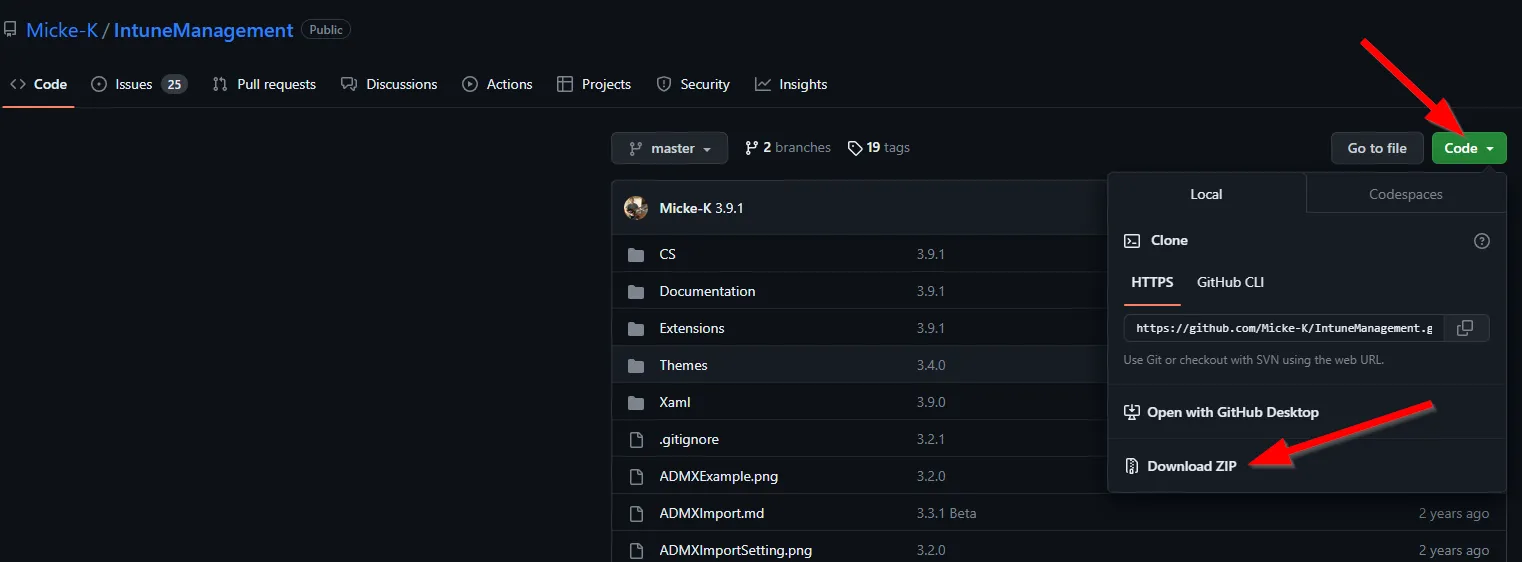
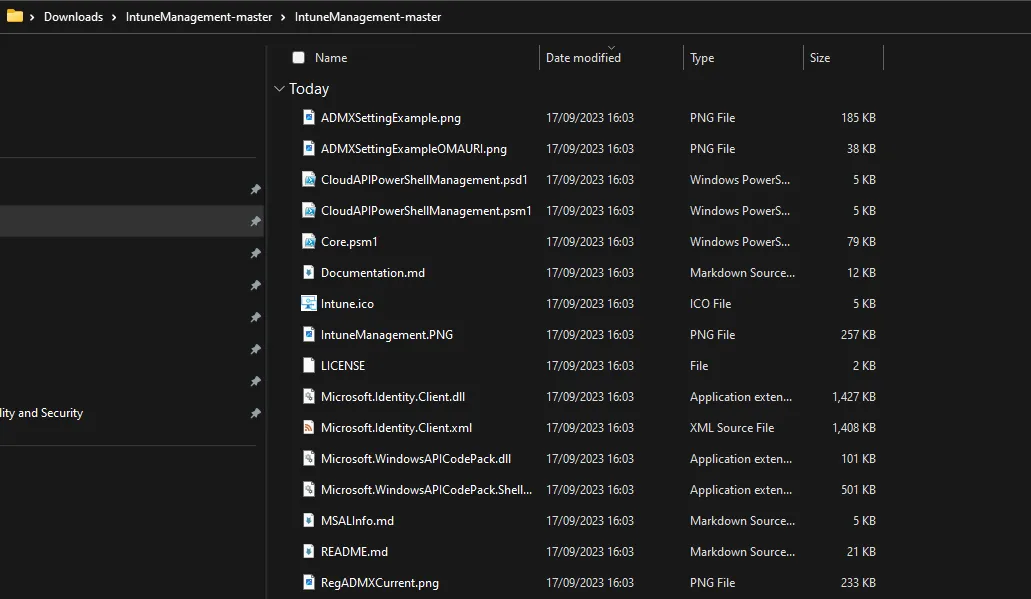
Once downloaded, extract the zip file.
Once extracted head into the first folder named **IntuneManagement-master **to find another folder with the same name, it is in this folder that all the files are stored.
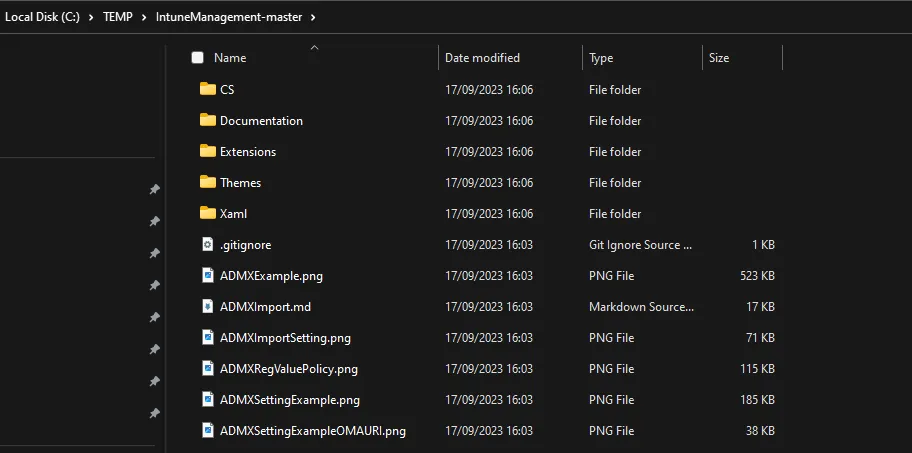
Copy the second folder to a location that is easy to access on your C: drive, I normally have this in a ‘TEMP’ folder of some sort.
Next, start by Unblocking the .cmd, .ps1 and .psm1 files by right clicking the file and then selecting **Properties followed by ticking the box labelled Unblock, **then apply and OK.
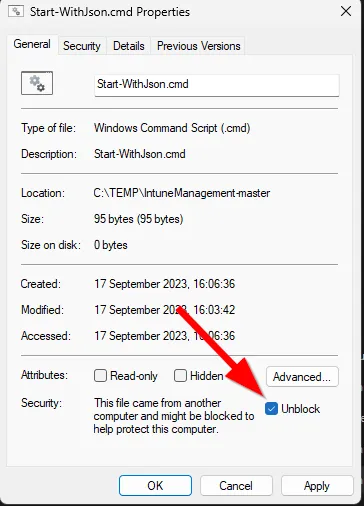
Do this for the remainder of the file types mentioned.
Once this is done fire up Terminal or PowerShell and cd to the folder.
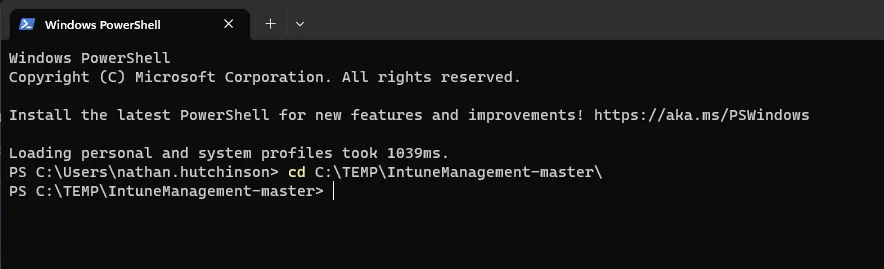
Start the application by typing the below.
.\Start-IntuneManagement.ps1
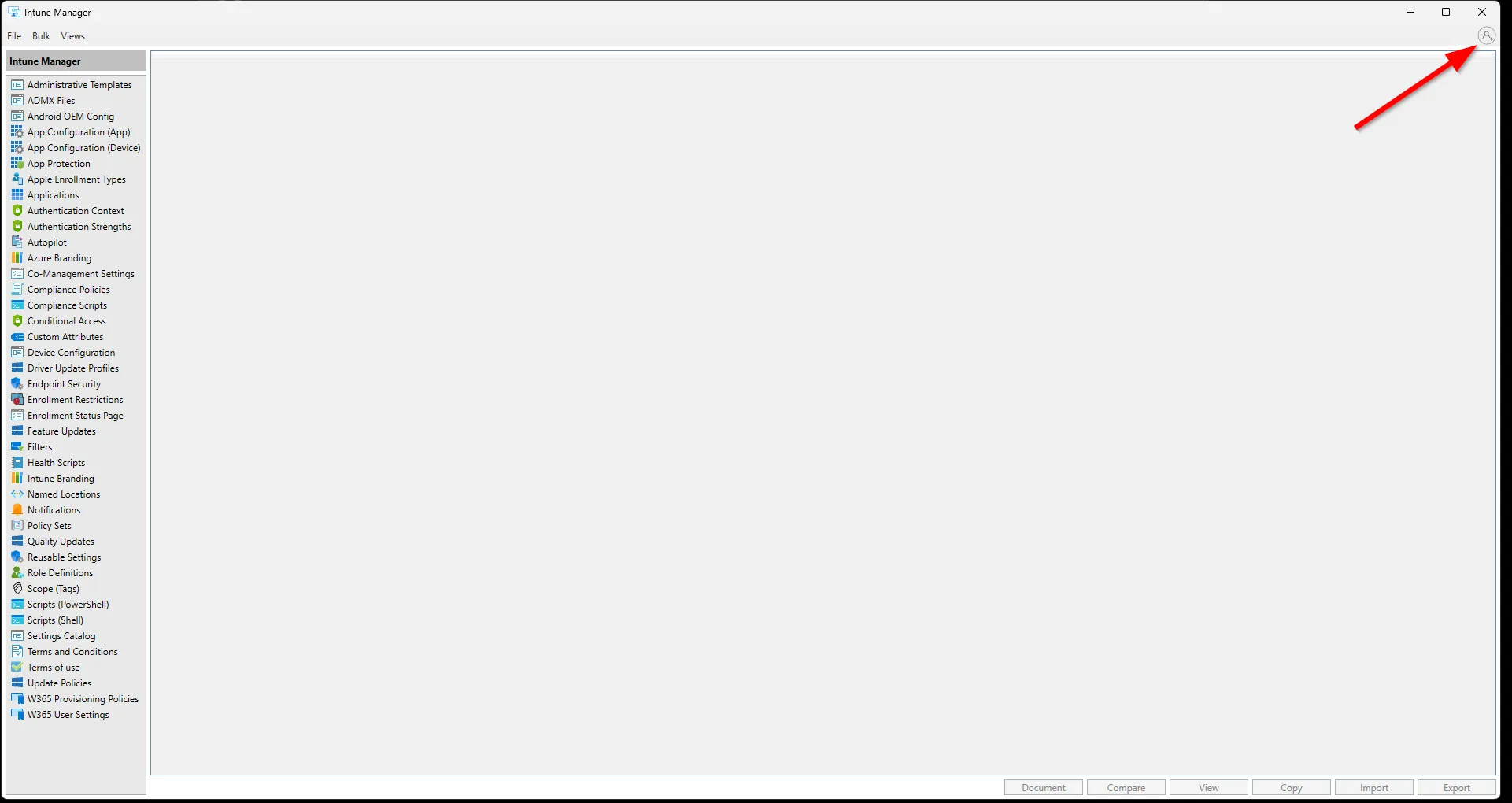
This will start the application and a new window will popup.
Start by authenticating to your tenant with the profile icon in the top right.
In the modern authentication window that pops up, sign in with an account that has appropriate permissions, if unsure use Global Administrator.
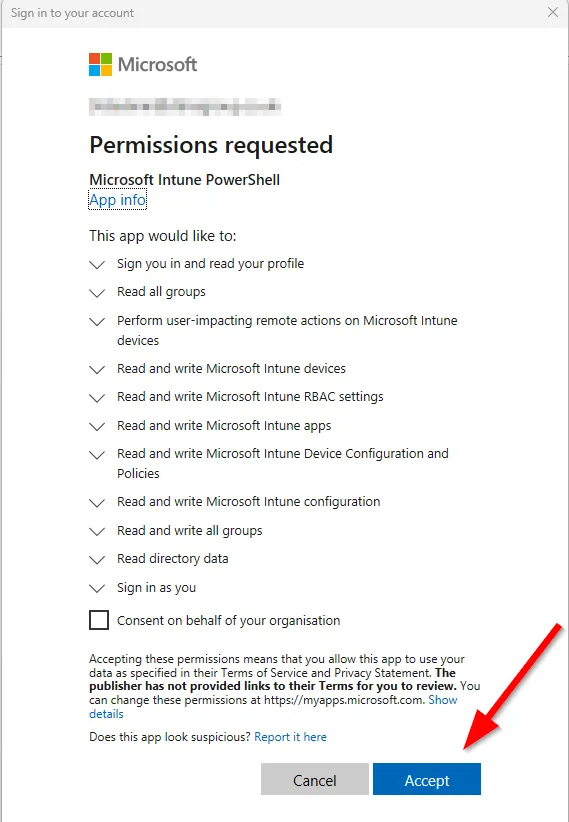
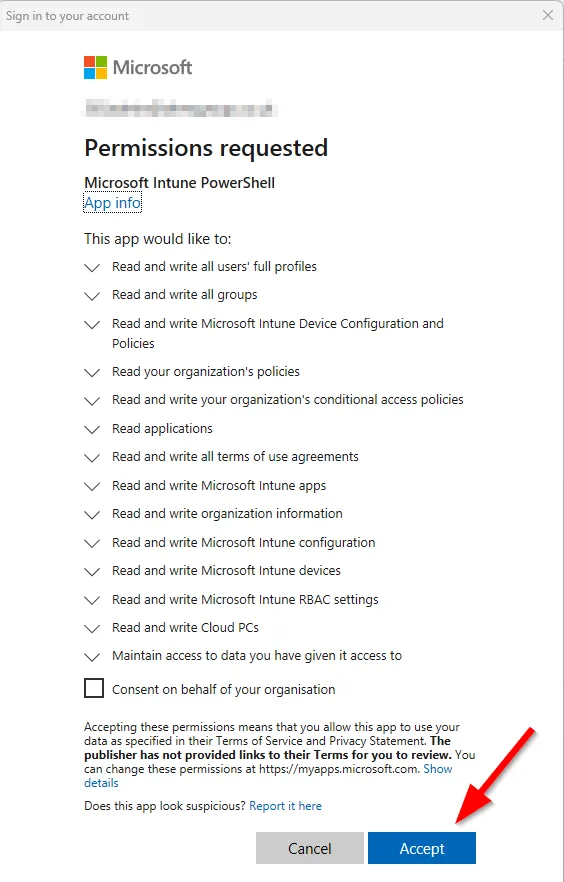
After sign-in you will be prompted to accept permissions for Microsoft Intune PowerShell, DO NOT tick the box to consent on behalf of your organisation.
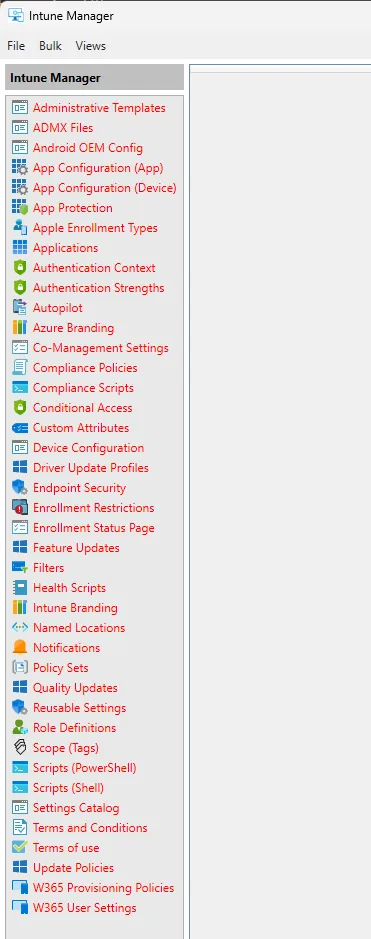
It’s likely the first time you do this you’ll still see you don’t have access to the settings, you’ll know this as the menu on the left-hand side will have all text in red, like so.
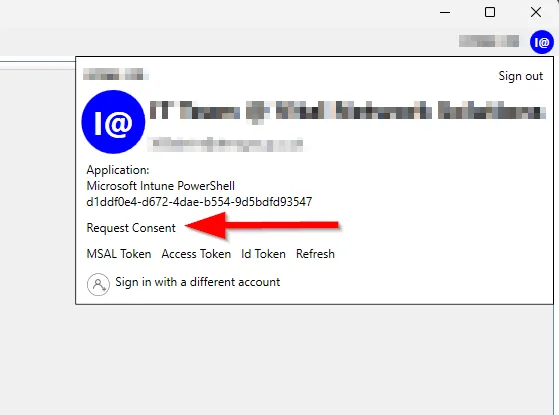
From here, select the profile icon in the top right corner and then Request Consent again.
Go ahead and accept the popup again, this should clear all the red text on the left hand-side.
Now we are ready to rock ‘n’ roll and we can start importing, exporting, or comparing tenant configurations.
Here’s a few recommendations where you can download some Intune config profiles:
GitHub - NateHutch365/CIS-Benchmarks-Intune
GitHub - microsoft/shell-intune-samples: Sample shell scripts for Intune admins.
Importing
Note that not all of these can be directly imported using the Intune Manager tool, but you can import the direct JSON files in other ways or use them to create your own, either way they are all great resources for Intune administrators.
For this guide we will use the OpenIntuneBaseline as this is a great starting point for anyone new to Intune looking for good endpoint hardening recommendations - Go ahead and download the files from the above GitHub repo.
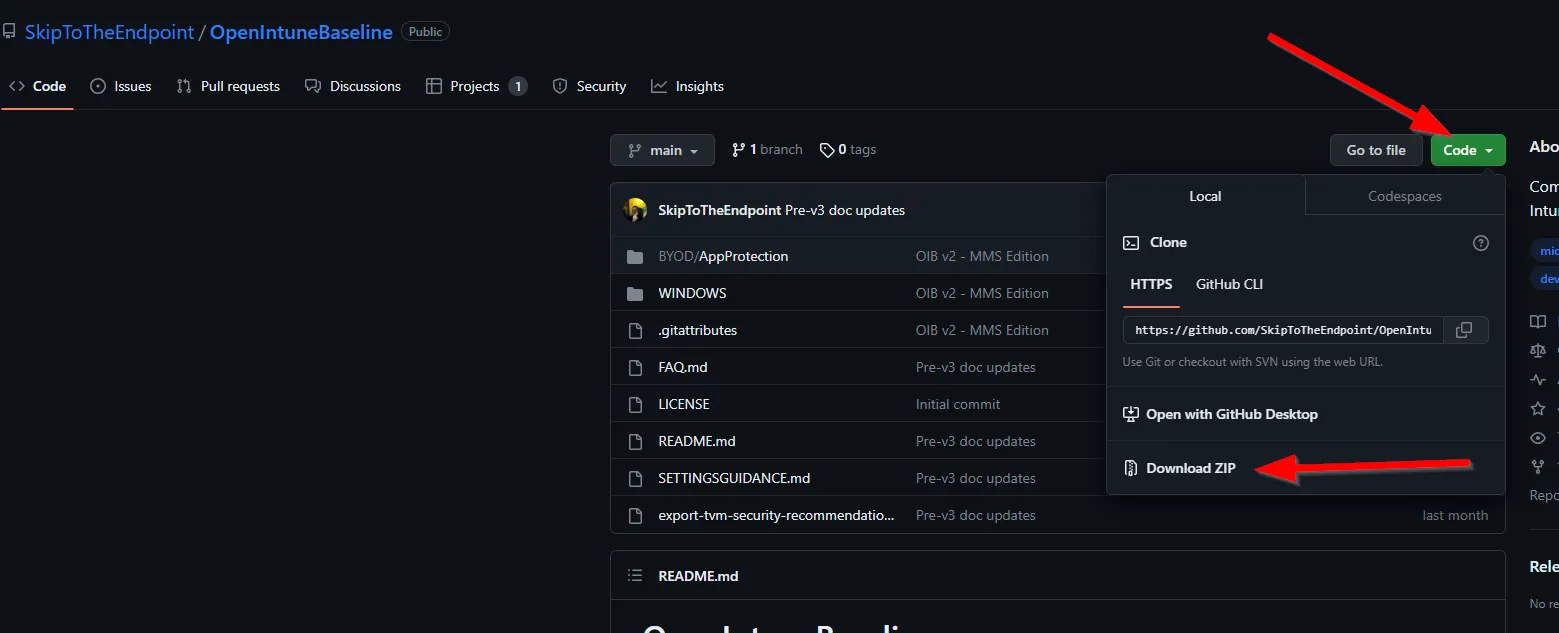
Extract the files and then I like to move them into my TEMP folder.
From here, you can navigate to the relevant setting type in Intune Manager and point to the relevant folder location to import the files, let’s take a look at the Settings Catalog, select it on the left and then import.
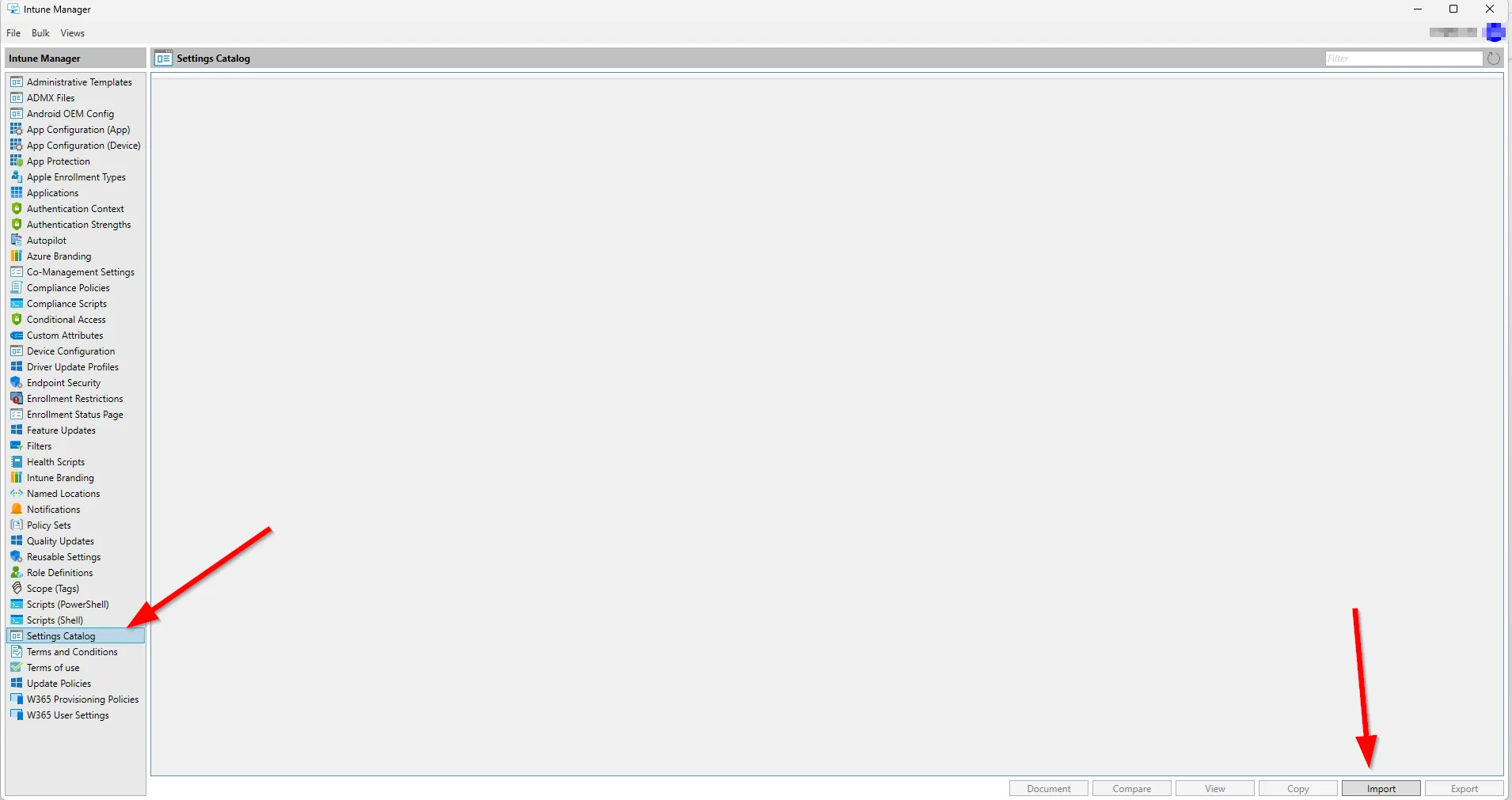
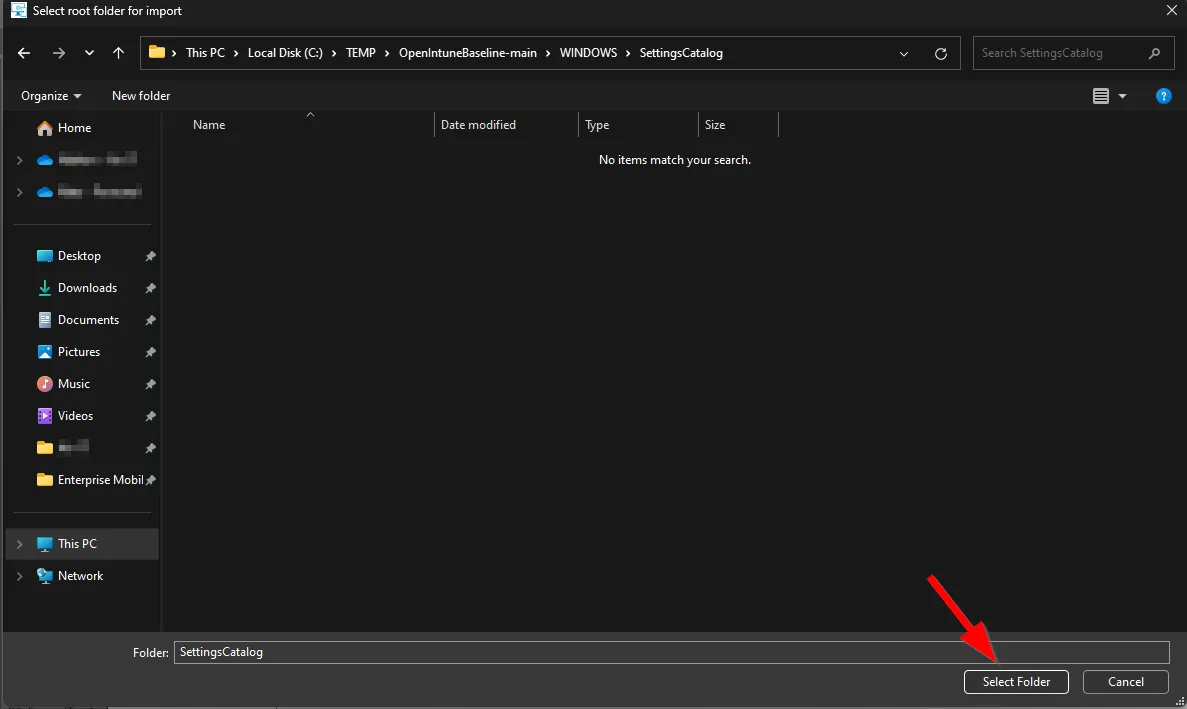
In the next window select the ellipses icon on the right and select the Settings Catalog folder form the OpenIntuneBaseline folder you have extracted.

Now you should see all the policies available for importing, you can import them all by leaving them all ticked, or you untick all and only import the ones you need, which is what we will do here.
Note here that I have unticked Assign Scope (Tags) and Import Assignments, it is good practice to do this unless you are absolutely certain you want to apply these right away.
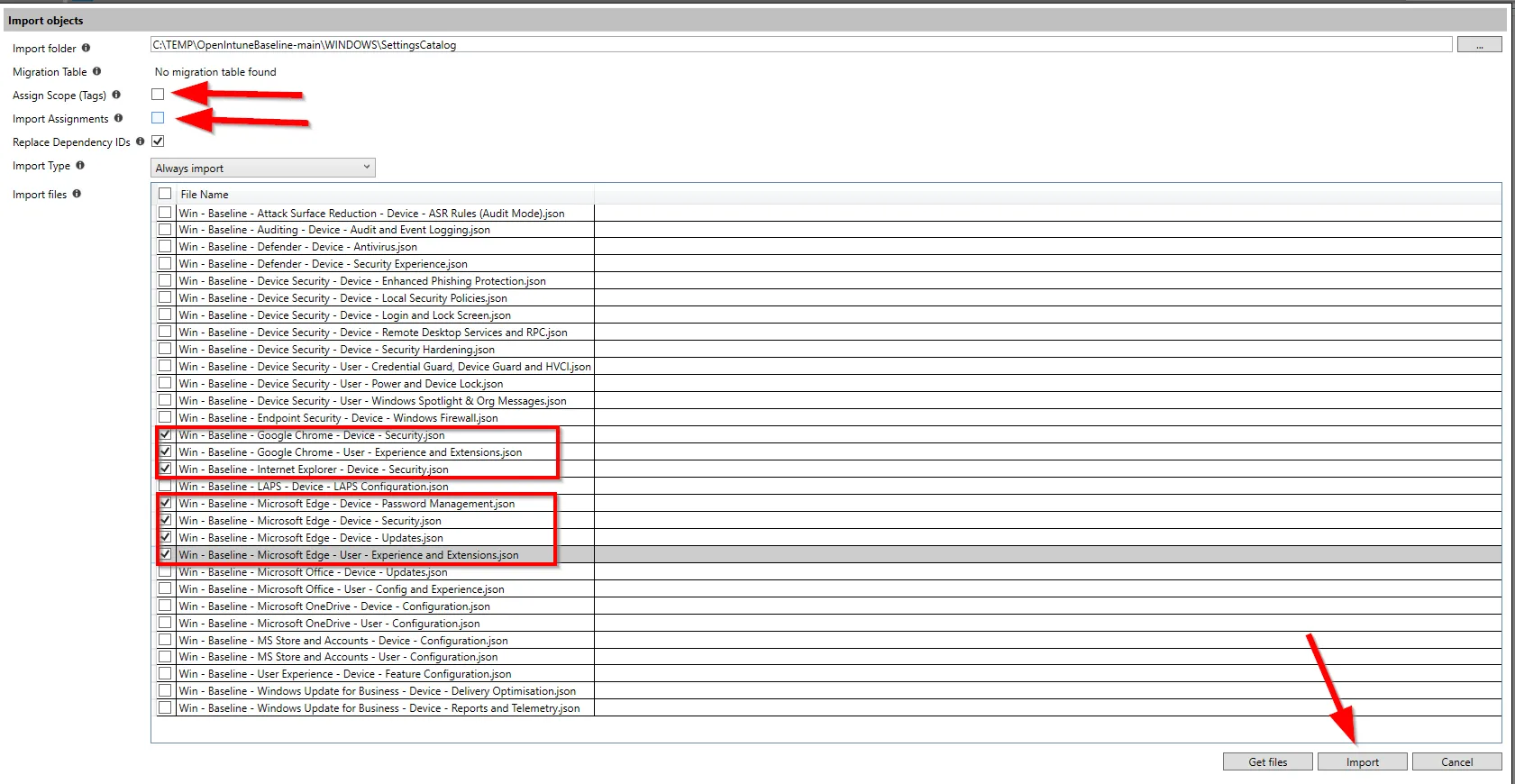
Once you hit Import, the policies will be imported into the correct location within Intune.
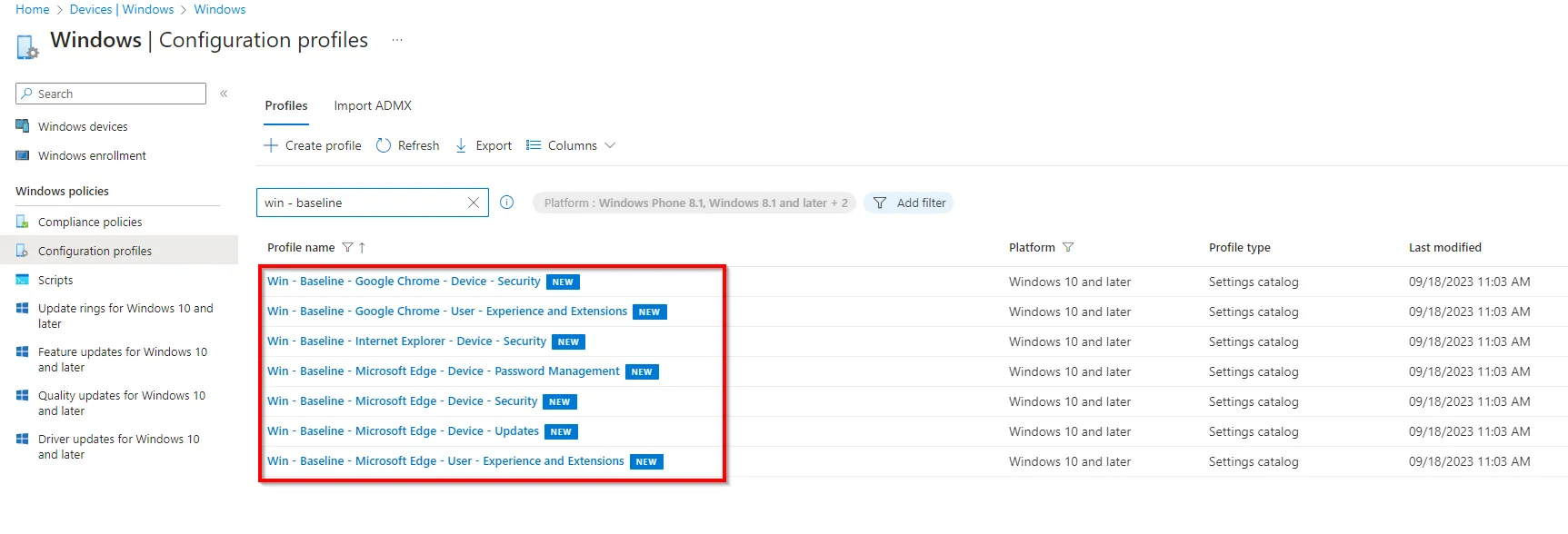
From here, you can open the policies and adjust as needed or assign them out.
Similarly, we can also export policies.
Exporting
From the Intune Manager window, you will see all the policies available for that configuration type.
If you cannot see them all you must select Load All.
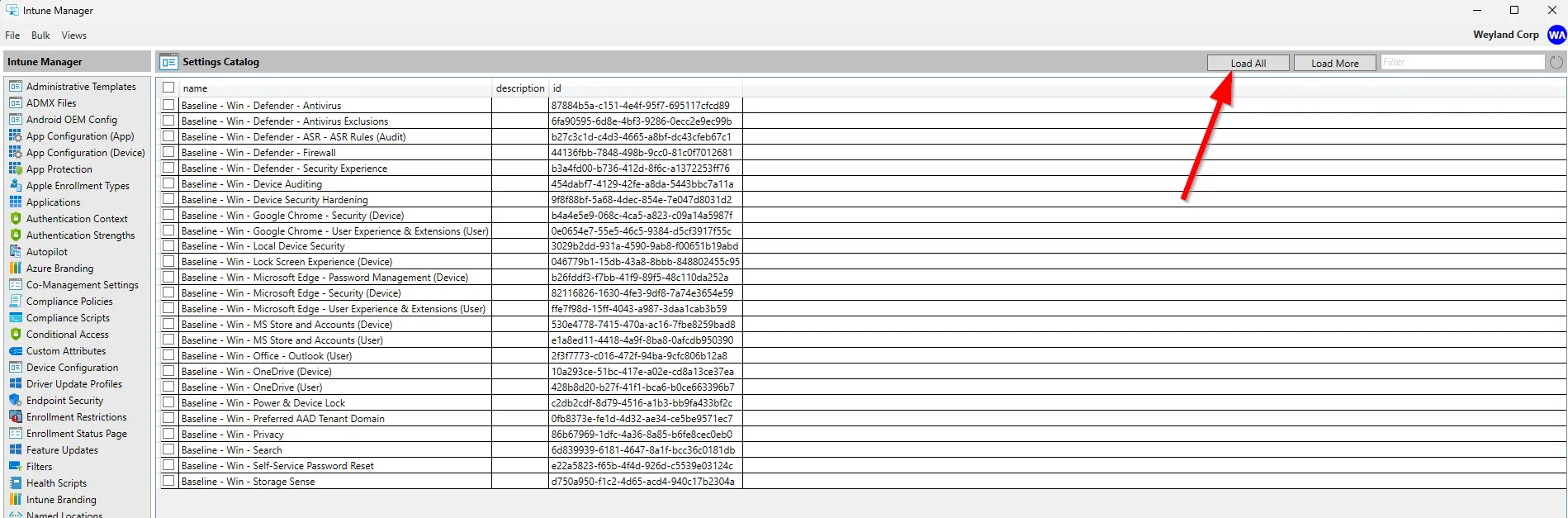
Using the checkboxes, select the profiles you want to export.
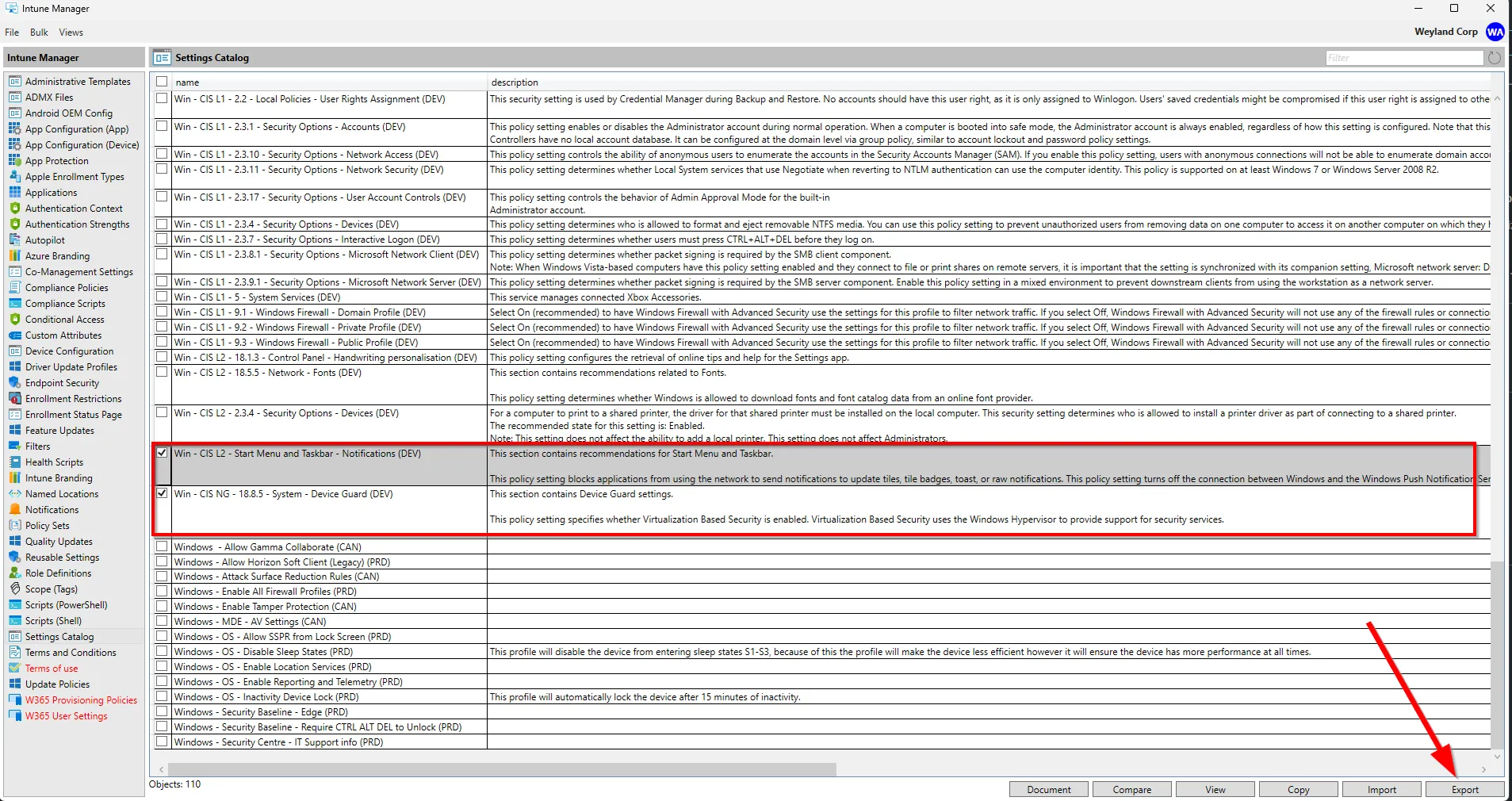
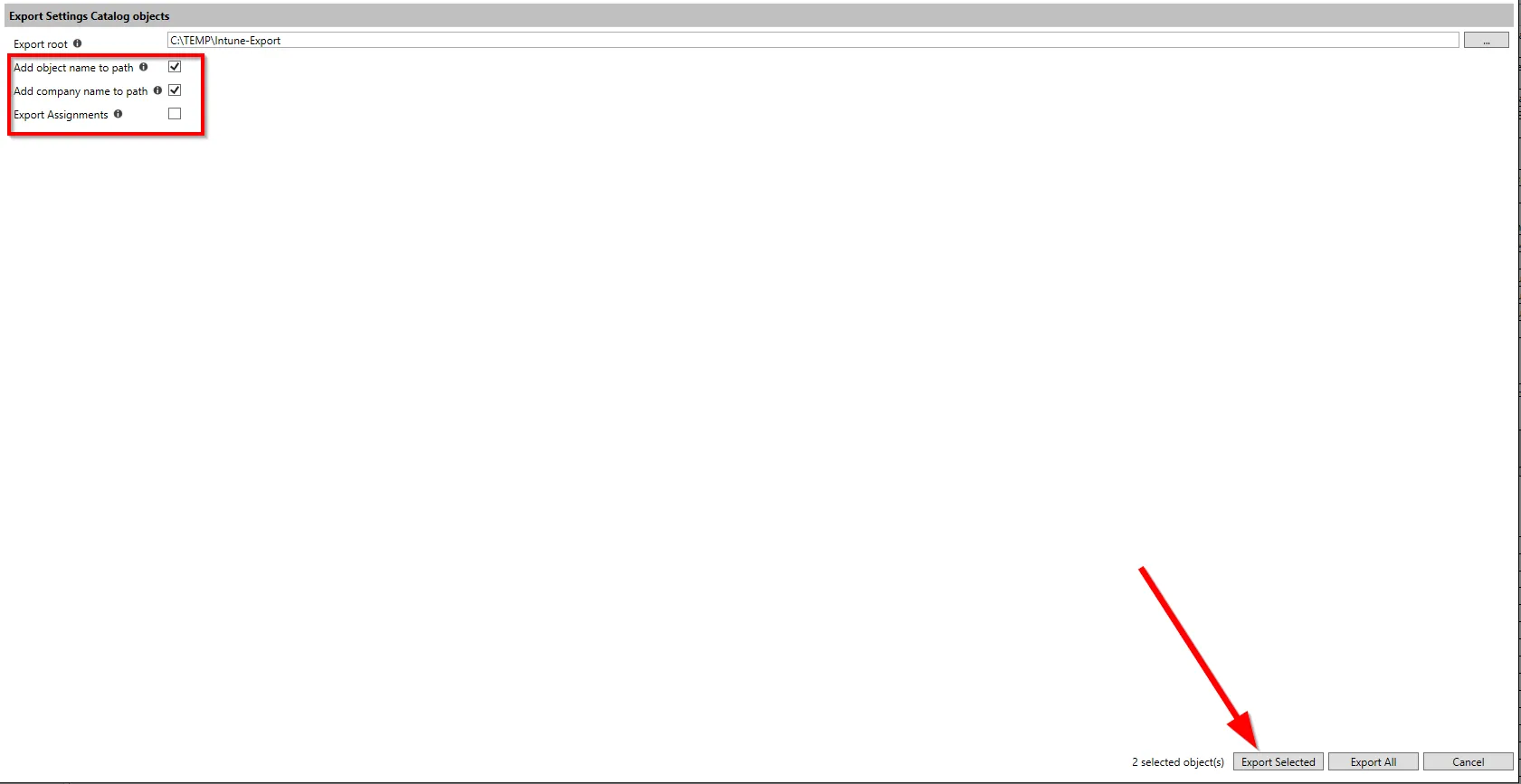
I tend to create another folder in my TEMP location called Intune-Export and this is where I store all exports using this tool.
I recommend leaving the top two checkboxes ticked but unticking Export Assignments, this way we don’t accidentally import and assign.
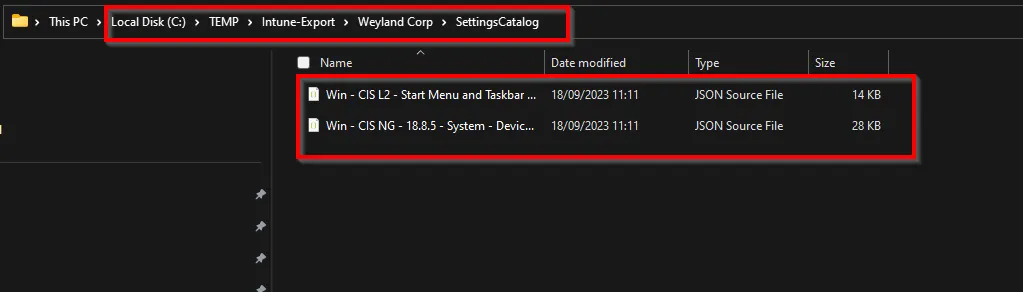
We now have them exported and neat and tidy to be imported elsewhere if required.
Compare
Next, we will check out the compare option.
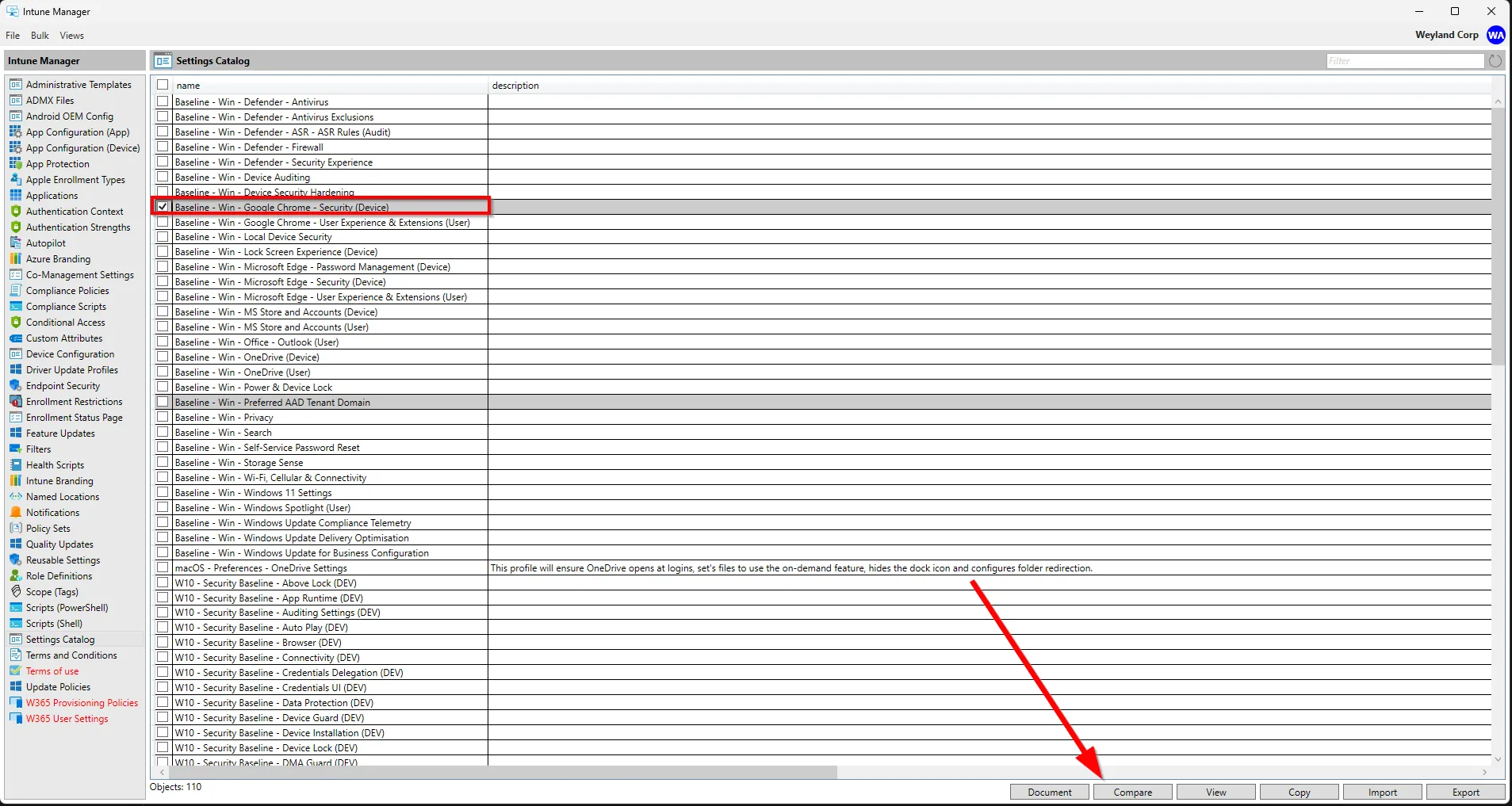
Select the source configuration and hit Compare.
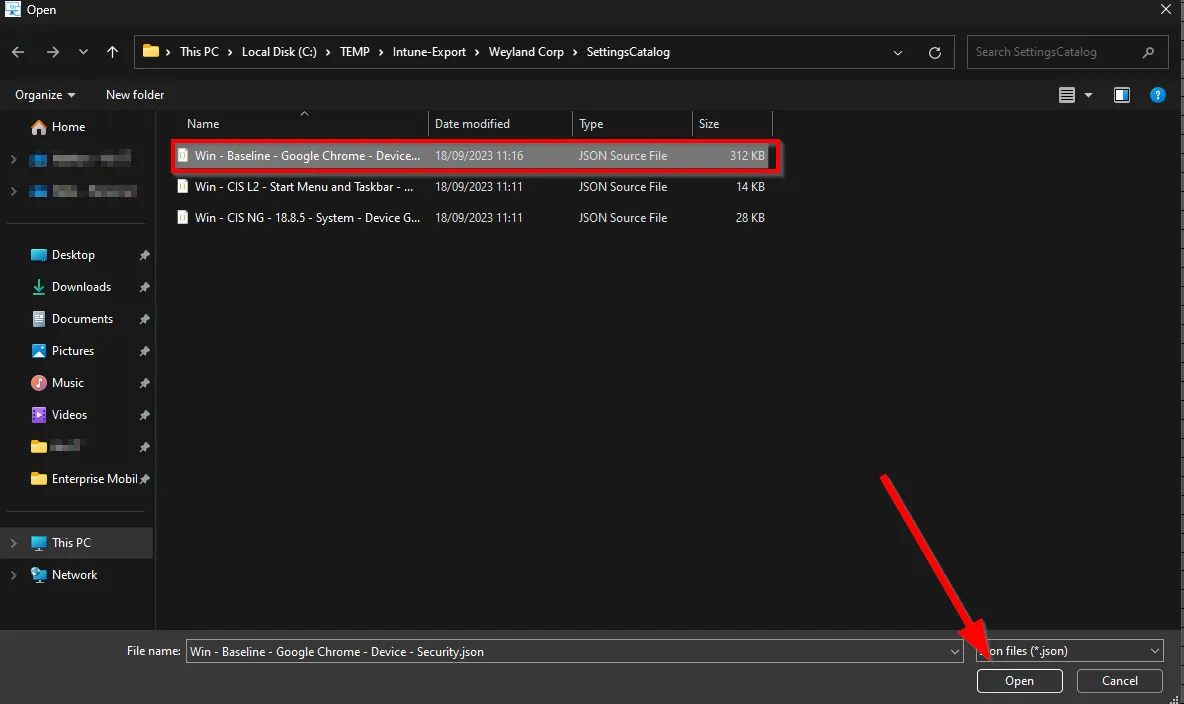
Then choose the file to compare it with.

In my case this is an older version of the same baseline.
Then you’ll want to choose your comparison type, the tool explains which one you should use for each scenario, in my case I will choose Documentation as they are Settings Catalog based configurations.
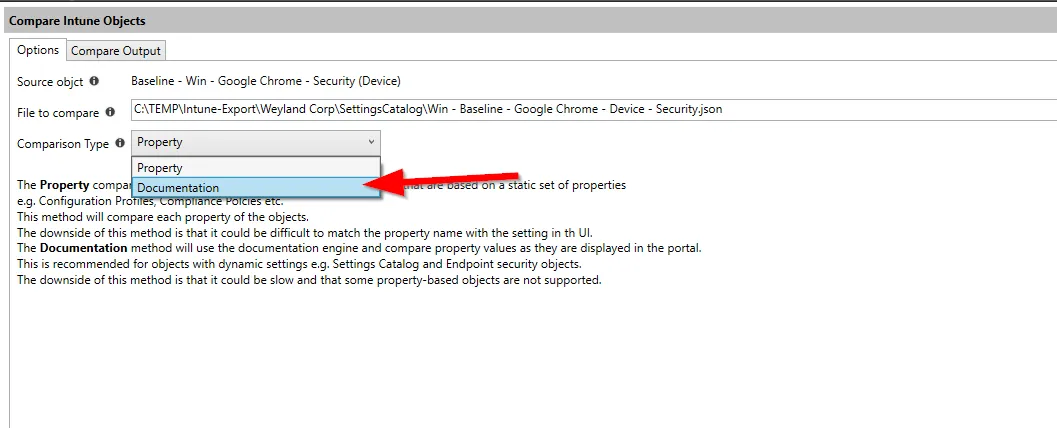
Finally, select Compare.
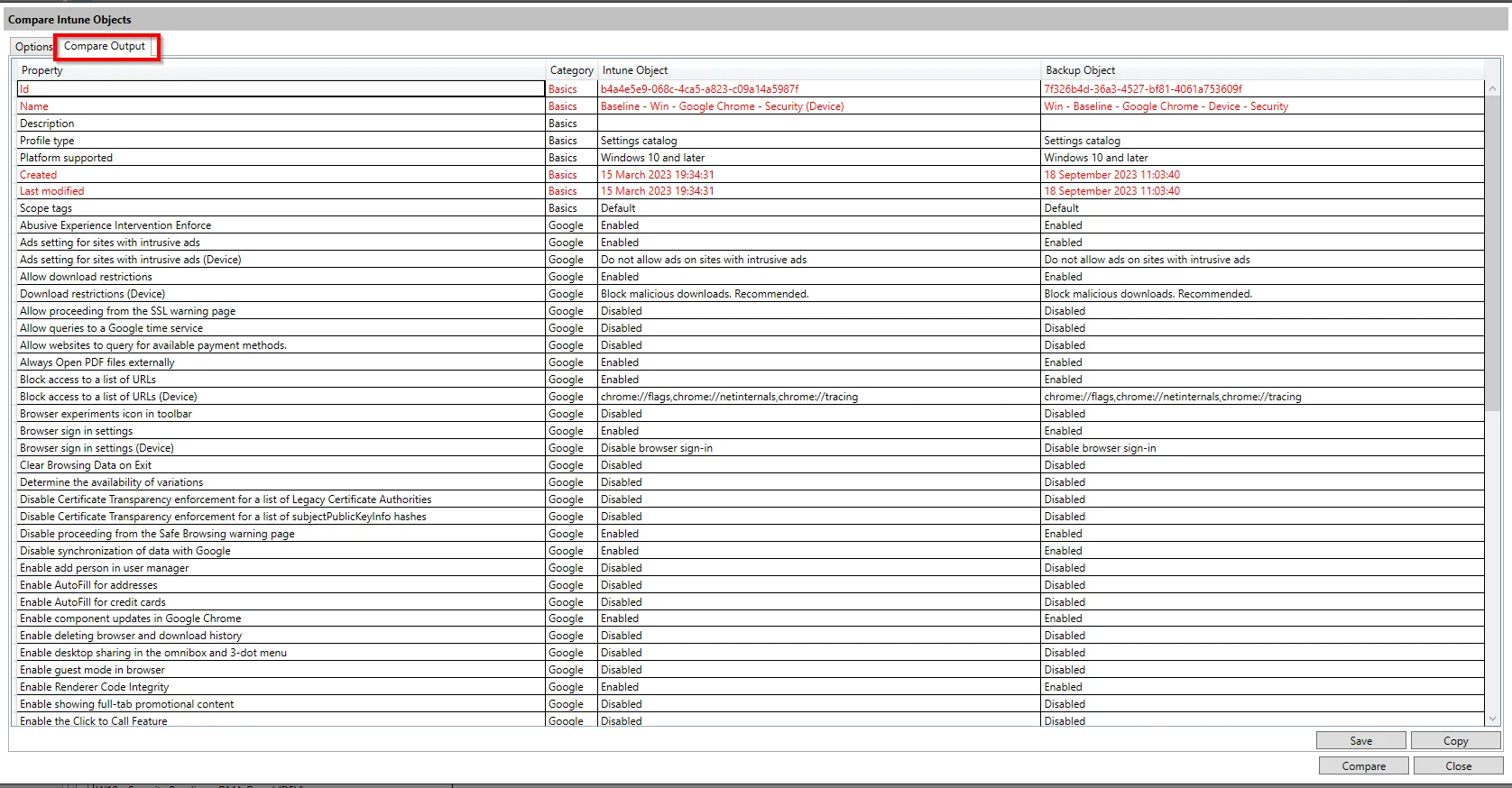
Using the second tab you can see the comparison between each configuration, you can even save this to a csv file.
Document
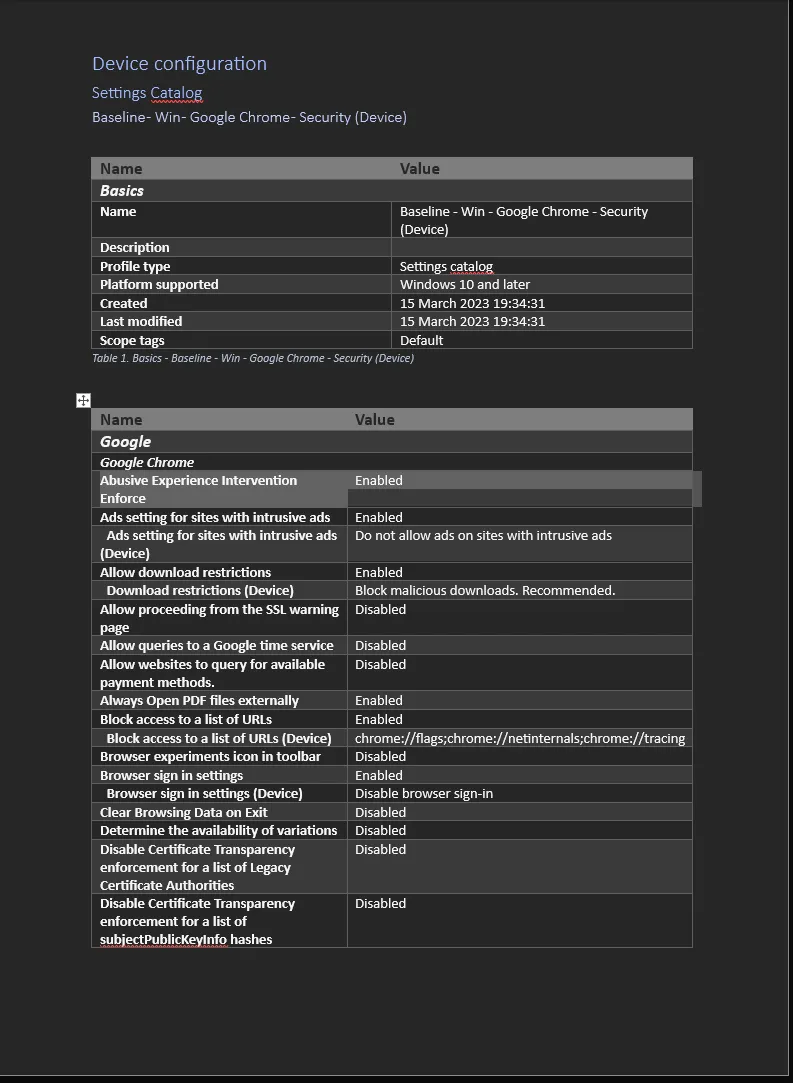
Lastly, we will check out the Document option. This will allow you to export a configuration in an easily readable document format, typically this will be used for, well…documentation!
As before, select the configuration and then choose Document.
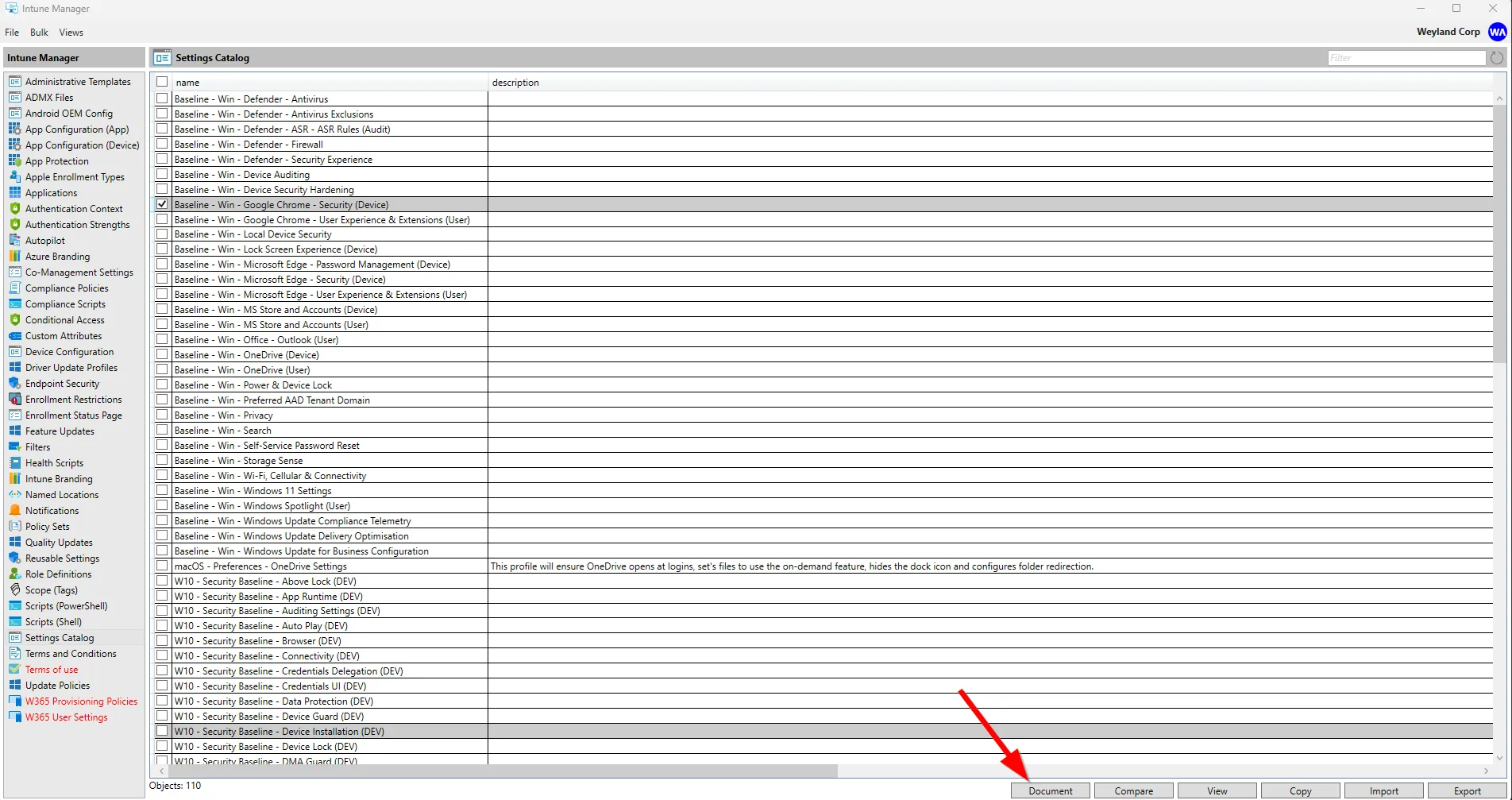
Choose your documentation type and any other preferred settings, in this instance I will choose Word and leave the rest as default.
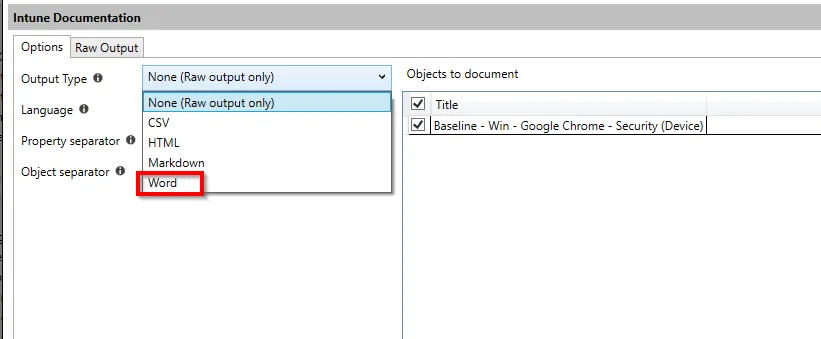
Once you have chosen your output type, you can configure your output settings - For this guide we will not go into detail on this and just leave all as default.
Then select Start.
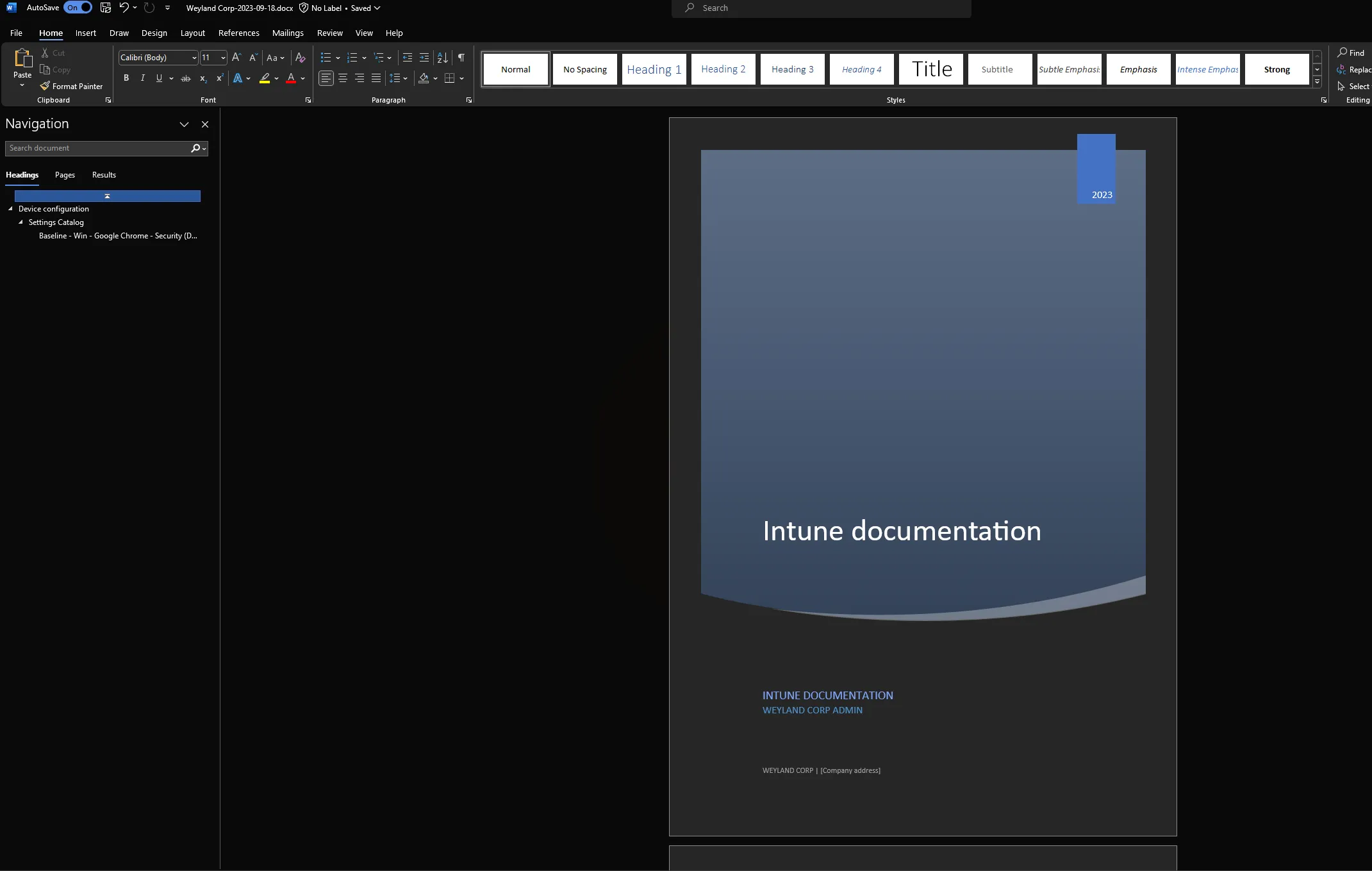
In our case, word will start up with the newly created document.
There are other features available within this tool, but this guide should hopefully help get you up and running with the basics!
Go give (3) Micke Karlsson (@Micke_K_72) / X (twitter.com) some love 💖.