I drafted an article a while back about deploying winget apps to Intune managed devices and how to keep them up to date. You can go read it here: Deploying winget apps with Microsoft Endpoint Manager and auto-update!
Today I want to update the solution as things have changed since then (I did write it in 2022!)
Table of contents
Introduction
Unless you’ve been living under a rock then you likely already know that Microsoft has announced their Enterprise App Management solution. This is essentially an app catalog along with a streamlined update process, awesome! But it will come with a cost (albeit a small one) of 2 USD per user per month. It’s possible that it may not support apps you need (at least right away) or you may just decide that you don’t want to pay for the extra features. Well, this post is aimed exactly at you and as I mentioned before is intended to be an updated version of my previous winget/app deployment blog.
The solution is made up of two awesome community driven solutions.
Let’s start with the new solution of this dynamic duo which is responsible for packaging the winget apps and publishing them to Intune, should you want it to!
Winget Intune packager CLI (WinTuner)
This awesome tool will take an app from winget, package it into an Intunewin file, provide all install and uninstall commands, provide all the app information, the detection script and even the logo for the app in some cases - Unreal!
The tool was created by Stephen van Rooij and is honestly awesome! Go give Stephen some love or buy him a coffee, he deserves it!
You can download the tool along with how to use it here: svrooij/WingetIntune: Package any app from Winget to Intune - WinTuner. You can find the alpha version here: NuGet Gallery | SvRooij.Winget-Intune.Cli 0.8.0-alpha0008
Let’s walk through how to install and use the application (which is super easy!).
So, we start by installing .NET 7 as this is required. You can do this by opening PowerShell and running the below:
winget install --id Microsoft.DotNet.SDK.7 --source winget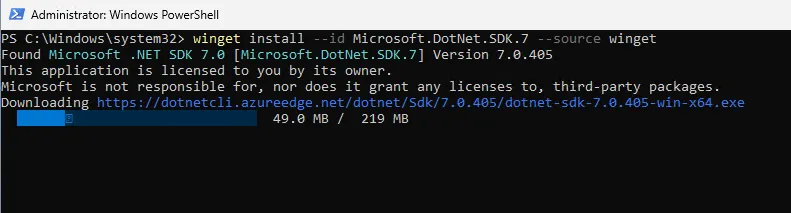
Once the installation has finished, close the PowerShell window, and open a new one.
Now type in the following:
dotnet nuget add source https://api.nuget.org/v3/index.json --name nuget.orgYou’re looking for confirmation that the package has been added successfully.

Next to install Stephen’s tool (hereby called WinTuner).
dotnet tool install --global Svrooij.Winget-Intune.CliNow we need to find a winget application that we want to install using WinTuner, so let’s get the info we need - We will look at the popular Zoom app.
winget search zoomYou may find that you must accept the source agreements for searching the Microsoft Store source (msstore) go ahead and do that.
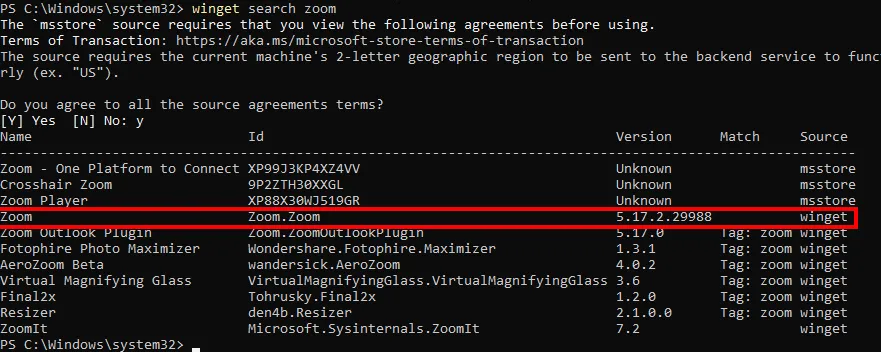
The version we need is the winget source app with the ID** Zoom.Zoom**
Next up we need to create a folder for WinTuner to download and package the apps, for this I usually create a folder in the root of C:\ called, you guessed it WinTuner!
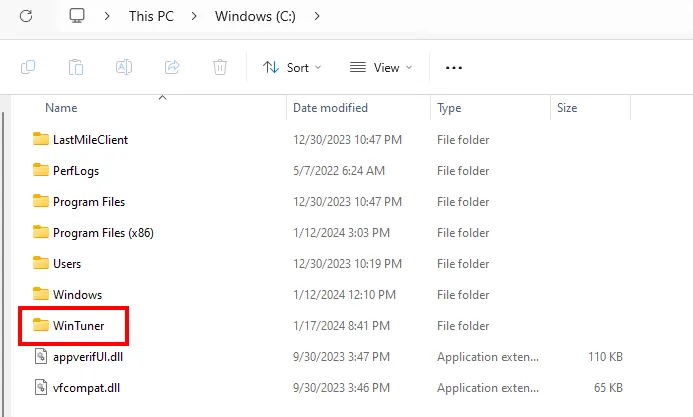
Now we head back to our PowerShell window and tell WinTuner to package the Zoom app for us.
winget-intune package Zoom.Zoom --package-folder C:\WinTunerIt shouldn’t take long but eventually you will see that the tool downloads the installer, generates the intunewin file and even downloads the package information and logo - Let’s go check out our WinTuner folder!
Now we have a folder called Zoom.Zoom and if we look inside, we have another folder with the version along with the logo, nice!
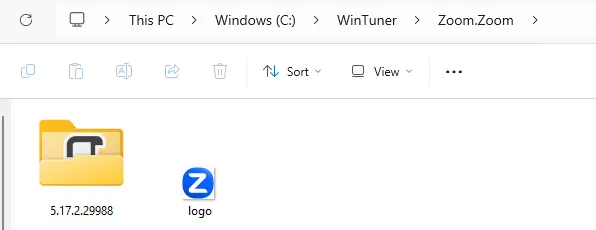
If we check inside the next folder, we will find everything we need to upload the app manually to Intune.
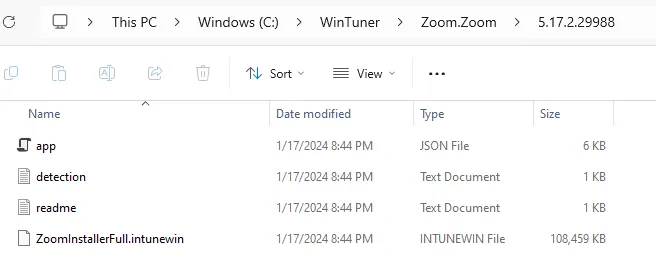
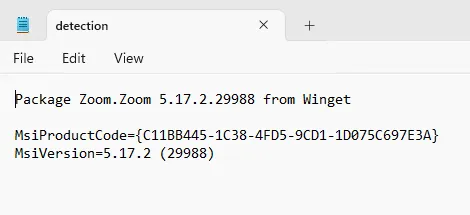
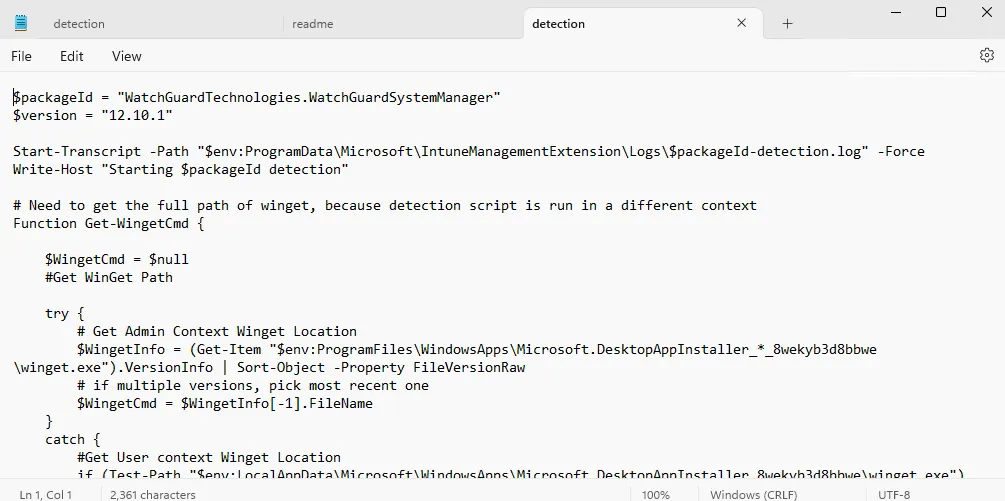
The JSON file holds all the information required to additionally allow WinTuner to publish the app into your tenant (we’ll get to that). The detection text document has the MSI detection information or if it’s not an MSI app it will be a script to detect the installation.
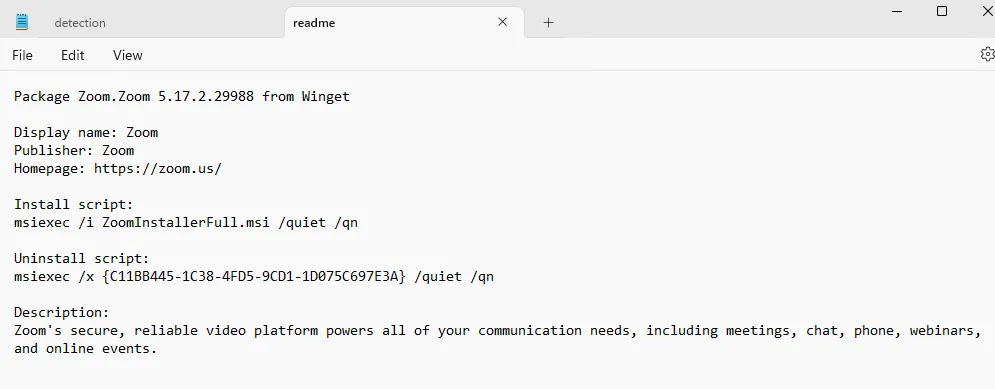
And the read me file has all the additional information that you must fill in when uploading an app to Intune, such as Display name, Publisher, install script, uninstall script and this even includes a description!
And lastly, we have the intunewin file that can be uploaded to Intune as a Win32 app.
So now we have everything we need to manually upload the app which by itself is very cool, but Stephen took it a step further; we can publish it directly from the tool, so let’s do that!
To publish the app, we just use the publish command along with the associated App ID and the folder where the packaged app exists.
winget-intune publish Zoom.Zoom --package-folder C:\WinTunerAfter running this command you’ll be prompted to sign into your tenant.
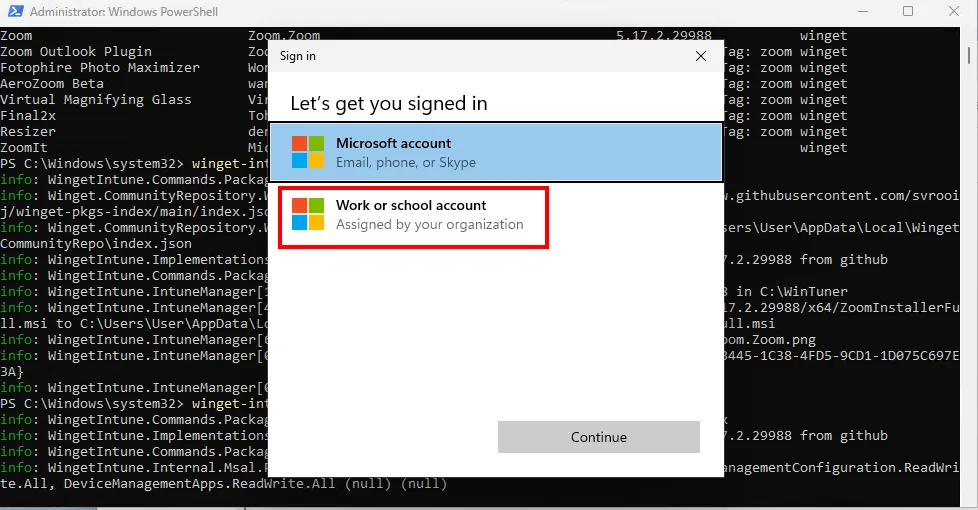
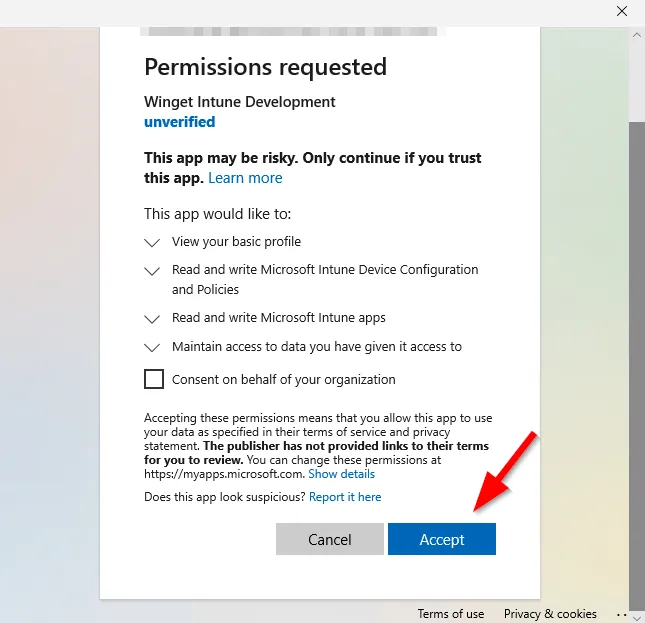
Go ahead and accept the permissions prompt
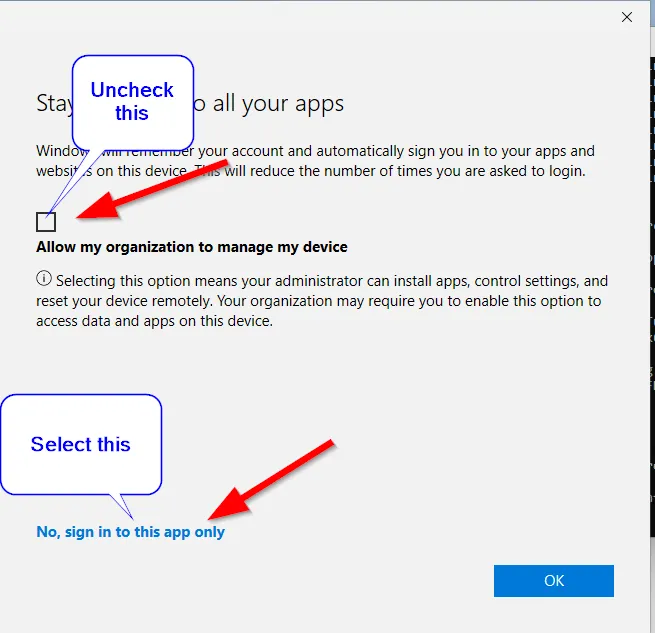
In the following window which most will know all too well, uncheck the box for Allow my organization to manage my device and choose No, sign into this app only.
In a minute or so the application will be uploaded to your tenant!
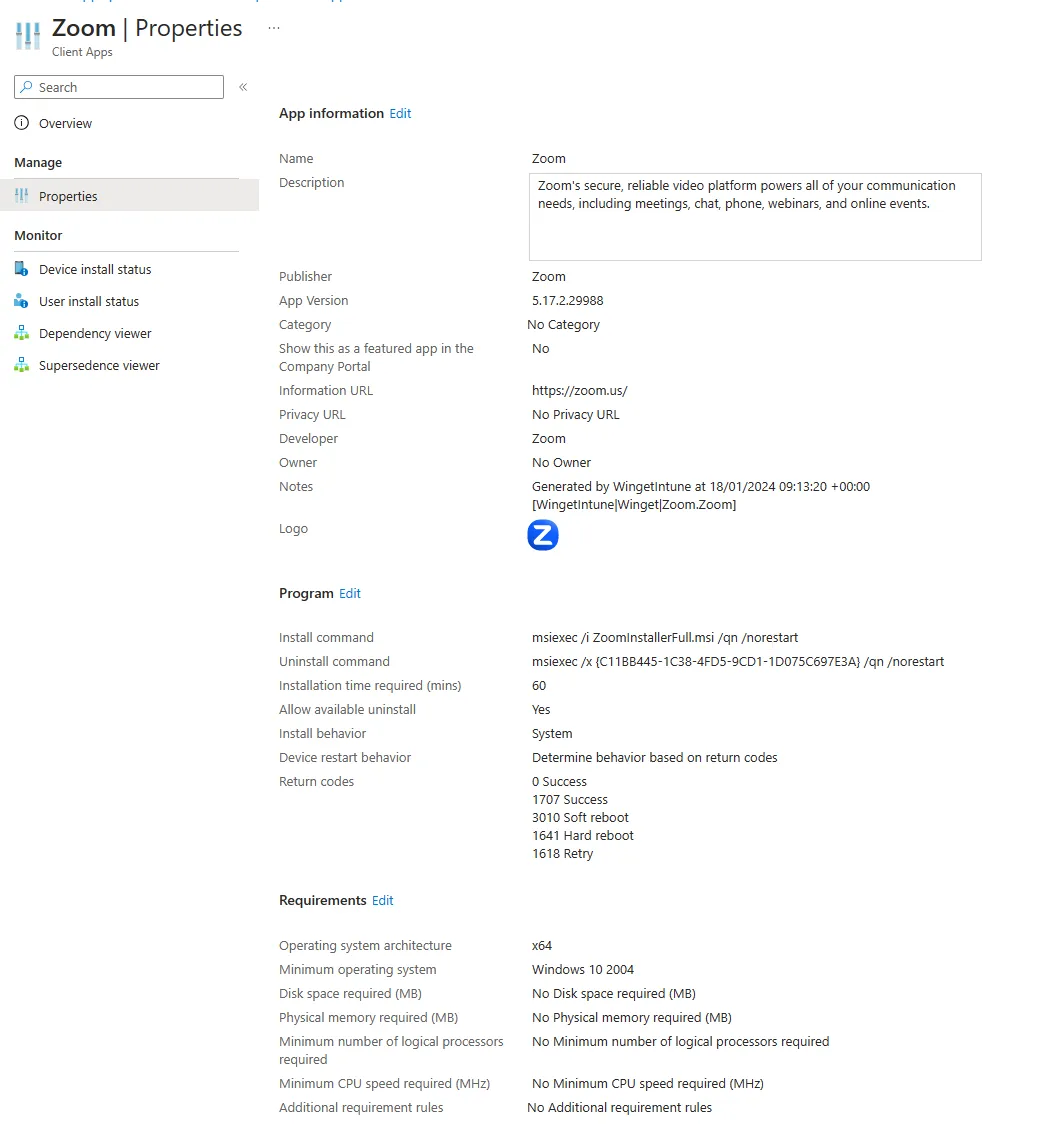
Great, so now we have our app in Intune and can assign it to our users just as we normally would.
But I said there was a dynamic duo to this solution, and that is where Winget-AutoUpdate-Intune comes in!
Keep your winget apps up to date using Intune!
The Winget-AutoUpdate-Intune is a fork of the previous solution that I blogged about and is the incredible Winget-AutoUpdate. The difference with this solution is that it has Intune integration using ADMX backed profiles and associated app that can be deployed via the Microsoft Store (new) option in Intune.
Here’s the list of features:
- Updates (nearly) every 3rd Party App that using WinGet
- Fully ADMX backed configuration using Microsoft Intune
- White- or Blacklist apps you want to update
- Easy deployment using a single MSI file
- Available as Microsoft Store App (new)
So, how do we get it configured?
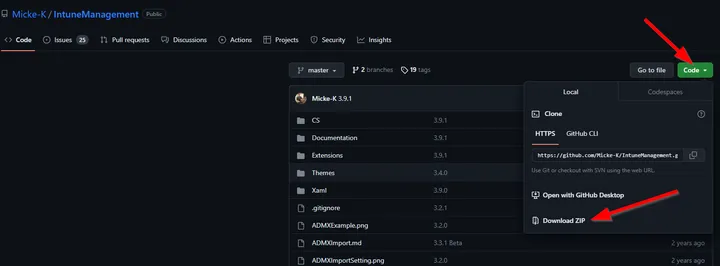
Start by downloading the code from GitHub
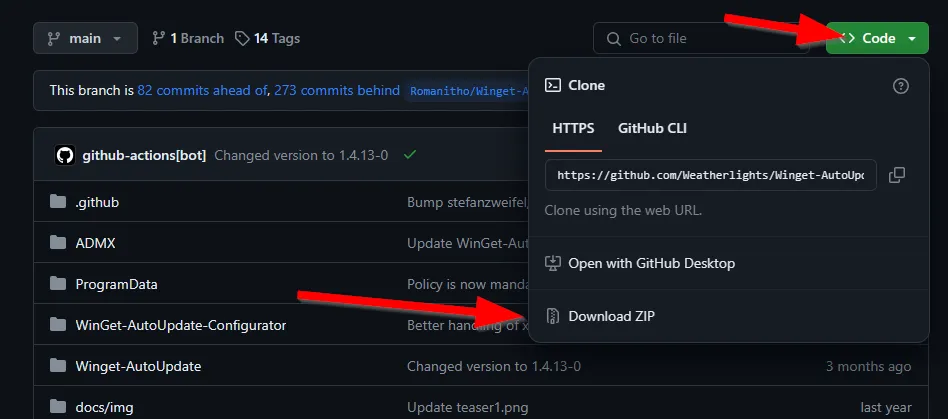
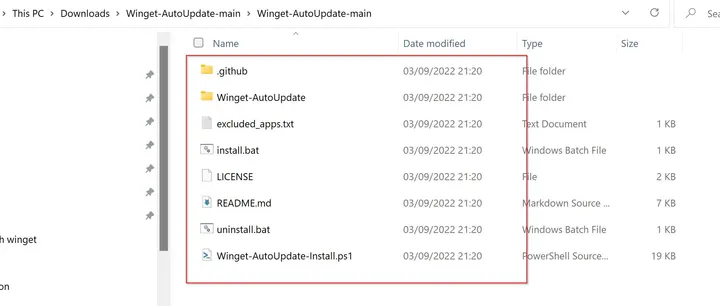
Go ahead and extract the zip file and look for the folder named ADMX. In here you will find the .admx and .adml files which can be imported to Intune, so let’s do just that!
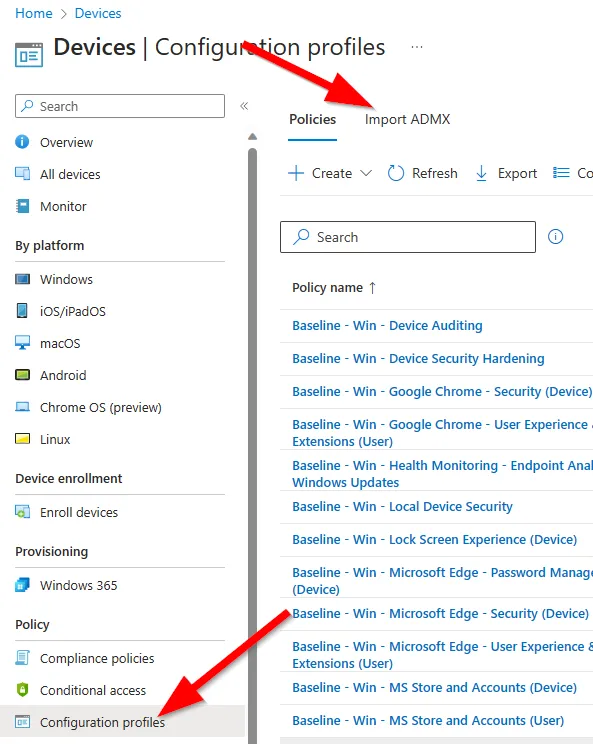
From the Devices tab in Intune select Configuration profiles and then Import ADMX and then Import.
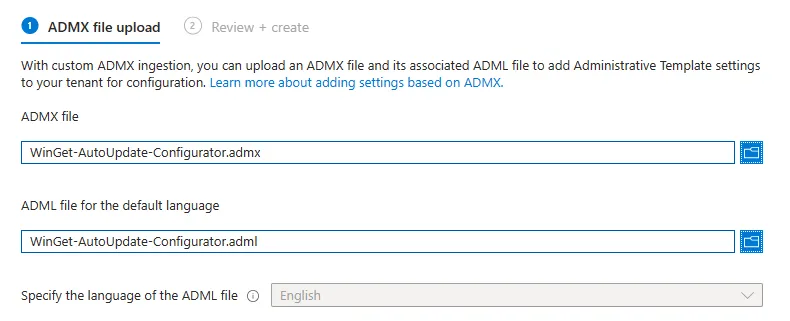
Point each one to the relevant file and hit create.
NOTE: These ADMX files do not require the Windows.admx or Windows.adml files like others do.
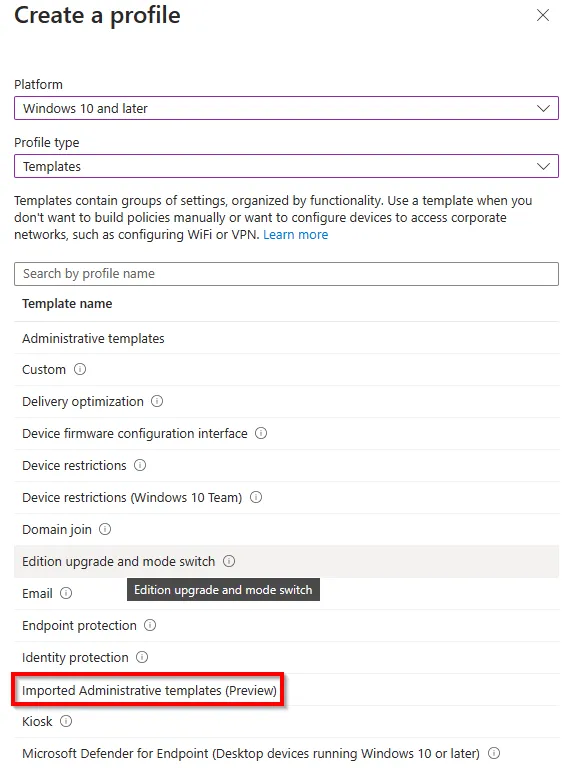
Now if we go and create a new Windows config profile that uses Imported Administrative templates (preview) we can use the newly imported settings.
And here we have all the settings available.
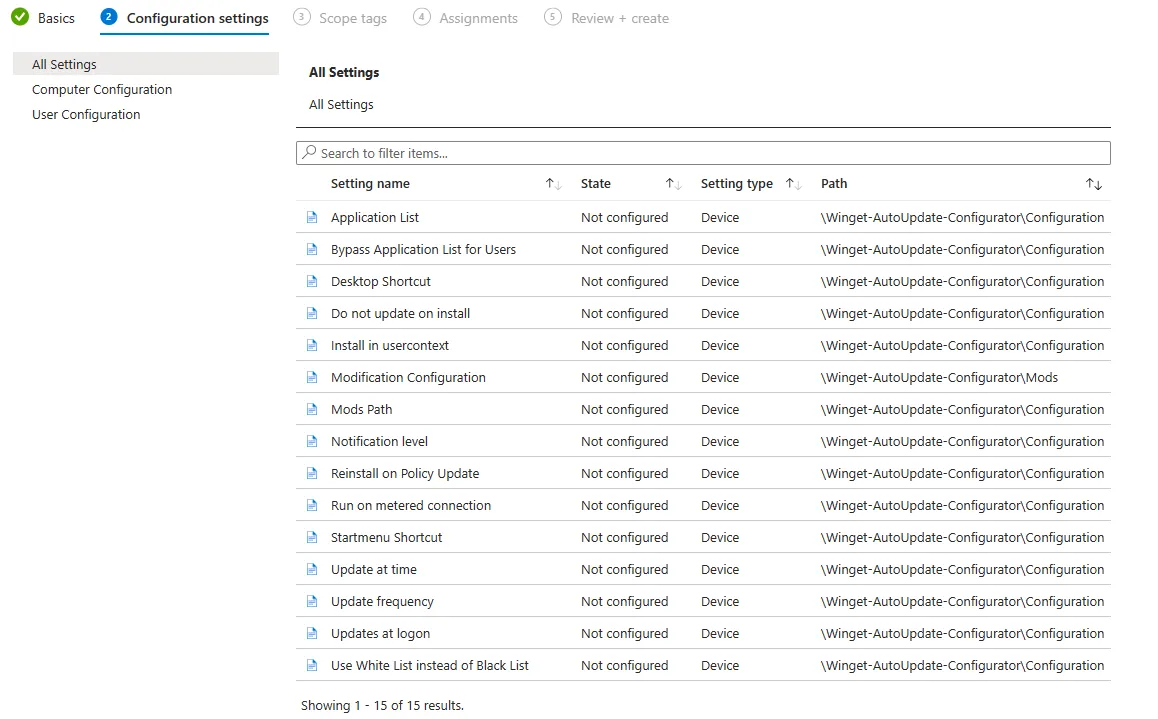
From here we can configure all the same great settings we had in the original tool but via Intune, very cool!
Let’s go ahead and configure a few of them.
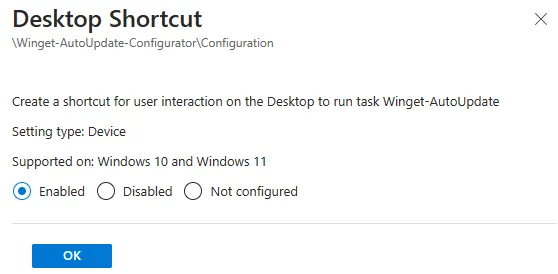
We want our users to be able to manually update their apps, so we’ll enable the desktop shortcut to make it easy for them.
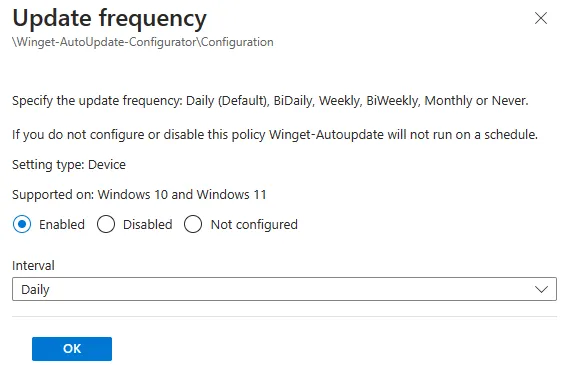
We like our apps to stay up to date, so we’ll go ahead configure the update frequency to daily.
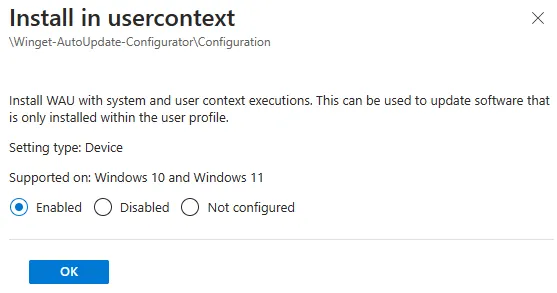
Winget by default can be ran in the user context so we want to make sure that those apps installed in that context are also updated, for this we enable the setting Install in usercontext.
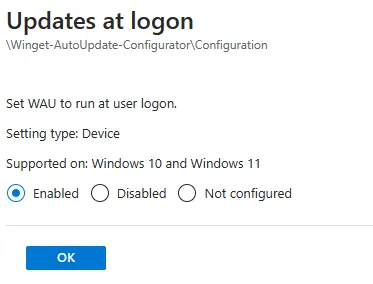
Now you might find that setting a daily update frequency along with a specific time is preferred but I want my apps to update on user login so I enable the Updates at logon setting.
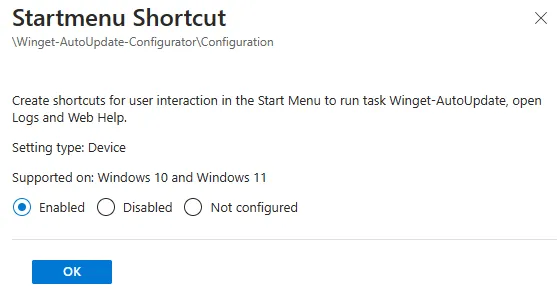
Some of users prefer to use their start menu rather than desktop shortcuts, let’s keep them happy and enable the start menu shortcut as well.
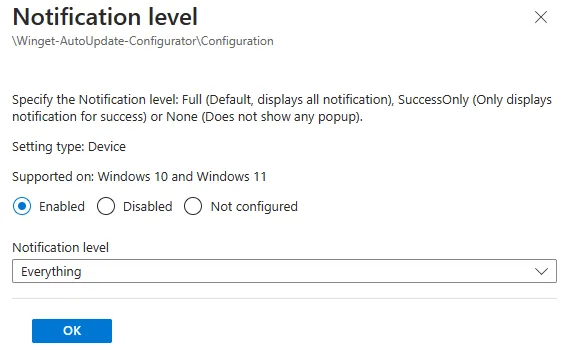
I’m happy to have our users informed when an app is updated so I’m going to go ahead and configure the notification level to notify for everything.
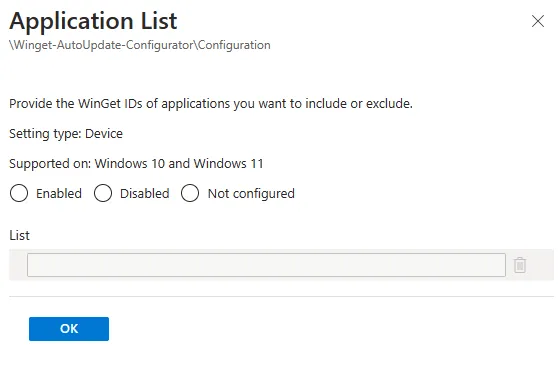
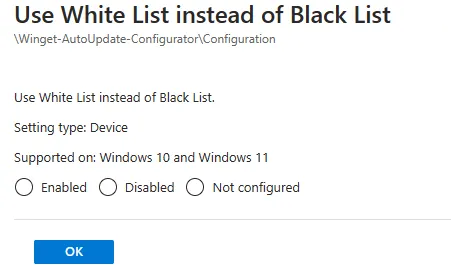
If you want to control which applications are updated (or not) you can use the Application List setting which is a blacklist by default (block app updating) or you can configure it along with the Use White List instead of Black List setting which flips it (allow app updating).
For now, I’m happy with that configuration so I’m going to deploy it to my user devices.
Deploying the winget auto update application
The ADMX templates are only one part of the puzzle here though, we still need to deploy the Winget-AutoUpdate-aas application which is handily available via the Microsoft Store (new) in Intune.
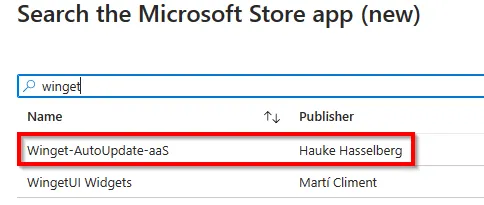
Then it’s as simple as deploying the app to your user devices.
Let’s see what this looks like for our end users.
End user experience
Once the app is deployed all the configurations are applied.
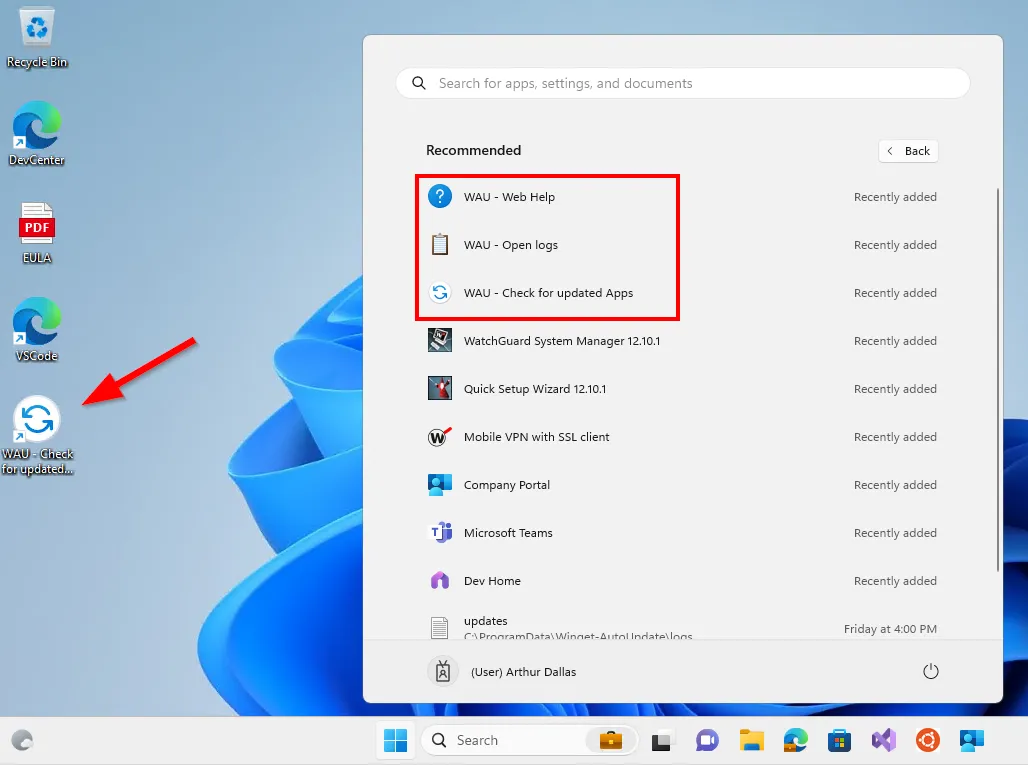
A super handy shortcut to the logs has been added, selecting this takes us straight to the extremely easy to read logs.
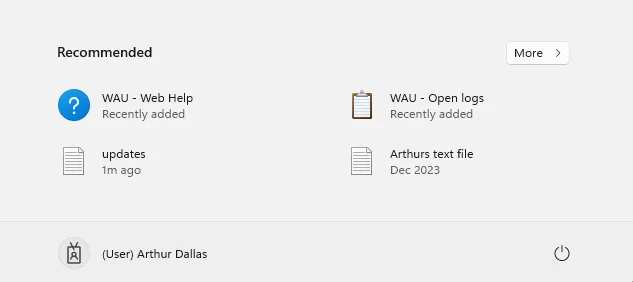
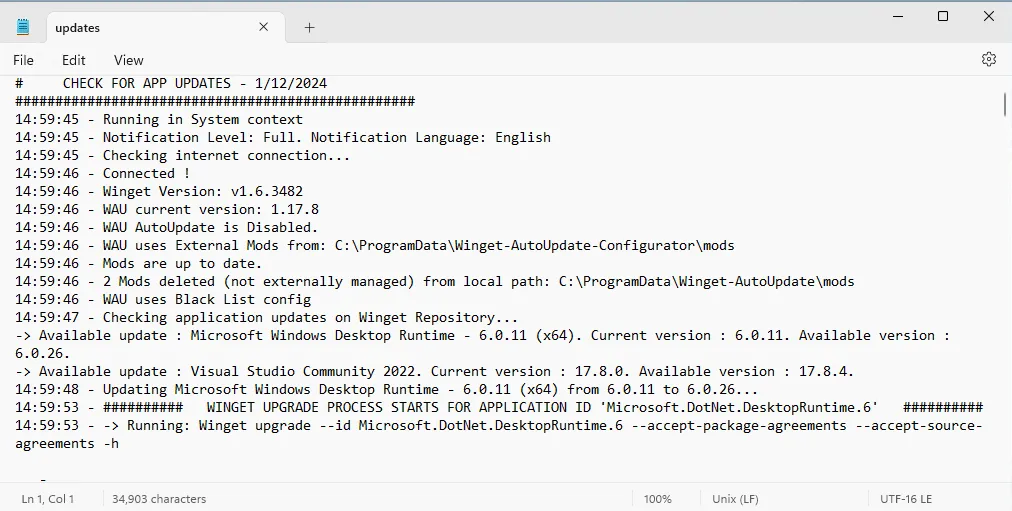
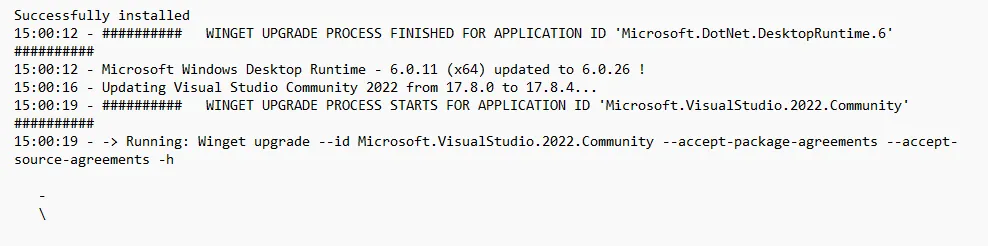
In the above example we can see a few applications going through the update process.
If we then look at firing up the update checker manually, we can see it goes through the same process but, well, manually!
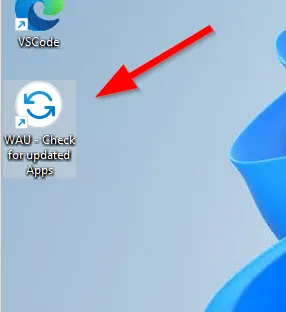
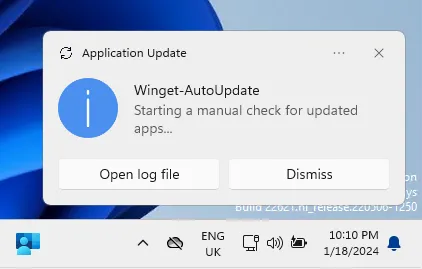
Once the check has been completed the user is notified and given the option to view the log file.
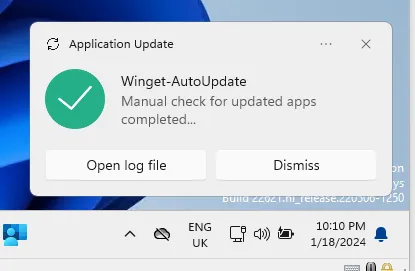
If all that wasn’t awesome enough for you in the latest version 1.02.0003 all the log files can be collected using the Intune Collect Diagnostics from the device page in Intune - FAQ · Weatherlights/Winget-AutoUpdate-Intune Wiki
And that’s all there is to deploying your winget apps and keeping them up to date!
I urge anyone that uses these tools to go support the developers in any way they can including using the tools and reporting any bugs etc. as all the solutions linked in this article are actively worked on and updated regularly.
Happy deploying!