As most of you reading this article will know there are many different ways to deploy apps using Microsoft Endpoint Manager (MEM), this post will detail how to deploy the Datto RMM agent as a Win32 app.
But Datto documentation suggests using PowerShell?!…Well, yes it does, and while PowerShell certainly has it’s place in MEM, if I can package an app and deploy it using the Intune Management Extension I always will. I have found I have always had more success in deploying apps this way, reporting tends to be better and the ability to use supersedence and dependencies is great.
If you prefer to deploy Datto RMM using PowerShell, you can follow the official guide here: Deploying the Datto RMM Agent using Microsoft Endpoint Manager (formerly Intune)
Now, onto the juicy bits - For this guide I’ll take you through every step, but as I post more content I’ll likely skip repetitive sections such as how to wrap an installer using the Win32 Content Prep Tool.
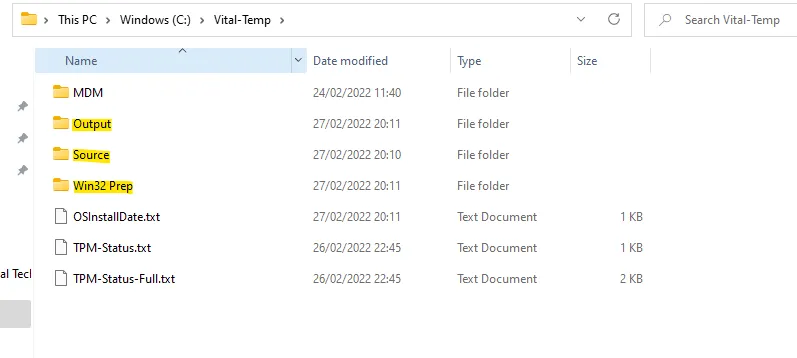
I like to start by creating three folders in the root of my C: or the custom temp folder I normally create.
Now you’ll need to download the Win32 content prep tool which you can find here: GitHub - microsoft/Microsoft-Win32-Content-Prep-Tool: A tool to wrap Win32 App and then it can be uploaded to Intune
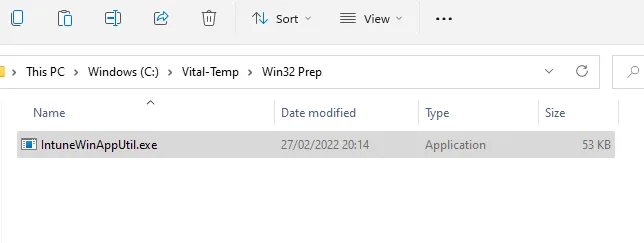
Extract the contents of the downloaded zip folder and move the IntuneWinAppUtil.exe into the folder you created earlier called ‘Win32 Prep’.
Now you are going to download the Datto RMM agent you intend to deploy, keep in mind these are site specific so make sure you are deploying the right one for the right client!
Head into the client site and download the Windows agent, move this into the folder you created called ‘Source’.
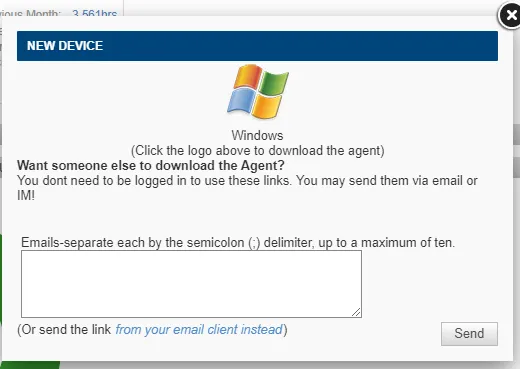
Now we have everything we need to get started, go ahead and open an elevated CMD prompt (you can use PowerShell or Terminal here however, I’ve had issues with Terminal whereby it will not complete the conversion, your mileage may vary but this works for me!) and navigate to the Win32 Prep folder and run the IntuneWinAppUtil.exe.
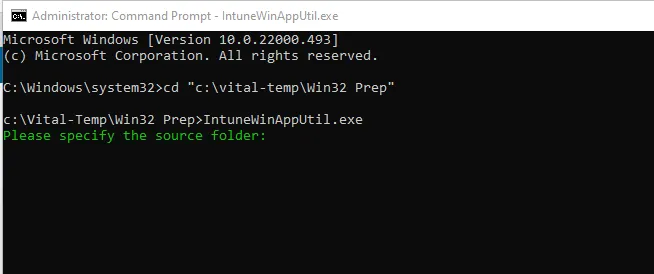
Input the source folder where you stored the Datto RMM agent.
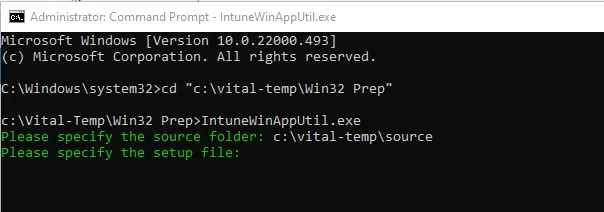
Input the installer name and hit enter.
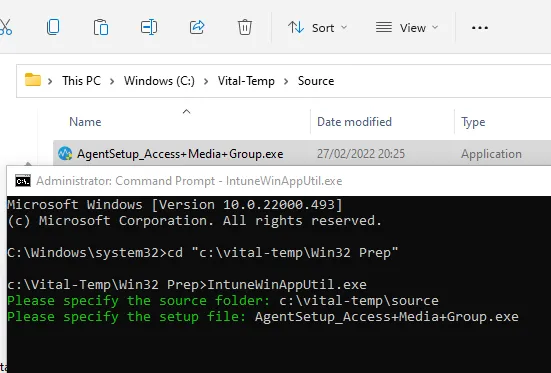
Input the output folder location you want the .intunewin file to be placed and hit enter, when prompted ‘do you want to specify catalog folder’ choose No.
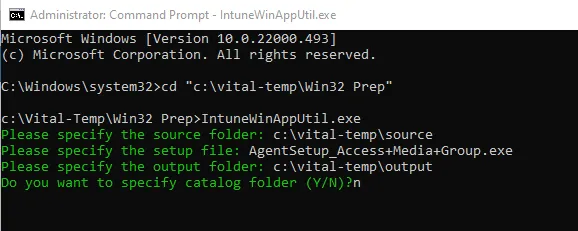
Now you have the shiny new .intunewin file that can be uploaded to the MEM portal, so head there now.
Head into ‘Apps’ and choose to upload a Win32 application.
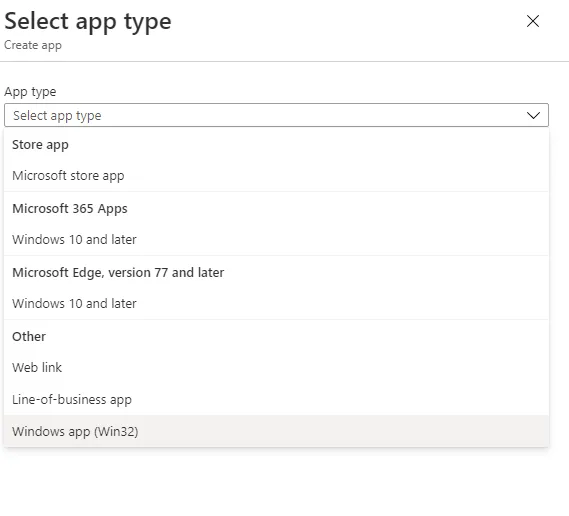
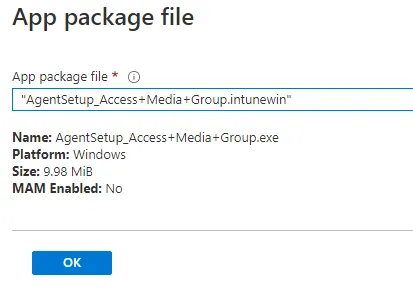
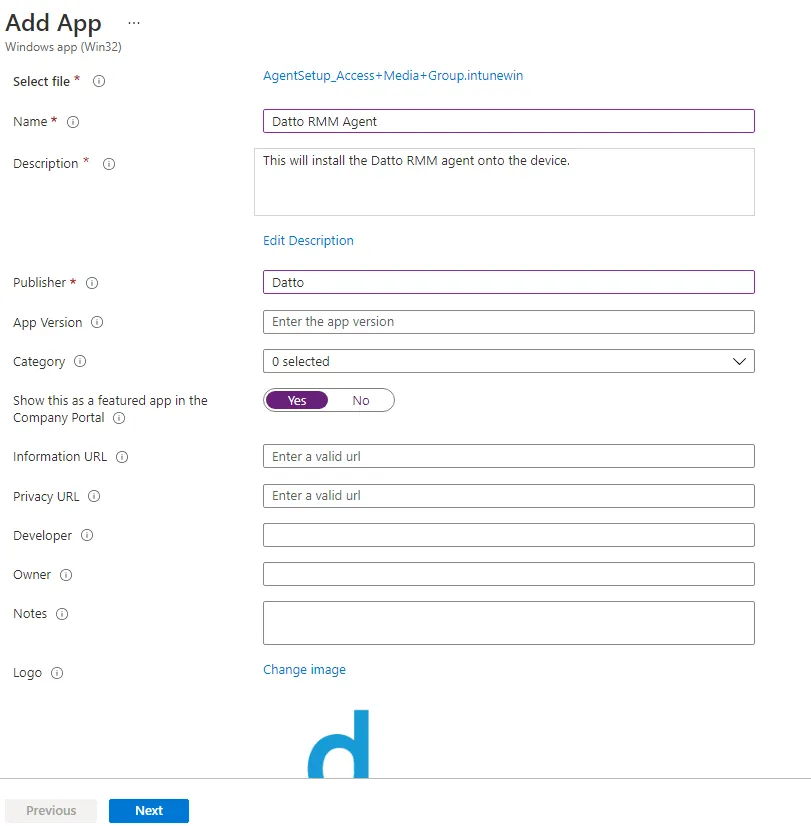
Fill in the appropriate information and upload an image if you desire then hit next.
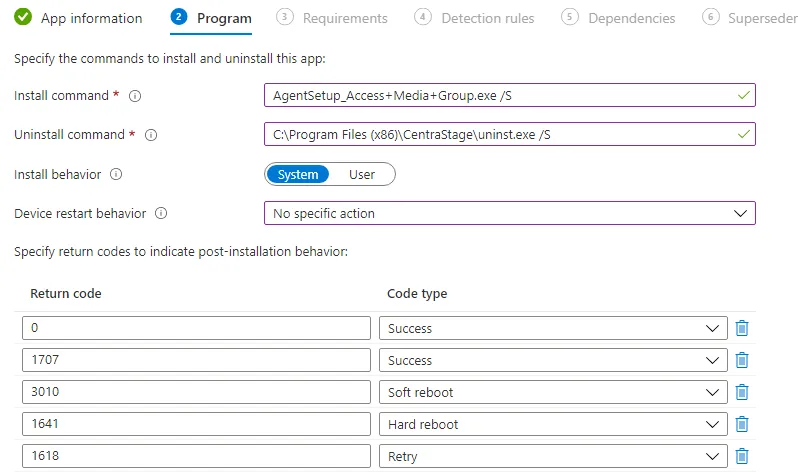
Fill in the program commands as below, remember to update your agent filename though.
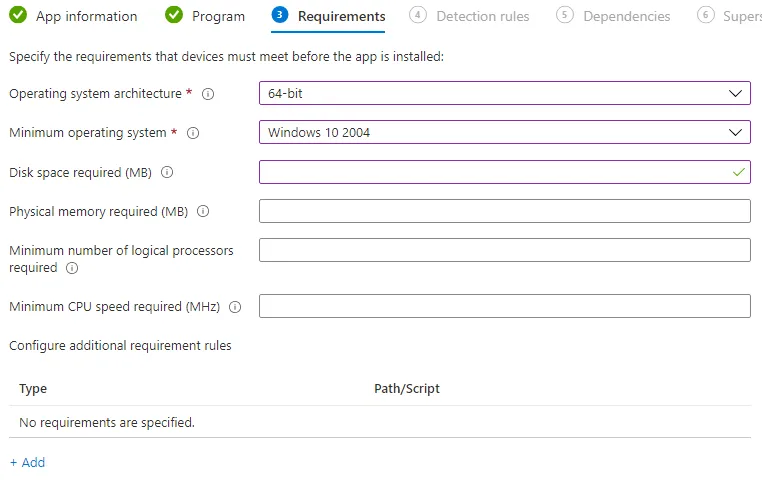
Configure your app requirements, I keep them simple.
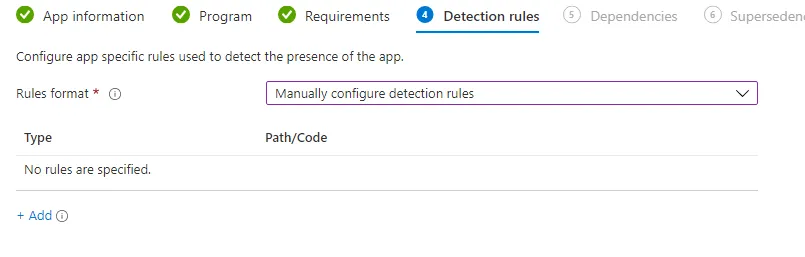
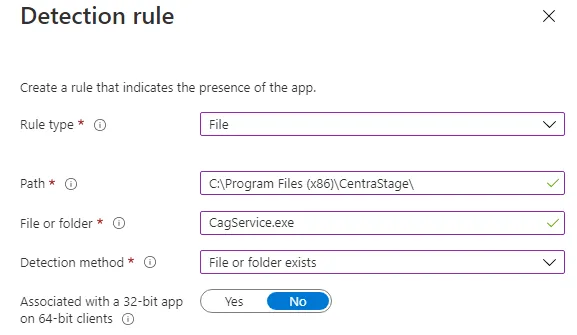
For detection rules you are going to want to choose ‘Manually configure’ and use the same as the below image.
If you want to configure dependencies or supersedence go ahead and configure those, I leave them blank as RMM is the primary app I want installing anyway so it’s normally the dependency for other applications.
On the assignments page, go ahead and deploy to your required groups, as a general rule of thumb I always deploy to the ‘All Devices’ built in group and would use the new filters options if I need to target specific devices.

Publish the app and that’s all there is to it, you can monitor the install status from the app overview pane.
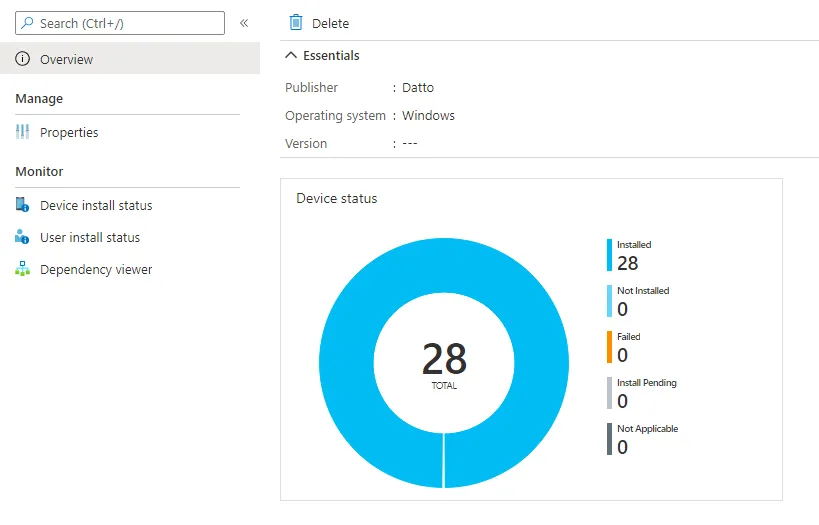
The Datto RMM agent is self-updating so you don’t need to worry about updating this in the MEM portal, just set and forget!