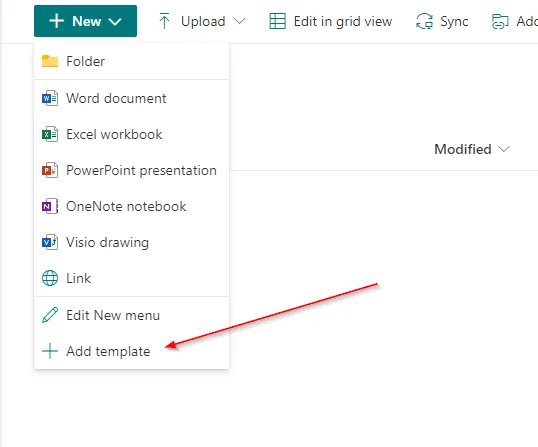
One of the most requested tasks from clients is the ability to distribute document templates for end users to make use of. There are many ways to achieve this through either using read only document libraries which will allow users to download the template and then modify as required or if using SharePoint online via browser, you can now upload a document type and it will give you the option to turn into a template, see below image.
However, if users are primarily using the locally installed versions of Microsoft Office it might be that you prefer to have these document templates distributed in a way that will allow them to create a new document directly from the app using the template. The solution that Microsoft have for this is called an organisation asset library and it is simply a document library that you have specified as holding the templates assets and configuring one is super simple!
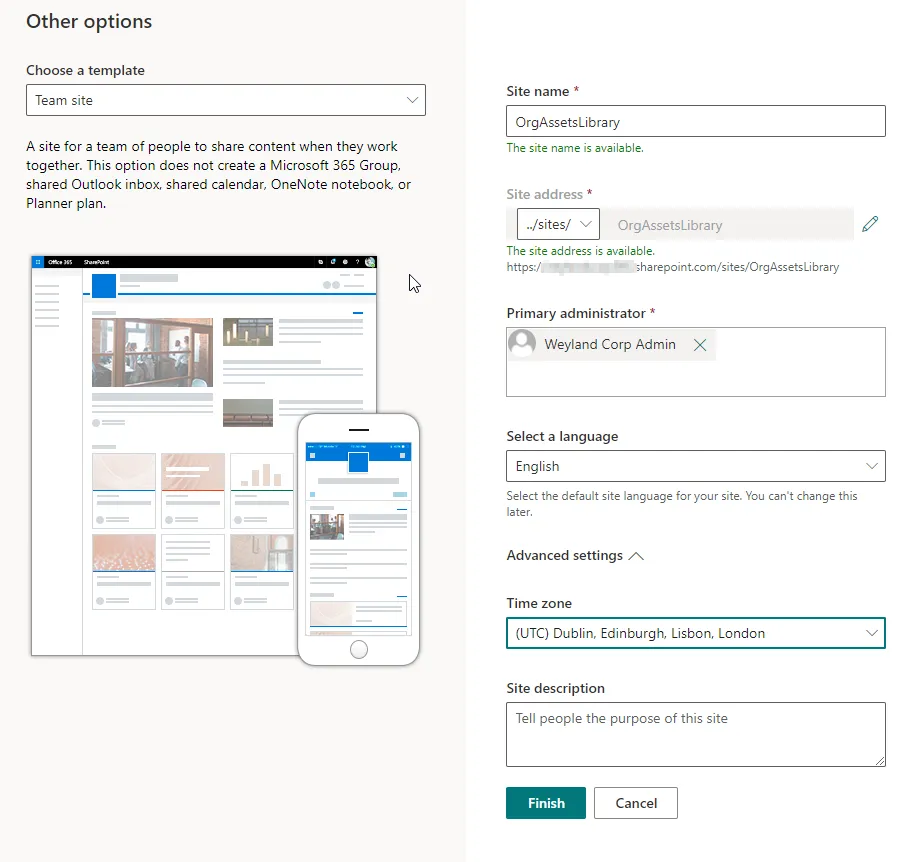
To start with you will want to create a new SharePoint site that will be dedicated for the assets library this is because all organisation asset libraries must be on the same site, as such I’ve created a standard team site with no Office 365 group attached like so.
You can create two types of organisation assets and they are:
- Images - These are photos or logos that can be used when a user adds web parts to any modern page in SharePoint Online. Using the file picker option you can select “Your organisation” to the browse the available assets.
- Office templates - These are the Microsoft Office template files that end users can then select when creating a New document from within one of the locally installed Office apps. Currently supported Office apps are: Word, Excel and PowerPoint desktop apps. PowerPoint on the web templates are also available but require Office 365 E3 or E5 licensing whereas the other options do not.
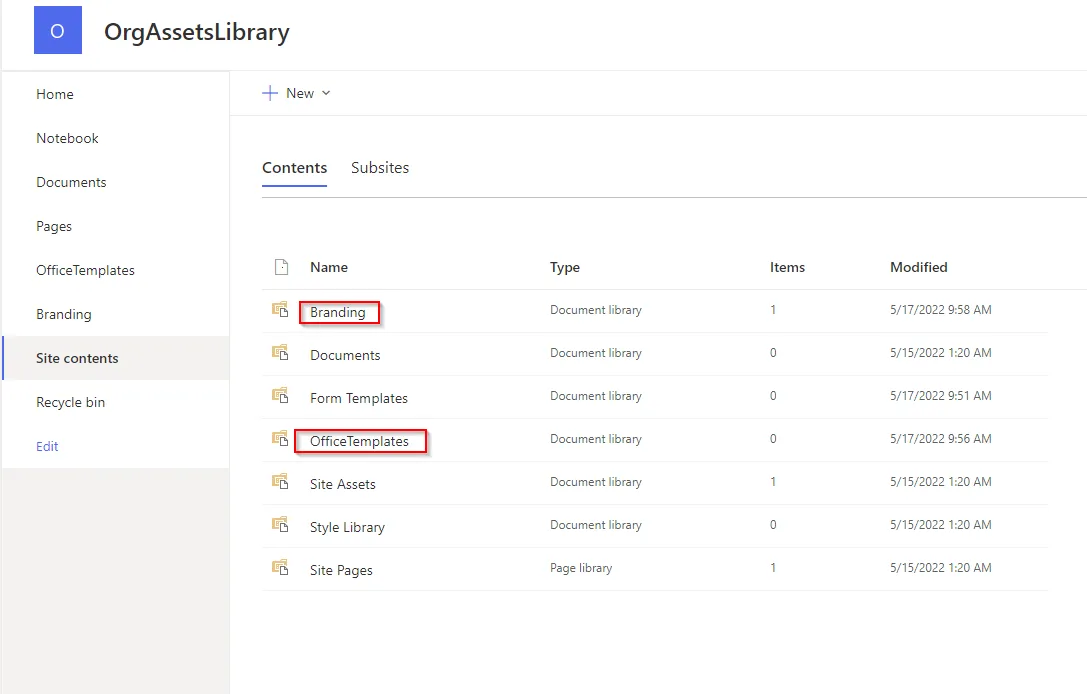
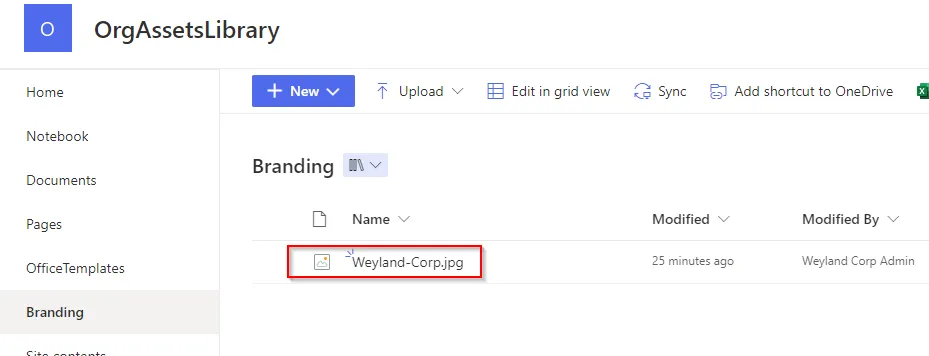
Next step we are going to create our Document Libraries that will be used to hold each asset type. In my case I am going to create both of the above so my document libraries are like so.
Next you’ll want to make sure everyone in the organisation has at least read only permissions to the files, the best way to do this is to add the Everyone except external users to the visitors group.
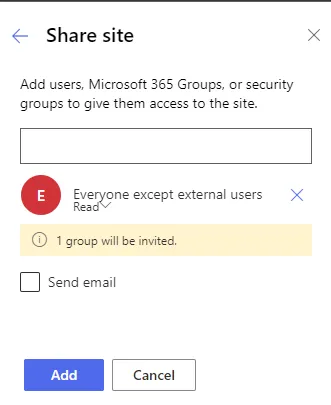
Add the group via the Share site option.
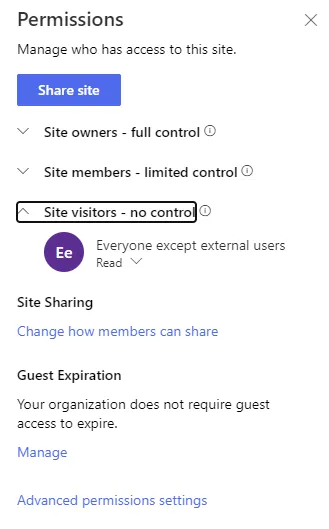
Keep in mind you’ll want to add certian users to either the members or owners groups so the templates can be added or updated, in our case this is jsut myself so I will add them as the site owner.
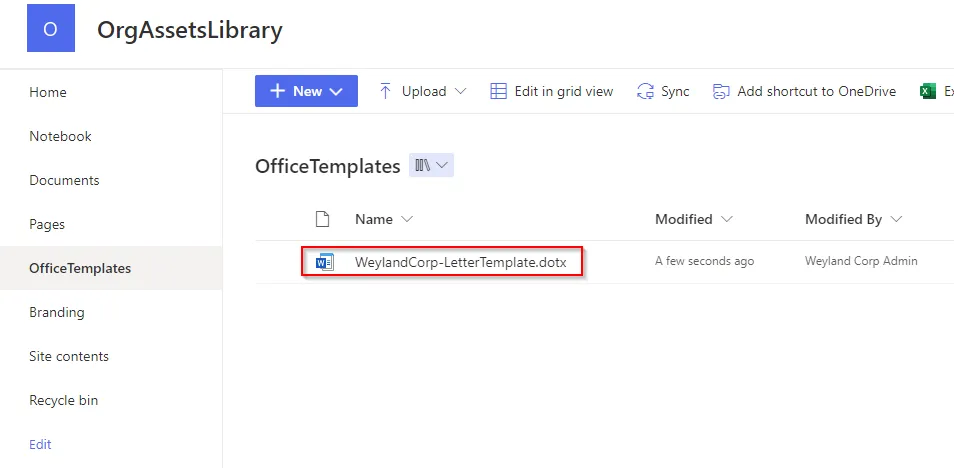
Next I will add the assets to the relevent libraries, keep in mind the office templates must be in .dotx format.
Now you’ll want to download the latest version of SharePoint Online Management Shell here: Download SharePoint Online Management Shell from Official Microsoft Download Center
Once installed go ahead and open as administrator and use the following command to connect to your SharePoint admin centre, keep in mind you’ll need to udpate the URL to match that of your SPO admin centre URL and sign in with an account that has the correct admin permissions, I recommend a global admin for this.
Connect-SPOService -Url https://contoso-admin.sharepoint.comOnce connected you can pipe in the commands that allow you to set the asset library location, choose an image for the asset library (optional) and then you must specify the asset library type, either office template or images.
The example provided by Microsoft is like so.
Add-SPOOrgAssetsLibrary -LibraryURL https://contoso.sharepoint.com/sites/branding/Assets -ThumbnailURL https://contoso.sharepoint.com/sites/branding/Assets/contosologo.jpg -OrgAssetType ImageDocumentLibrarySo in my case this looks like the below.

You will be prompted to enable the CDN for the tenant, go ahead and allow this.
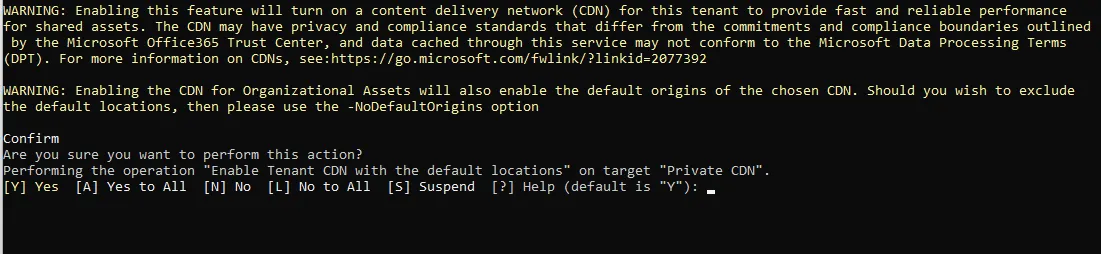
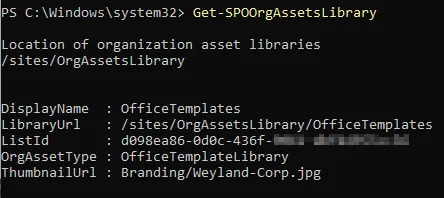
Once done it should tell you that the library was added, you can check this by using the following command.
Get-SPOOrgAssetsLibraryAs you can see it was successfully added for me.
Now I am going to add my image library using the following command, notice I have updated the Document Library URL to the one that includes my branding and also updated the org asset type to ImageDocumentLibrary

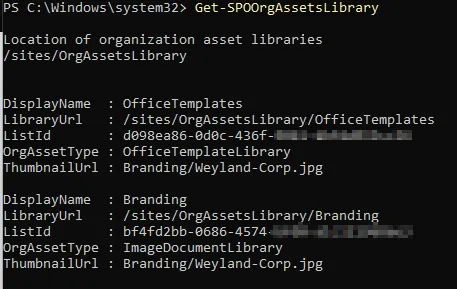
Accept any prompts and check again.
As you can see both org asset types have now been added. Keep in mind you can add up to 30 organisation asset libraries for a single organisation.
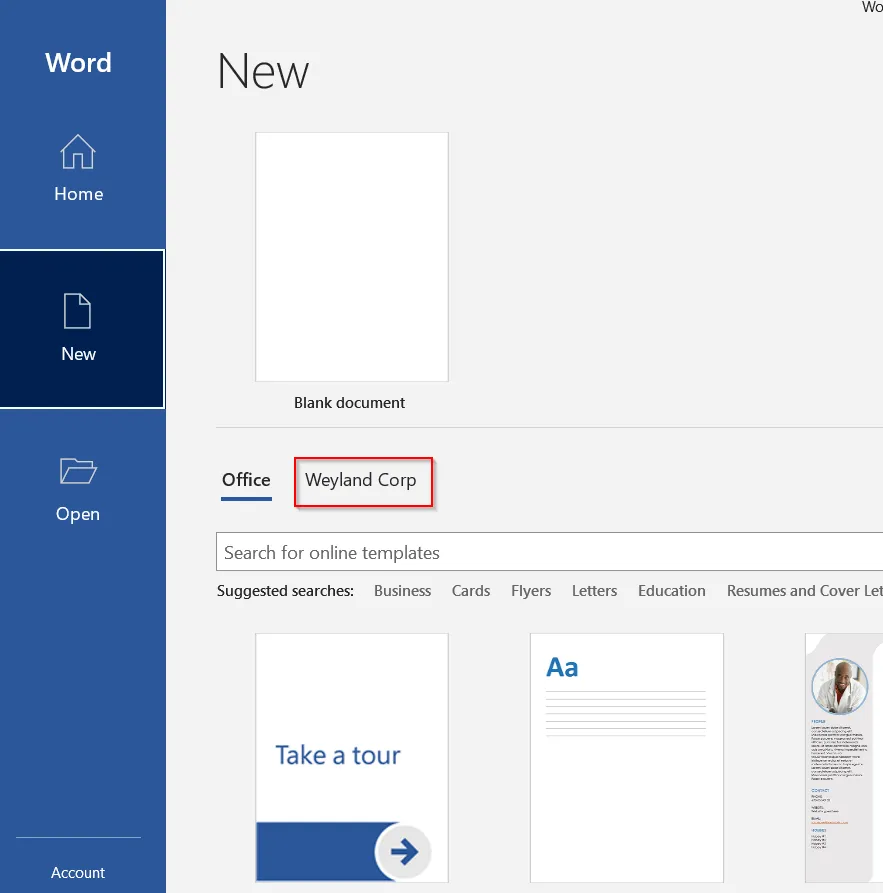
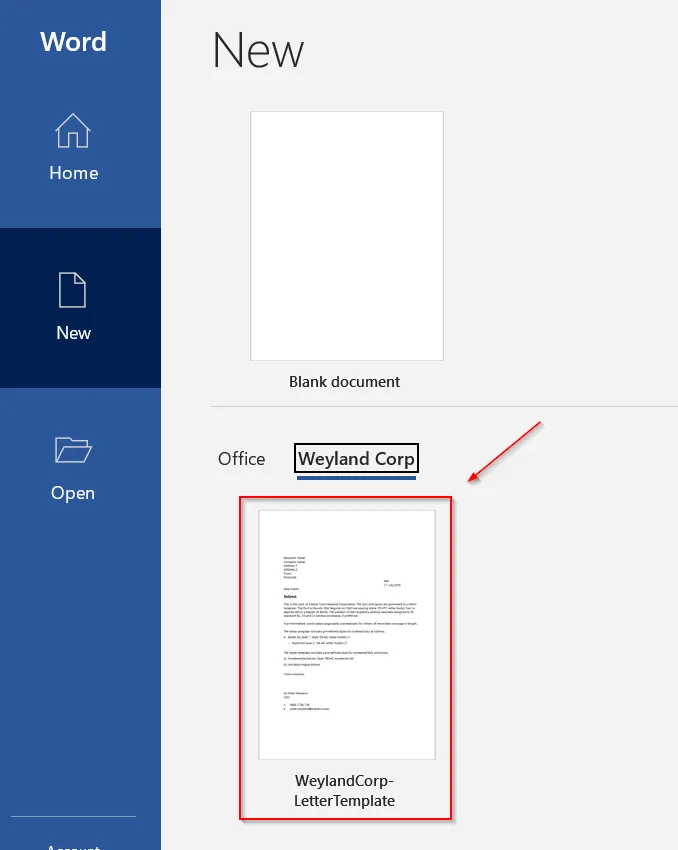
These changes can take up to 24 hours to apply but once they have, end users can now access the office templates directly from office apps such as Word and will also be able to access the images directly in SharePoint Online.
And that’s all there is to it!