I recently found myself in need of deploying Teams into an AVD environment, in a pooled workspace and until I had to, I had no idea about the requirements specific to AVD and to add to this, the session hosts are all Azure AD joined and Intune managed, so I wanted to deploy using Intune. I got lucky and found an old Microsoft Tech Community post (linked below) that had pretty much everything I needed, just some minor tweaks using newer downloads and I was good to go, thought I’d throw it in an article to refer to when needed.
To install Teams on an AVD session host it requires a few things:
- Teams MSI installer (per-machine install)
- Enable Media Optimisation reg keys in place
- Remote Desktop WebRTC Redirector service installed
- Microsoft Visual C++ Redistributable installed
Because the component versions change over time, create a fresh package using the current downloads above.
Create your own intunewin
When you install Teams per-machine using the ALLUSER=1 parameter it disables automatic updates for Teams so having a method to update it easily was super important to our required solution, so we wanted it packaged in a single Win32 (intunewin) app rather than installing as part of the golden image.
The method is simple and perfect for this scenario, start by downloading the required installer from the above links.
If you are familiar with the Win32 Content Prep Tool the below should be a breeze. Get that into a folder, for example C:\Temp\Win32 then create the following folders.
C:\Temp\Source
C:\Temp\Output
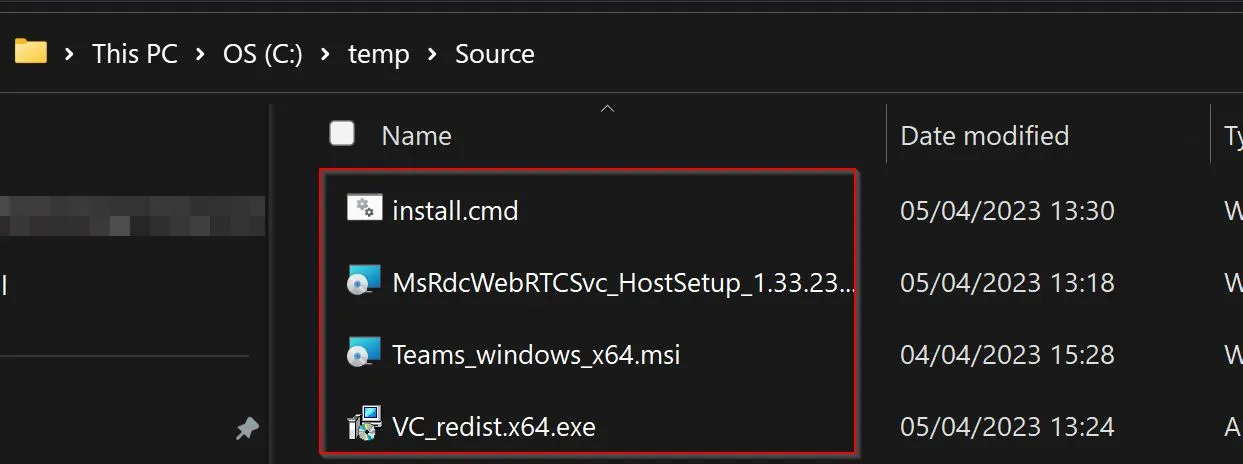
Put the installer files into the Source folder.
Open a notepad file and add the following:
reg.exe add "HKEY_LOCAL_MACHINE\Software\Microsoft\Teams" /v IsWVDEnvironment /t REG_DWORD /d 1 /f /reg:64
TIMEOUT /T 5
msiexec /i MsRdcWebRTCSvc_HostSetup_1.33.2302.07001_x64.msi /qn
TIMEOUT /T 60
VC_redist.x64.exe /quiet /norestart
TIMEOUT /T 180
msiexec /i Teams_windows_x64.msi ALLUSER=1 /qn /norestart
Keep in mind that the version of the WebRTC Redirector will likely change so you’ll have to update that if your download is newer. Save that as install.cmd to the C:\Temp\Source folder.
Open an elevated cmd prompt, fire up the Win32 content prep tool and do the following.
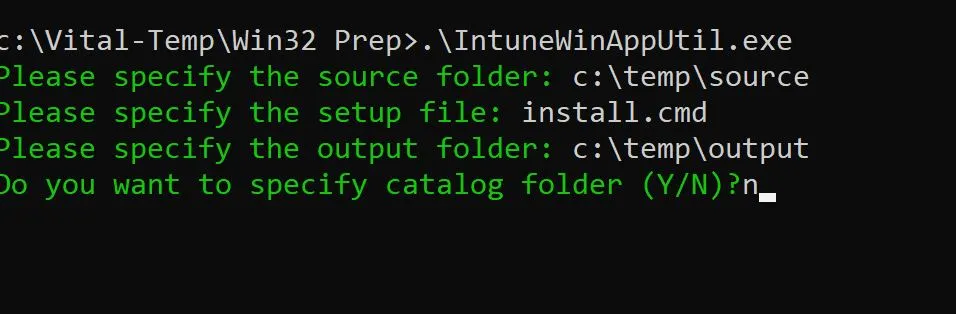
It will take a few seconds but once complete you will have an install.intunewin file in the output folder, go ahead and upload this as a Win32 app in Intune.
Install command: install.cmd
Uninstall command: msiexec /x {731F6BAA-A986-45A4-8936-7C3AAAAA760B}
Choose your architecture (should be 64-bit)
Manual detection rule: MSI
Detection value: {731F6BAA-A986-45A4-8936-7C3AAAAA760B}
Then assign the app to a device group that includes your AVD session hosts.
Installation can take from 10-20 minutes.
Raymond van Garderen, Tech Community: AVD / Windows 365 - Step by Step - How to install Microsoft Teams via Intune/MEM - Microsoft Community Hub
Microsoft Teams for AVD: Use Microsoft Teams on Azure Virtual Desktop - Azure | Microsoft Learn