Admit it, we’ve all fallen foul of that annoying (and scary for some) popup that seems to rear it’s ugly head after you’ve spent the last 2 hours scouring the web for some dodgy website hosted in some dodgy area of the world so you can watch that all important boxing match you’ve been desperate to watch, and if you haven’t then you likely work on a service desk and have seen a user fall victim to it.
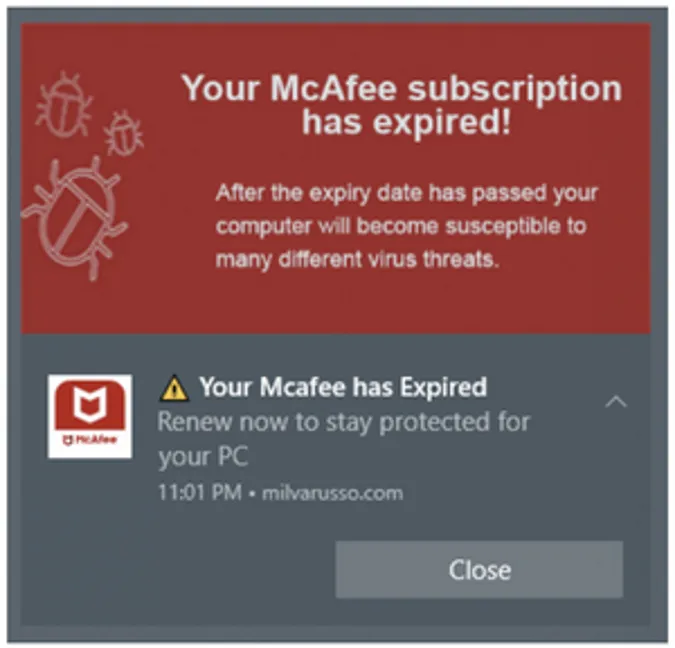
These popups that usually disguise themselves as legitimate anti-virus software notifications are no more than web push notifications, the very same ones like that of Facebook or Twitter, that notify you when someone liked your picture of last nights tea that you spent a good 30 minutes photographing, the only difference is that these ones are designed to scare you and ultimately bait you or your users into clicking a link and either providing personal information or advising them outright that they need to pay a fee to clean their computer or “renew” their anti-virus software.
These notifications only appear if a user has allowed the site to provide notifications, something which they will typically do when hastily searching the web for something they need and not thinking clearly about the consequences of their actions, it’s worth noting that these popups can also appear when browser windows are closed.
But, there is a way to stop this, or at least limit the exposure of your users to this kind of basic attack through Microsoft Endpoint Manager and I recommend you build this into your baselines for your browsers. In this blog post I will go through how to achieve this for Edge and Chrome as the settings are included in the Settings Catalog.
Go ahead and find your browser security baseline profile or create a new one based on the Settings Catalog and search for notification.
The Edge settings will be underneath Microsoft Edge\Content settings in Settings Catalog.
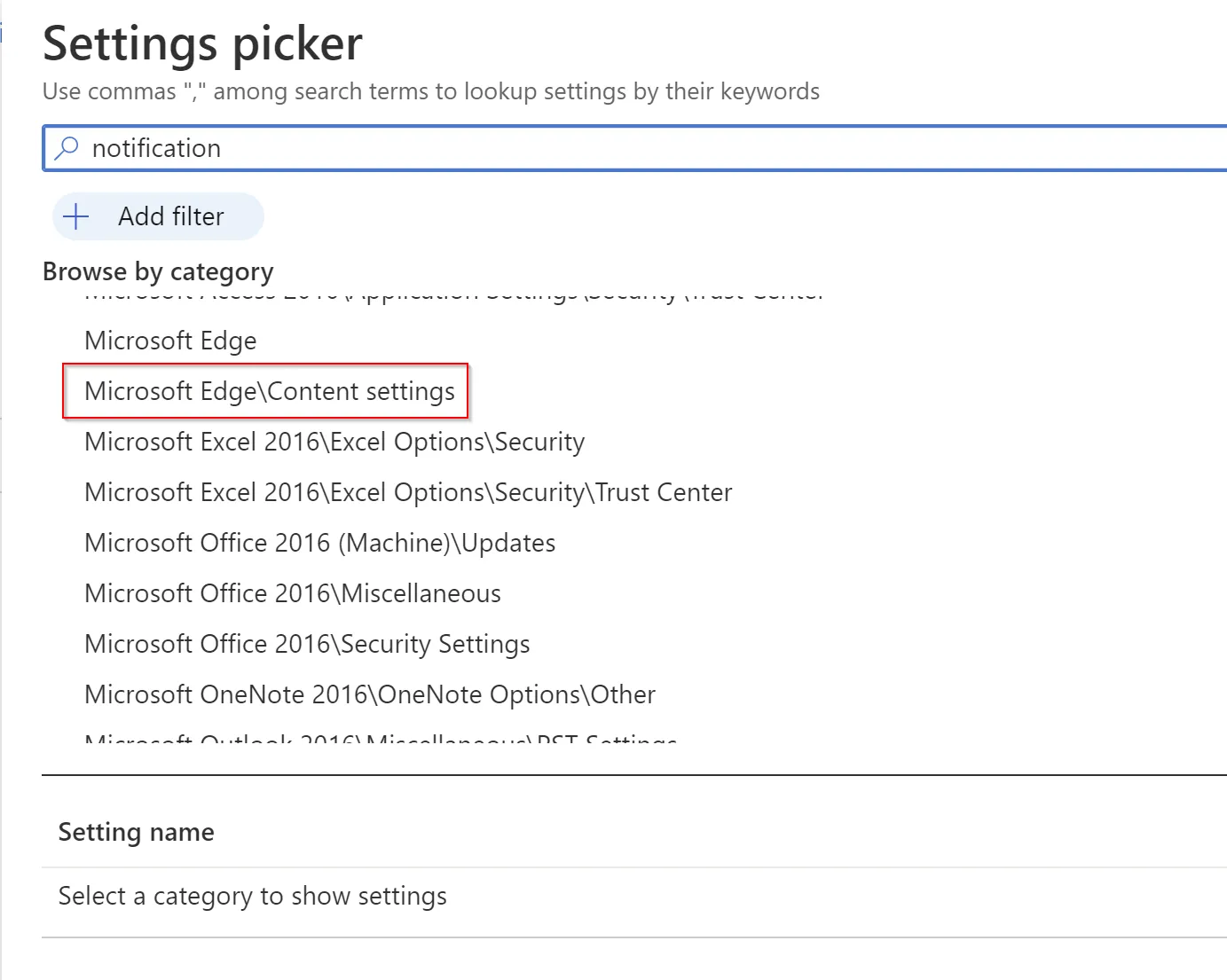
The two settings you want are
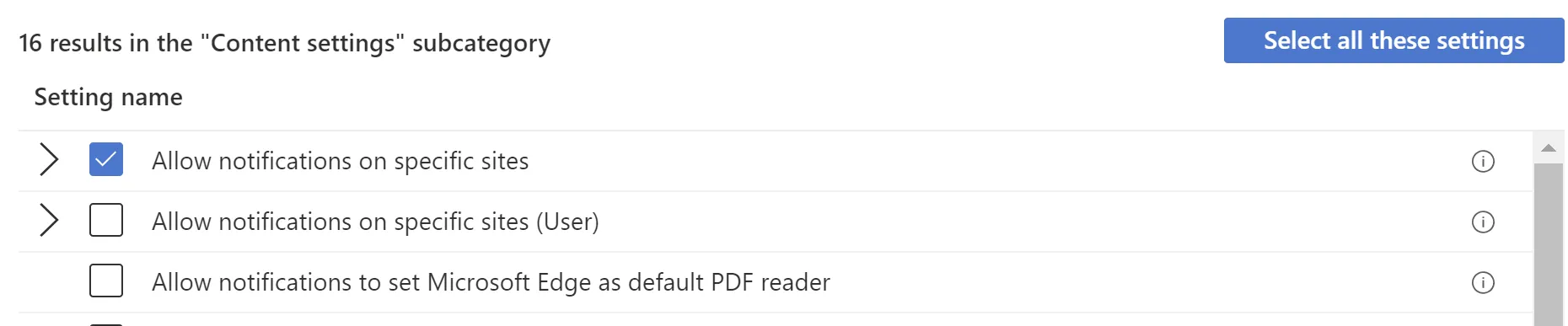

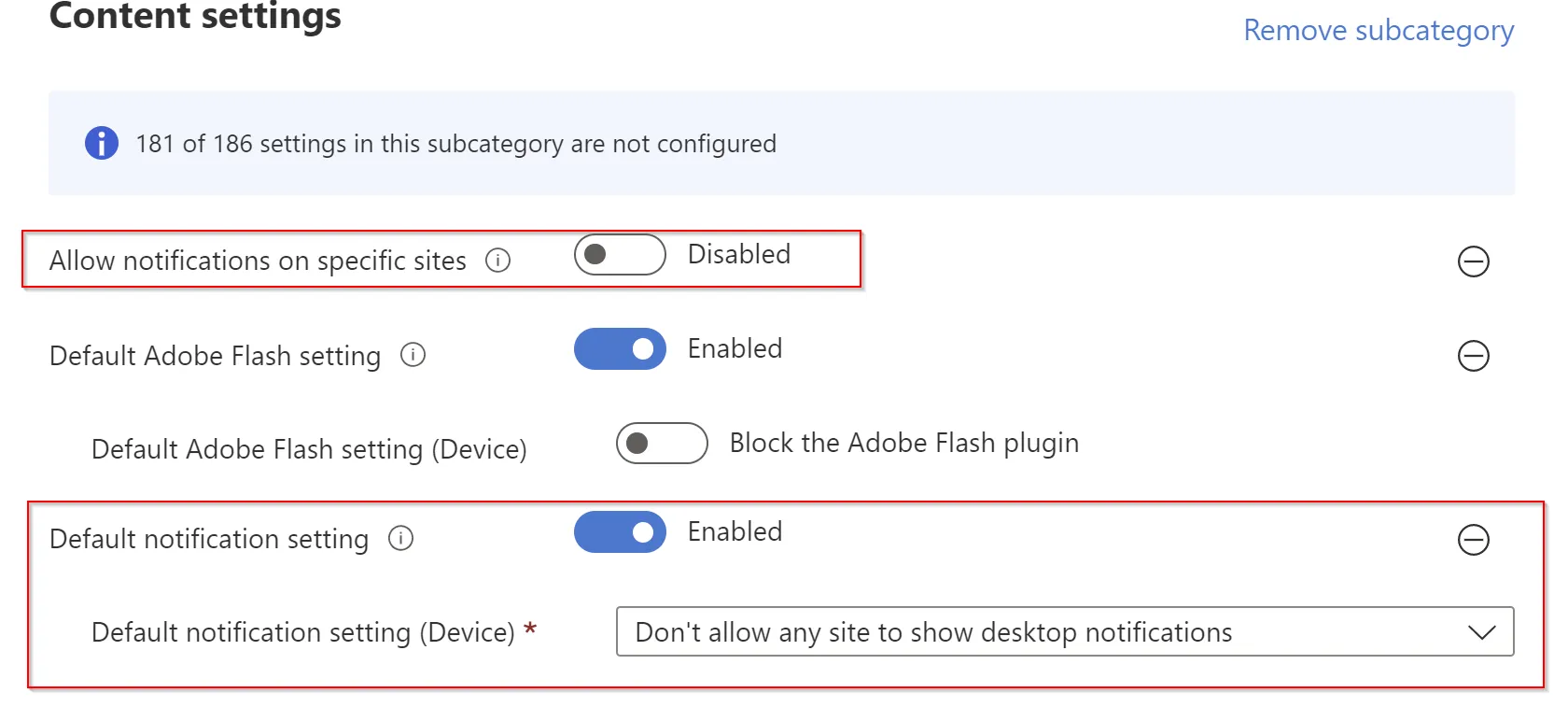
With these two settings you can configure the default settings but easily give yourself the option to whitelist specific sites if needed and I would advise configuring them like so.
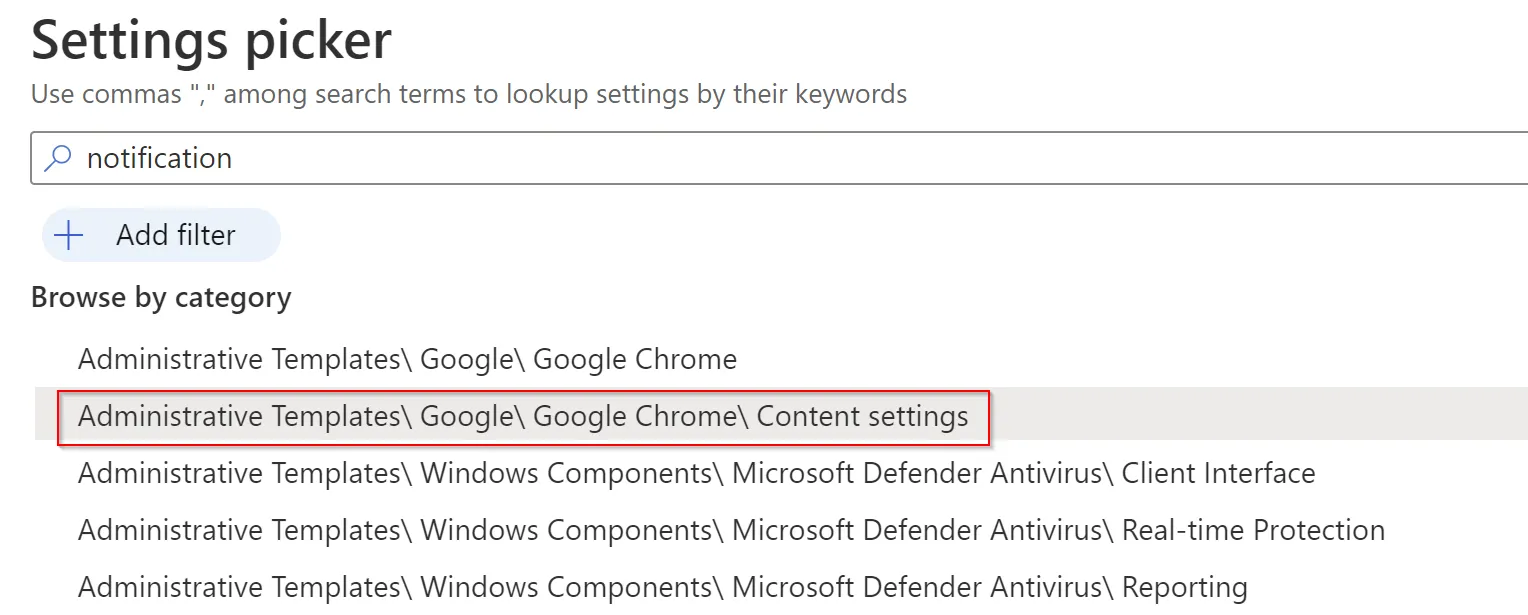
For Google Chrome the settings are in a similar place.
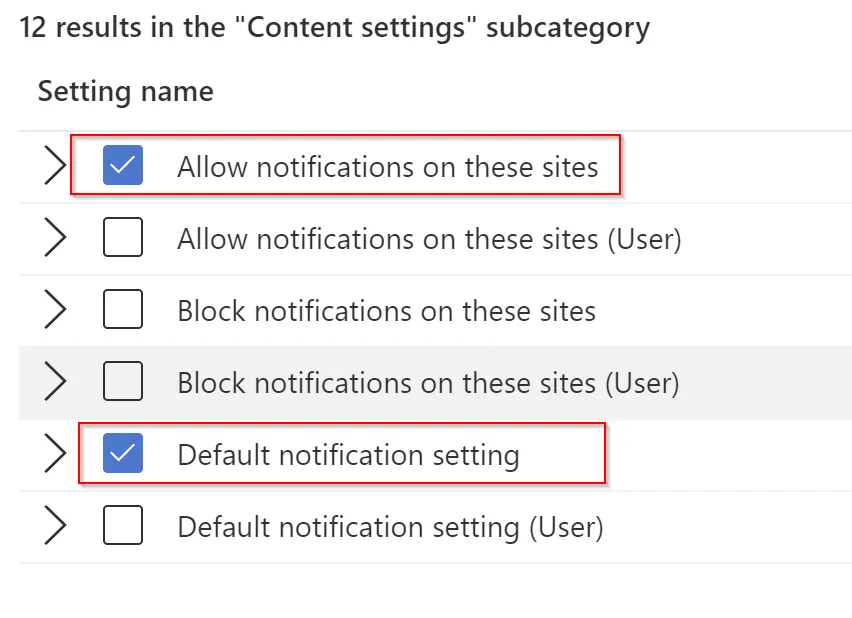
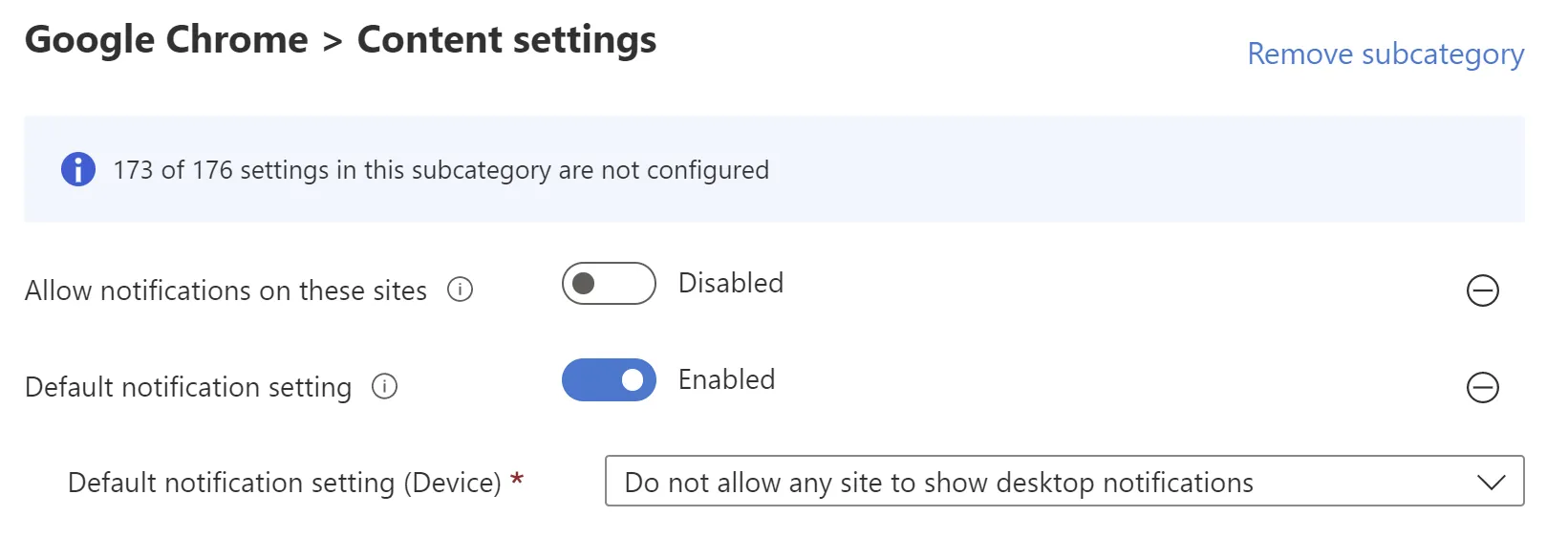
Once pushed down to your devices, users will no longer be able to allow notifications from sites which will help stop these kind of scare tactics towards users.
Just keep in mind that this will stop them from being able to use this functionality for sites so be sure to allow any exceptions for legitimate sites that you allow within the business.